First you need to make sure that Asset intelligent is configured and enabled
Click on Asset and Compliance > Asset Intelligence – Ensure that the following settings are show
1. Asset Intelligence Component : Enabled
2. Asset Intelligence Synchronization point status: Sync Point Deployed


2. Configure Client Settings
Go to Administration > Client Settings –> Right click on Default Client Settings –>properties

select Hardware Inventory and ensure it is turned on.

click on Set Classes…
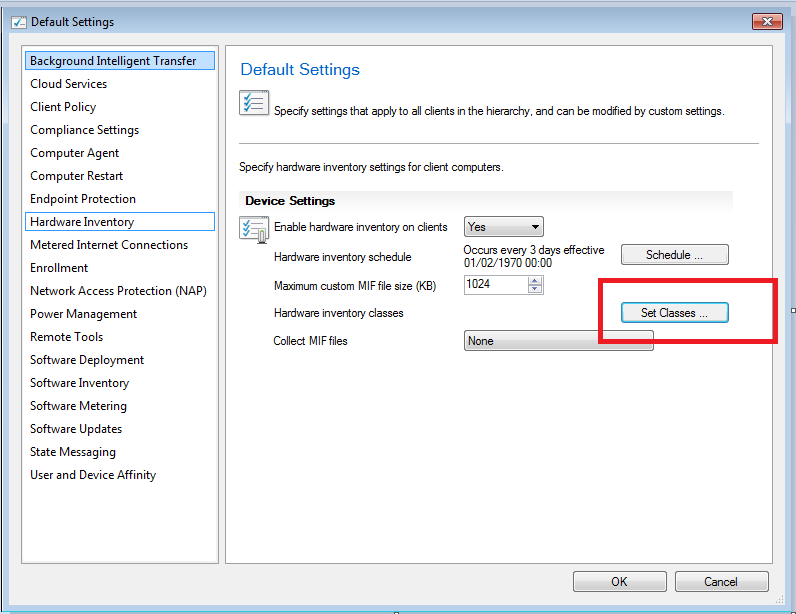
Select Software ShortCut from the list – Asset Intelligence (SMS_SoftwareShortCut) and make sure that everything is checked including File Version
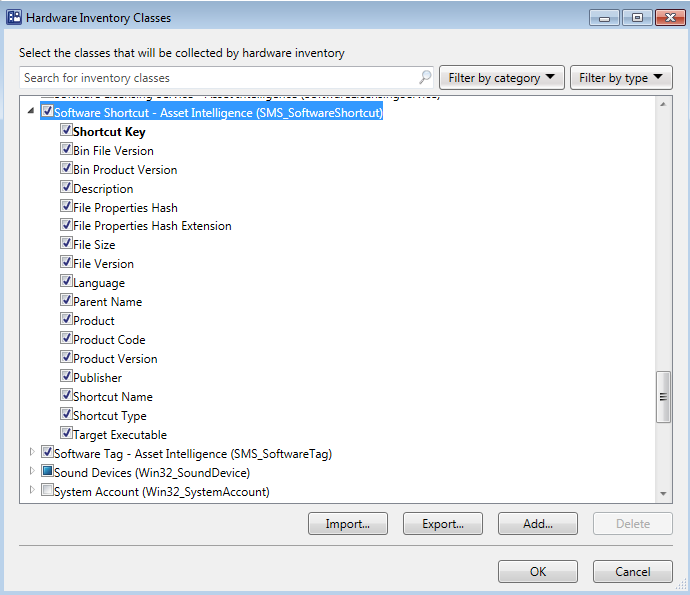
Click on OK.
Now you are ready to create a query:
Open Configuration Manager on your Primary Site Server – > Monitoring > Right click on Query > Select new Query
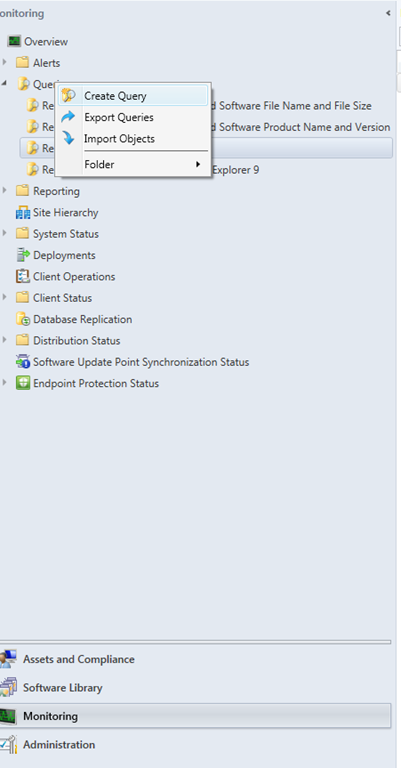
Name : Computers with Internet Explorer
Click on Edit Query Statement
Click on Show Query Language
Copy and Past the following query:
Entire IE inventory in your IE environment
select distinct SMS_R_System.NetbiosName, SMS_G_System_SOFTWARE_SHORTCUT.FileVersion from SMS_R_System inner join SMS_G_System_SOFTWARE_SHORTCUT on SMS_G_System_SOFTWARE_SHORTCUT.ResourceID = SMS_R_System.ResourceId where SMS_G_System_SOFTWARE_SHORTCUT.Description like “%Internet Explorer%”
For Specific Versions:
Internet Explorer 9
select distinct SMS_R_System.NetbiosName, SMS_G_System_SOFTWARE_SHORTCUT.FileVersion from
SMS_R_System inner join SMS_G_System_SOFTWARE_SHORTCUT on SMS_G_System_SOFTWARE_SHORTCUT.ResourceID = SMS_R_System.ResourceId where SMS_G_System_SOFTWARE_SHORTCUT.FileVersion like "%9.00%"
Internet Explorer 10
select distinct SMS_R_System.NetbiosName, SMS_G_System_SOFTWARE_SHORTCUT.FileVersion from
SMS_R_System inner join SMS_G_System_SOFTWARE_SHORTCUT on SMS_G_System_SOFTWARE_SHORTCUT.ResourceID = SMS_R_System.ResourceId where SMS_G_System_SOFTWARE_SHORTCUT.FileVersion like "%10.00%"
Internet Explorer 11
select distinct SMS_R_System.NetbiosName, SMS_G_System_SOFTWARE_SHORTCUT.FileVersion from
SMS_R_System inner join SMS_G_System_SOFTWARE_SHORTCUT on SMS_G_System_SOFTWARE_SHORTCUT.ResourceID = SMS_R_System.ResourceId where SMS_G_System_SOFTWARE_SHORTCUT.FileVersion like "%11.00%"
Good luck 

Sr. Cloud Solution Architect at Microsoft, I’m passionate about helping customers succeed by building secure, scalable, and innovative cloud solutions – with a strong focus on AI, DevOps practices, and end-to-end security. With a proven track record in the IT and services industry, I serve as a trusted advisor, partnering closely with organizations to guide them through digital transformation and maximize the value of their cloud investments. My role combines technical leadership with project ownership – from designing modern architectures to leading cross-functional implementations that drive real business outcomes. I also manage and empower strategic partners, working hand-in-hand with them to ensure project success and deliver measurable business impact for customers.