
First lets go over the correct steps to renew the Certificate
Step1: Check the current signing certificates:
- Open ADFS PowerShell command window, and run the following command:
Get-ADFSCertificate –CertificateType token-signing
- If you only see one certificate, and the NotAfter date is within 5 days, you need to generate a new certificate.
Srep:2 Renew the token signing certificate manually:
- To generate a new certificate, execute the following command
Update-ADFSCertificate –CertificateType token-signing
- Verify the update by running the following command again:
Get-ADFSCertificate –CertificateType token-signing
Step 3: Update the new token signing certificates for the Office 365 trust
- Run:
Connect-MsolService
- Enter the Office 365 Global Admin credentials
- Run:
Update-MSOLFederatedDomain –DomainName “Domain.com”
STEP 4:Check if the certificate is updated correctly
- Open ADFS PowerShell command window, and run the following command:
Get-AdfsSslCertificate
- Look at the value: CertifiacteHash
- Check that the CertifiacteHash is the same as the thumbprint of the new certificate and not the old one
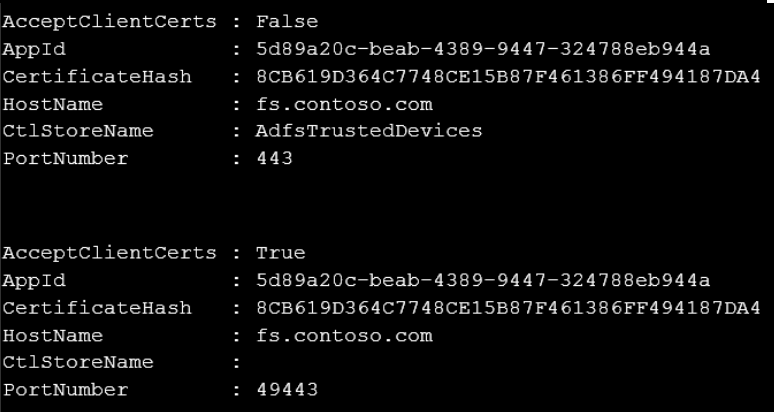
- If the thumbprint is not the same or you see only one cert and not two run the following:
Set-AdfsSslCertificate -thumbprint “the new thumbprint”

- Run:
Get-AdfsSslCertificate
Check that the CertifiacteHash is correct.
Go over step 3 again (Update-MSOLFederatedDomain –DomainName “Domain.com”)
Good luck 

Sr. Cloud Solution Architect at Microsoft, I’m passionate about helping customers succeed by building secure, scalable, and innovative cloud solutions – with a strong focus on AI, DevOps practices, and end-to-end security. With a proven track record in the IT and services industry, I serve as a trusted advisor, partnering closely with organizations to guide them through digital transformation and maximize the value of their cloud investments. My role combines technical leadership with project ownership – from designing modern architectures to leading cross-functional implementations that drive real business outcomes. I also manage and empower strategic partners, working hand-in-hand with them to ensure project success and deliver measurable business impact for customers.


