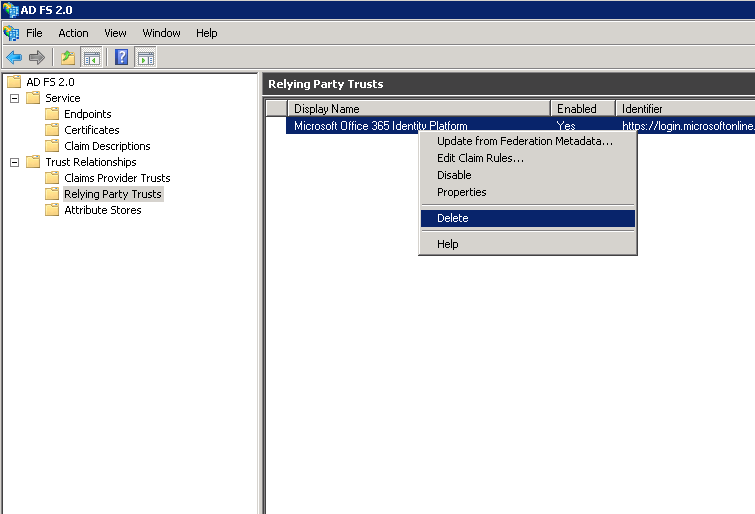
When you try to add a sub domain to office365 via the Office365 portal , you get this error:
Can’t add domain
“Sub.Mydomain.com is a subdomain of a domain which was added by using the Microsoft Online Services Module for Windows PowerShell.
You must also use this tool to add Sub.Mydomain.com to Microsoft Online Services.”

Two thing you need to do in order to add a subdomain
1. add the domain using the Windows Azure Active Directory PowerShell
2. Do it on your ADFS server or you will get this message :
“Failed to connect to Active Directory Federation Services 2.0 on the local machine”
Add a sub domain using Azure Active Directory PowerShell:
- Connect to Windows Azure Active Directory (Windows Azure AD) by using Windows PowerShell on your ADFS server
- Type: Connect-MsolService
- Enter your Office365 administrator credentials

- Type: New-MsolFederatedDomain –DomainName “Your sub domain”
Once the command will issued you receive this message “Successfully added ” Your sub domain”
Good luck 

Sr. Cloud Solution Architect at Microsoft, I’m passionate about helping customers succeed by building secure, scalable, and innovative cloud solutions – with a strong focus on AI, DevOps practices, and end-to-end security. With a proven track record in the IT and services industry, I serve as a trusted advisor, partnering closely with organizations to guide them through digital transformation and maximize the value of their cloud investments. My role combines technical leadership with project ownership – from designing modern architectures to leading cross-functional implementations that drive real business outcomes. I also manage and empower strategic partners, working hand-in-hand with them to ensure project success and deliver measurable business impact for customers.