Category Archives: Office365

Set up Microsoft Teams in your Office 365 organization

By default, Teams is turned on for all organizations.Teams has multiple settings that can be turned on or turned off at the Office 365 tenant level.  As an administrator for your organization, you can assign user licenses to control individual access to Teams, and you can allow or block what content sources can be used in Teams.

*Note – After Teams is disabled, access from the Teams client is blocked, but data available through other clients and services is still available, such as files via SharePoint and OneDrive. All data remains in place unless the teams are explicitly deleted.

Microsoft Teams features in your Office 365 organization Overview

Enable/Disable Teams for the your entire organization

Sign in to the Office 365 Admin center with an account that has Global Administrator privileges.

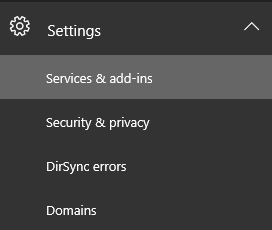
  1. Go to Settings > Services & add-ins.

    Screenshot of the Settings section in the Office 365 admin center with Services & add-ins selected.

  2. On the Services & add-ins page, click Microsoft Teams.
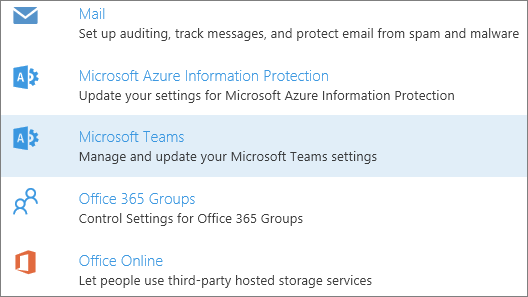
    Screenshot of the Services & add-ins page with Microsoft Teams selected.

  3. To turn on Teams for the organization use the license picker and select each license then set the toggle to On and then click Save.
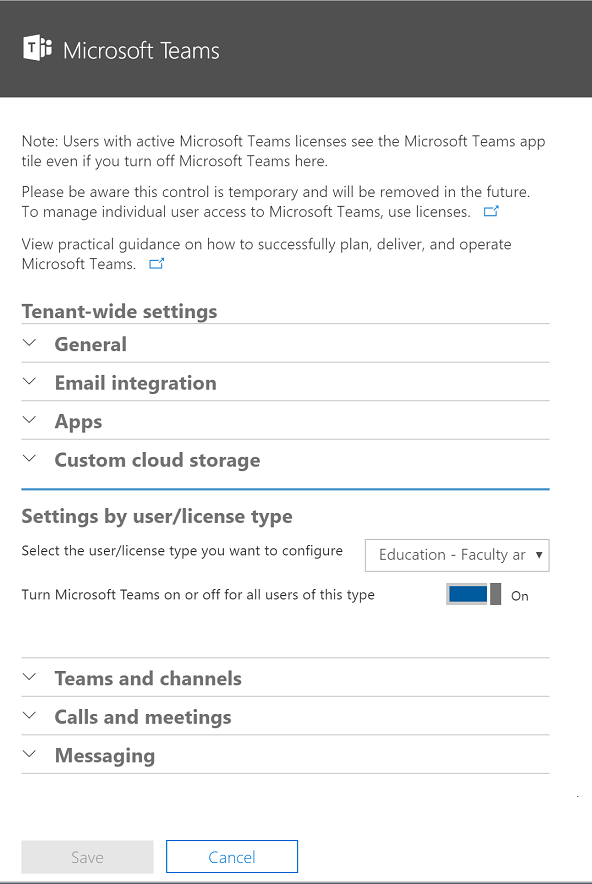
    Screenshot of the Microsoft Teams settings page showing the toggle set to On to enable Microsoft Teams.

Features  Overview:

General

The General section lets you configure the following settings for your organization:
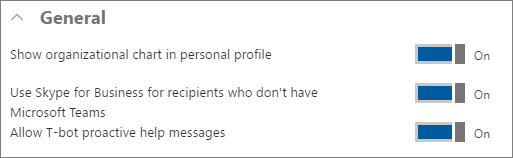
Screenshot of the General section in Tenant-wide settings.

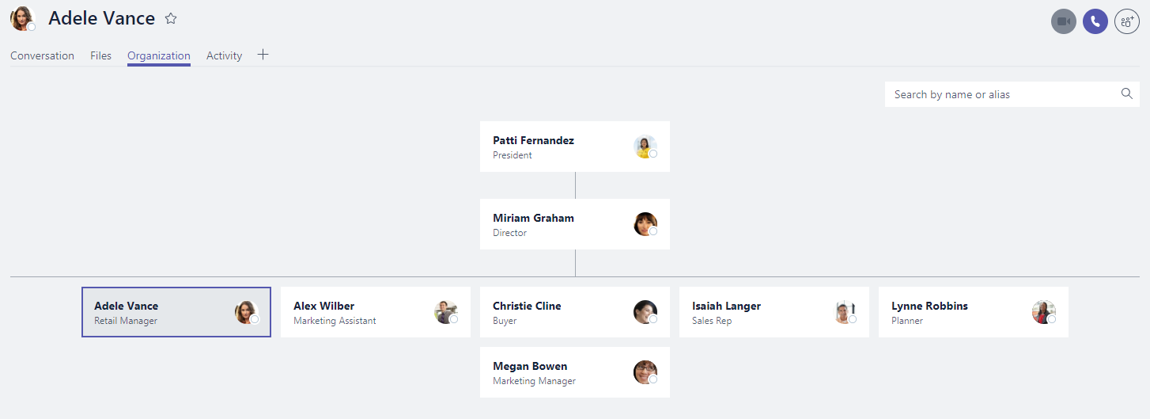
  • Show organizational chart in personal profile: When this setting is enabled, it shows the organizational chart icon in the user’s contact card and when clicked, it displays the detailed organizational chart.
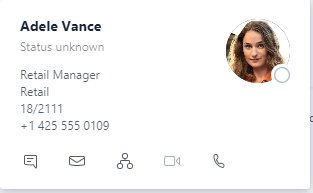
    Screenshot of the organizational chart icon in a user's contact card.

    Screenshot of an organization chart.

  • Use Skype for Business for recipients who don’t have Teams: When this setting is enabled, it allows Teams users to contact other users in the organization that are not enabled for Teams via Skype for Business.

  • Allow T-bot proactive help messages: When this setting is enabled, T-bot will initiate a private chat session with users to guide them in using Teams.
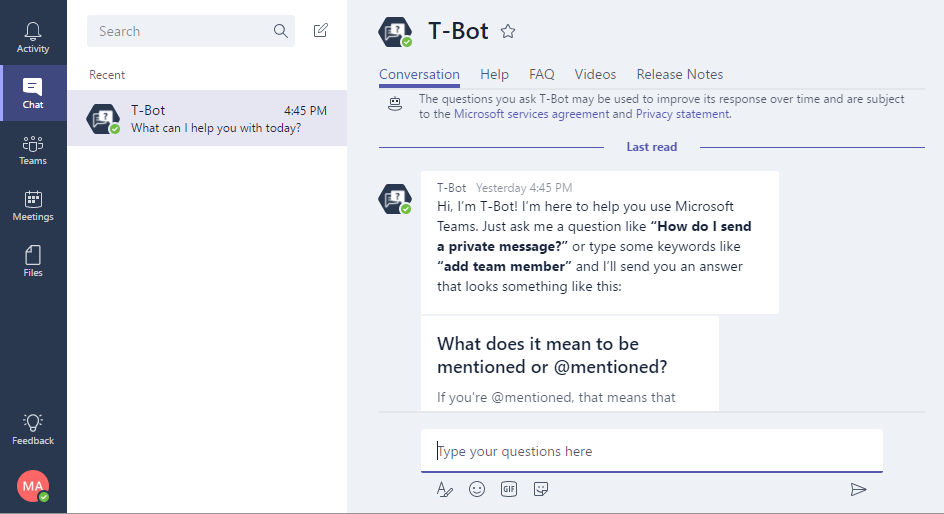
    Screenshot of T-Bot section in Teams interface.

Email integration

Turn on this feature so users can send email to a channel in Teams, using the channel email address. Users can do this for any channel belonging to a team they own. Users can also send emails to any channel in a team that has adding connectors enabled for team members. And, even if a user doesn’t have permission to create a channel email address, if someone who does have permission creates that address, the user can access it from the <more icon> menu for that channel.

The Email integration section lets you configure the following settings for your organization:
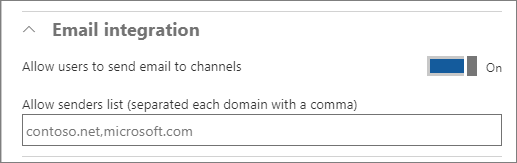
Screenshot of the Email integration section in Tenant-wide settings.

  • Allow users to send emails to channels: When enabled, mail hooks are enabled, and users can post messages to a channel by sending an email to the email address of Teams channel.

To find the channel’s e-mail address, click More options next to the channel name and then select Get email address.

  • Restricted Senders List: Senders domains can be further restricted to ensure that only allowed SMTP domains can send emails to the Teams channels.

Apps

Apps in Teams are a terrific way to integrate the tools and services your team cares about, right into any channel or chat.

The Apps section lets you configure the following settings for your organization:
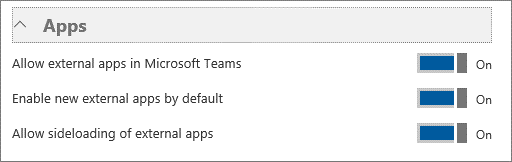
Screenshot of the Apps section.

  • Allow external apps in Microsoft Teams: When enabled, users can add tabs and bots that are available to the Office 365 tenant. Screenshot of the Allow external apps control in the Apps section.
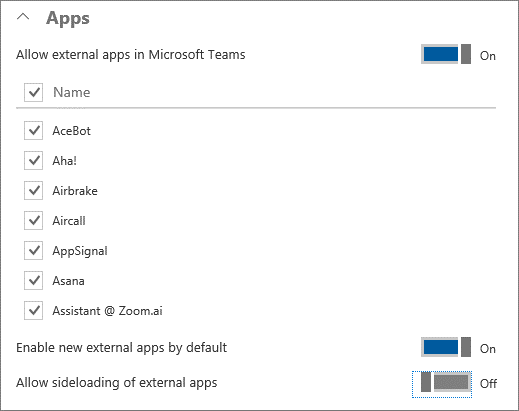
  • Allow sideloading of external apps: When enabled, users can install and enable custom bots and tabs.

Custom cloud storage

Cloud storage options in Teams currently include Box, Dropbox, Google Drive, and ShareFile. Users can upload and share files from cloud storage services in Teams channels and chats. Click or tap the toggle switch next to the cloud storage providers that your organization wants to use.
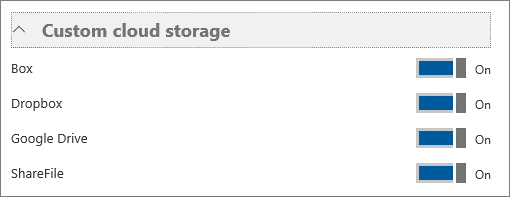
Screenshot of the Custom cloud storage section.

User settings by license

In User settings by license, you can turn on or turn off options in Teams and channels, Calls and meetings, and Messaging.

Teams and channels

As an admin, you can manage team owners and members by using the Groups dashboard in the Office 365 admin center portal. In the Teams and channels section, click the link for Use the Groups dashboard in the Office 365 admin center to manage teams.

You can control which users in your organization can create teams in Teams. .

By default, every user can create a team or group. Choose Teams on the left side in the Teams client (desktop client or web app), then choose Create and join team at the bottom of the client, below the team list.

The default maximum number of teams that an Office 365 tenant can have is currently 500,000. A global admin can create an unlimited number of teams. A user can create 250 teams. A team owner can add 2500 members to a team.
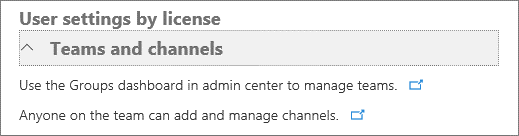
Screenshot of the User settings by license section.

Channels are subcategories of teams. Anyone on the team can add a channel and participate in the conversations in a channel. You might create a channel for an activity or for a department. Conversations, files, and wikis are specific to each channel, but all members of the team can see them.

Calls and meetings

The Calls and meetings section lets you configure the following settings for your organization:
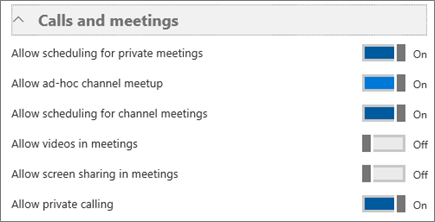
Screenshot of the Calls and meetings section.

  • Allow scheduling for private meetings: When enabled, users can schedule private meetings that are not listed in any channel.

  • Allow ad-hoc channel meetup:

  • Allow scheduling for channel meetings: When enabled, users can schedule a meeting for a channel that all channel members can easily join with a single click.

  • Allow videos in meetings: Specifies whether the use of video is allowed within the meetings.

  • Allow screen sharing in meetings: Specifies whether screen sharing is allowed within the meetings.

  • Allow private calling: When enabled, users can make private calls.

The maximum number of people in a meeting is 80. There can be 20 members in a private chat, including the user who created the chat.

Messaging

The Messaging section lets you configure the following settings for your organization:
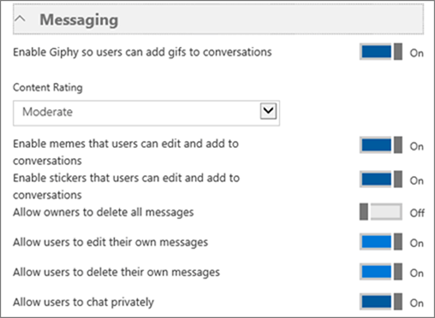
Screenshot of the Messaging section.

  • Enable Giphy so users can add gifs to conversations: When enabled, users can use animated pictures within the conversations.

    • Content Rating: When animated images are turned on, content rating can be applied to restrict the type of animated images that can be displayed in conversations. Available content rating options are:

      • No restriction

      • Moderate (the default value)

      • Strict

  • Enable memes that users can edit and add to conversations: When enabled, users can use internet memes to make humorous posts.

  • Enable stickers that users can edit and add to conversations: When enabled, users can post images with editable text to get channel members attention.

  • Allow owners to delete all messages: When enabled, channel owners can remove all messages in a channel.

  • Allow users to edit their own messages: When enabled, users can edit their own messages.

  • Allow users to delete their own messages: When enabled, users can delete their own messages.

  • Allow users to chat privately: When enabled, users can engage in private chats that are visible only to the people in the chat, instead of everyone on the team.

What is Microsoft Teams


Overview:

Microsoft Teams is a chat-based collaboration tool that provides global, remote, and dispersed teams with the ability to work together and share information via a common space.

Teams   provides a true chat-based hub for teamwork and give customers the opportunity to create a more open, fluid, and digital environment.

A team is designed to bring together a group of people who work closely to get things done. Teams can be dynamic for project-based work (for example, launching a product or creating a digital war room). Or, teams can be ongoing, to reflect the internal structure of your organization.

A team created in Teams will create an Office 365 Group, a SharePoint Online site  and an Exchange Online group mailbox.

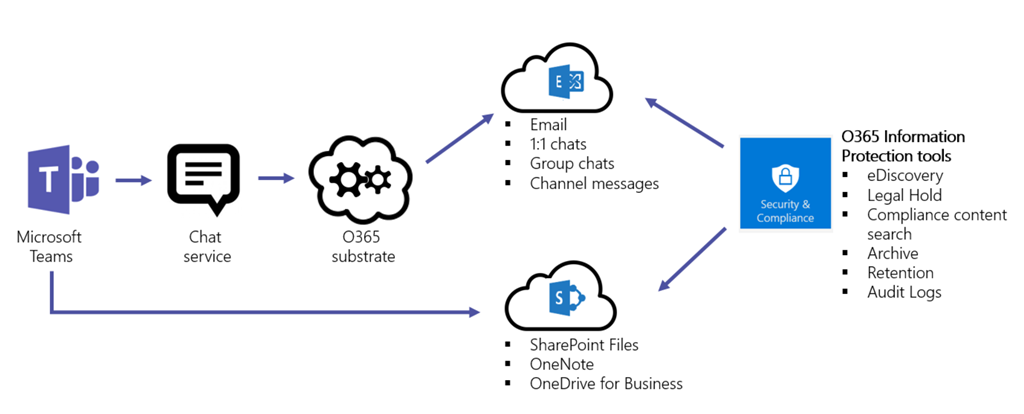
overview_of_security_and_compliance_in_microsoft_teams_image1

Teams also provides a calling and meetings experience that is built on the next generation cloud-based infrastructure that is also used by Skype and Skype for Business.

common use cases for each application in Office 365.

Microsoft Teams icon.

  • Leveraged by users and teams who are looking to collaborate in real-time with the same group of people.
  • Helps teams looking to iterate quickly on a project while sharing files and collaborating on shared deliverables.
  • Allows Users looking to connect a wide range of tools into their workspace (such as Planner, Power BI, GitHub, etc.).

Microsoft Outlook icon.

  • Leveraged by users who prefer to collaborate in the familiar environment of email and/or a more formal, structured manner.
  • Provides specific business processes that require email usage to transmit documents and information inside and outside corporate boundaries.
  • Communicates and connects with users who are outside of immediate workgroups or organizations.

Yammer icon.

  • Leveraged to help connect users across the organization to organize around communities of practice and share best practices.
  • Improves cross-functional workflows through an open and transparent feed-based platform
  • Fosters executive-employee engagement with two-way conversations between leadership and the wider employee base
  • Ignites your frontline workforce to share and receive knowledge and expertise

Skype for Business icon.

  • Leveraged for real-time communication and collaboration both internally and externally with customers/partners.
  • Provides meetings with audio, video and content with small or large teams (including Town Halls with up to 10,000 participants).
  • Offers enterprise telephony functionality.

Microsoft SharePoint icon.

  • Leveraged for sites and portals (e.g. company news & announcements, search, and document collaboration).
  • Implements business process automation on document libraries and lists of information by integrating Microsoft Flow and PowerApps.
  • Full-powered SharePoint team site automatically provisioned for every Microsoft Team for file storage, team news, pages, lists and more.

Location of data in Microsoft Teams

 Data in Teams resides in the region based on tenant affinity. Currently, Teams supports the Americas, EMEA, and APAC regions.

* As of November 1, 2017, Teams offers data residency in the United Kingdom for new tenants only. A new tenant is defined as any tenant that hasn’t had a single user from the tenant sign in to Microsoft Teams.

Security and compliance

Microsoft Teams delivering  advanced security and compliance capabilitie such as:File encryption.Auditing and Reporting,Compliance Content Search,eDiscovery,Legal Hold,two-factor authentication, single sign-on through Active Directory, and encryption of data in transit and at rest.

Teams is Tier C-compliant at launch. This includes the following standards: ISO 27001, ISO 27018, SSAE16 SOC 1 and SOC 2, HIPAA, and EU Model Clauses (EUMC)

More Details: Overview of security and compliance in Microsoft Teams

licensing for Microsoft Teams

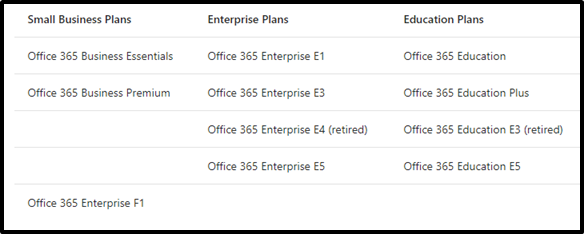
The following Office 365 subscriptions enable users for Teams:

image

By default, the Teams license is enabled for all users with eligible Office 365 subscriptions.

more details about licensing for Microsoft Teams

Turn Teams on or off for your entire organization

By default, Teams is turned on for all organizations.

As an administrator for your organization, you can assign user licenses to control individual access to Teams, and you can allow or block what content sources can be used in Teams.

Sign in to the Office 365 Admin center with an account that has Global Administrator privileges.

  1. Go to Settings > Services & add-ins.

    Screenshot of the Settings section in the Office 365 admin center with Services & add-ins selected.

  2. On the Services & add-ins page, click Microsoft Teams.

    Screenshot of the Services & add-ins page with Microsoft Teams selected.

  3. To turn on Teams for the organization use the license picker and select each license then set the toggle to On and then click Save.

    Screenshot of the Microsoft Teams settings page showing the toggle set to On to enable Microsoft Teams.


More Details about Teams:

Visit the Teams product roadmap to stay on top of what’s coming next in Teams and decide the best time for your organization to move to Teams.


Related Posts:

https://www.itblog.co.il/microsoft-teams/

Office 365 Teams – Audio Conferencing and Calling Plans

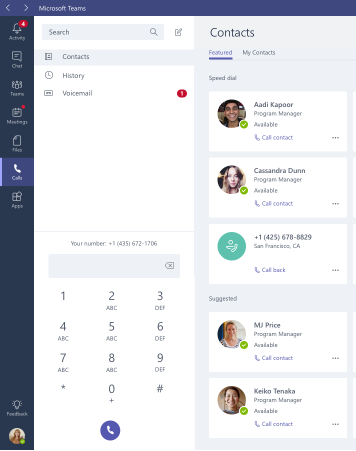
Microsoft Teams,  now provides Audio Conferencing and Phone System with Calling Plans capabilities to meet additional business requirements by extending the Teams meeting and calling experience to include external parties connected via the Public Switched Telephone Network (PSTN).

The new calling capabilities providing call history, hold/resume, speed dial, transfer, forwarding, caller ID masking, extension dialing, multi-call handling, simultaneous ringing, voicemail, and text telephone (TTY) support.

Audio Conferencing

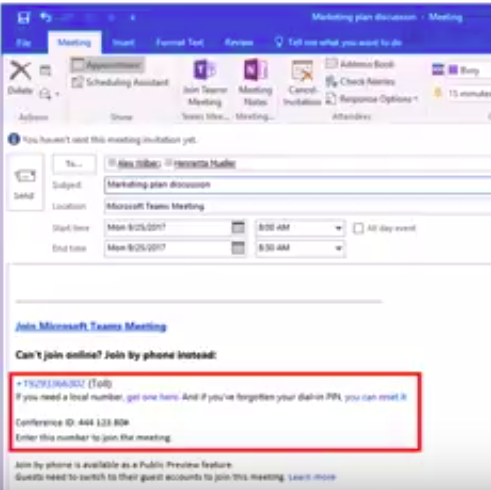
Audio Conferencing in Office 365 allows participants to join your Teams meetings from any telephone.

Licensing for Audio Conferencing

Audio Conferencing license is available as part of Office 365 E5 subscription plans, or as an add-on to Office 365 E1 or Office 365 E3 subscription plans.

Note -If you already use Skype for Business Online PSTN Conferencing today, you can immediately take advantage of Audio Conferencing in Teams.

To schedule meeting using outlook you can use the Teams meetings addin for outlook

image

More details: Set up Audio Conferencing for Skype for Business and Microsoft Teams

Calling Plans

Calling Plans is an Office 365 feature powered by Skype for Business

You can now use Teams to make and receive phone calls to or from land lines and mobile phones via PSTN

Note: Before you begin you need to Find out if Calling Plans  is available in your country/region. Country and region availability for Audio Conferencing and Calling Plans

To enable the Calls tab in Teams and allow your users to make and receive PSTN calls,the first thing you need is Phone System (formerly Cloud PBX), which is included with Office 365 E5 and available as an add-on to other Office 365 plans. From there, you can subscribe to a Calling Plan (formerly known as PSTN Calling) for any number of users in your organization. you will need provision users for Phone System and Calling Plans. To learn how to set this up, read Set up Calling Plans.

calling_in_teams

How To enable Teams to begin receiving calls

To enable Teams to begin receiving calls, you’ll need to update Teams interop policy, using a remote Windows PowerShell session with the Skype for Business

*-CsTeamsInteropPolicycmdlets, to redirect calls to Teams. For more information about Teams interop policy, see Microsoft Teams and Skype for Business Interoperability.

How to configure Teams to use the default policy

Grant-CsTeamsInteropPolicy -PolicyName Global -Identity user@domain.com

How to configure Teams to receive PSTN calls

Grant-CsTeamsInteropPolicy -PolicyName tag:DisallowOverrideCallingTeamsChatTeams -Identity user@contoso.com

Note -Users that have been provisioned with Phone System and Calling Plans licenses for use with Skype for Business Online, and configured with the default global Teams interop policy, will have the Calls tab enabled in Teams and can place outbound PSTN calls from Teams without administrators having to take any administrative action.


More details: Configuring Calling Plans in Microsoft Teams


Related Posts:

Teams & Flow– Send the team RSS Feed

Teams Powershell – Create new Team and add users from CSV

Teams & Flow– Send the team RSS Feed

Microsoft Flow is a cloud-based software tool that allows employees to create and automate workflows across multiple applications and services without the need for developer help.
With Microsoft Flow, you can quickly and easily build custom automations  without needing to write a single line of code.

Microsoft Teams connector for Flow enables you to alert your team of any new activity by posting messages to an existing Teams channel.

Using the Teams connector in Flow, you can create workflows to automate complex processes while keeping your team in the loop about what’s happening.

A very cool and useful connector is “RSS feed news to Teams”
I use it as a KB to my IT team for professional sites like Microsoft TechNet,Blogs and more..

In this post I will demonstrates how to create the flow –  “RSS feed news to Teams”:

1. First you need to connect to FLOW – you can connect from Office365 portal and select from My apps page “Flow”

image_thumb36

Or you can go directly to Flow website –https://flow.microsoft.com and enter your Office365 Credentials

2.  Click on – “Create from Template”

image

2. Type “Teams” in the search pane

image

3. Select “RSS feed news to Teams “

image

4. There are two connection in this flow , RSS ans Teams , In my case it connects automatically with my Office365 credentials to both, Once connected, Press on continue image

5. Type the following (this is the default settings you can change it according to your needs)

I created a team for “Teams updates” and the RSS feed is for the Microsoft Teams blog  – When a new feed item appears it will notify my team about it.

RSS feed URL  – Add The RSS URL

Team id – Choose a team from the list

Chanel ID – General

Message – Write the message according to your needs.

image

6. Click on Save flow

7. If you finished you can click on “Done

image

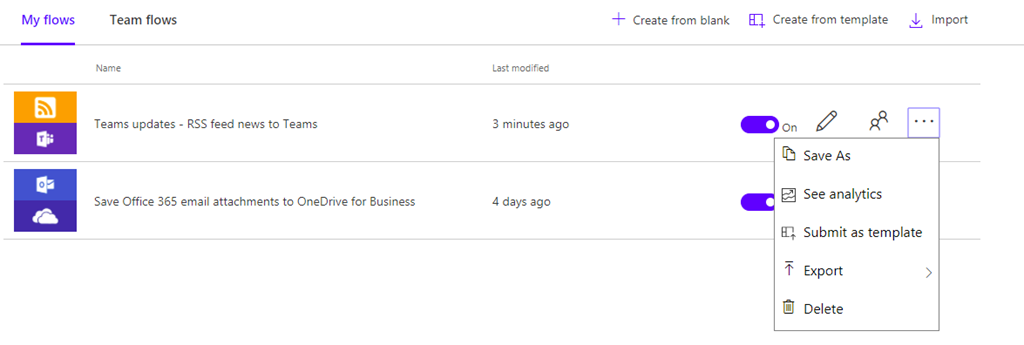
Once done the new flow will show up in “My flows” from there you can edit,delete,export and see analytics about the flow. 

image


Another way  to add RSS to Teams is by using RSS connector as shown in this blog – https://community.spiceworks.com/how_to/139770-how-to-set-up-an-rss-feed-in-microsoft-teams


Good Luck Smile

Teams Powershell – Create new Team and add users from CSV

לאחרונה מיקרוסופט הוציאה תמיכה  של פקודות המותאמות   ל-Teams דבר המאפשר  לאנשי ה-IT

לבצע פעולות יומיומיות פשוטות ביעילות על ידי שימוש באוטומציה.

בעזרת הפקודות נוכל לבצע פעולות כמו:

  • יצירת צוותים חדשים
  • ערוצים חדשים בקבוצה
  • הוספת  והסרה מספר רב של חברים
  • הגדרת הרשאות

ועוד..

רשימת הפקודות המלאה:


 התקנת ה-Module מתבצעת על ידי הרצת הפקודה:

    install-module MicrosoftTteams 

3

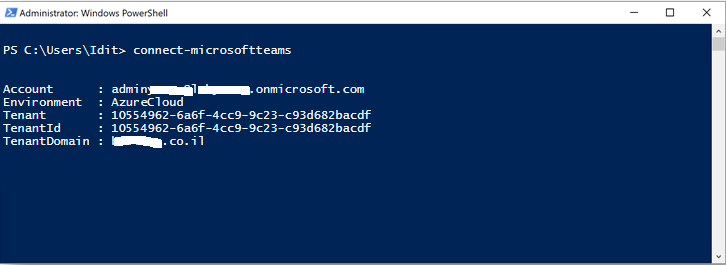
התחברות ל- Teams מתבצעת על ידי הפקודה:

          Connect-MicrosoftTeams

4

Office365   של   Credentialsבהופעת חלון ההתחברות יש להתחבר עם ה

5

לאחר התחברות מוצלחת יופיע בחלון ה-PowerShell ה-Account שלכם

6_thumb[1]

על מנת לראות את כל הפקודות האפשריות ל- Module מריצים את הפקודה : Get-Command -Module MicrosoftTeams

7_thumb[1]

יצירת Team חדש :

New-Team -DisplayName “Idit Bnaya New Team” -AccessType Private

על מנת לראות את רשימת ה- Teams יש להריץ Get-Team

* שימו לב, בתוצאה הדיפולטיבית יופיע רק ה- Group ID של ה-Teams, ערך חשוב מאוד כיוון שניתן ליצור Teams באותו שם אז ה-GroupID הוא הערך החד ערכי

סקריפט ליצירת Team  חדש והוספת משתמשים מקובץ CSV

תנאים להרצת הסקריפט

1.  יש להריץ את ה-Module של Teams ולהכניס משתמש עם הרשאות מתאימות

2. יש ליצור קובץ CSV עם כותרת בשם User ומתחתיה UserPrincopalName של המשתמשים אותם רוצים להכניס ל-Team

לדוגמא:

8_thumb

3 יש לשמור את הסקריפט לקובץ Ps1 או להריץ עם ISE

4. הסקריפט מקפיץ Inputbox שבו מכניסים את שם ה-Team

בהצלחה wlEmoticon-smile[2]

_________________________________________________________

<#Beginning#>

<#########################################################################

.DESCRIPTION

Create A new team and add members from CSV file

.INPUTS

Team Name

.OUTPUTS

Create a csv file with a list of the users (for log)

.NOTES

Written By: Idit Bnaya

Personal Blog (English): https://www.itblog.co.il

Microsoft Blog (Hebrew): https://blogs.microsoft.co.il/iditbna

############################################################################>

#InputBox

[System.Reflection.Assembly]::LoadWithPartialName(‘Microsoft.VisualBasic’) | Out-Null $TeamName = [Microsoft.VisualBasic.Interaction]::InputBox(‘Enter the team name’, ‘Team name’)

#create New Team

New-Team -DisplayName $TeamName -AccessType Private

#get-team | Select-Object DisplayName,GroupId (for test)

#Import Users from CSV file

$TeamsUsers = Get-Content -Path c:\temp\TeamsUsersinput.csv

#Save The GroupID of the New Team in a varaiable

$groupID = Get-Team | ?{$_.DisplayName -eq $TeamName} |select GroupId

# Add the Users from the CSV file to the new Team we created

ForEach ($user in $TeamsUsers) {

add-teamuser -user $user -GroupId $groupID.GroupId}

#Export The Result to a CSV File

Get-TeamUser -groupid $groupID.GroupId |export-csv -Path c:\temp\”teamusers-$($TeamName)”.csv –NoTypeInformation

<#End#>

 9_thumb[198]


Microsoft Teams Update announcement – February 14, 2017


Microsoft Teams has been in preview for several months. We hope that you had the opportunity to evaluate it for your organization. As we communicated in December, in MC89318, Microsoft Teams is currently off by default at the tenant level. Later this quarter, Microsoft will begin enabling Microsoft Teams to be on by default at the tenant level, for all eligible users with the appropriate license assignment. IT admins can continue to manage user access to Microsoft Teams via license assignments. This message is associated with Office 365 Roadmap ID 61652.

How does this affect me?

When we make this change, the ‘Turn Microsoft Teams on or off for your entire organization’ setting in ‘Settings > Services and Add-ins > Microsoft Teams’, will go from a default value of “off” to a default value of “on”.

Microsoft Teams will then be available to all eligible users with the appropriate license assignment. Once we turn Teams on-by-default, it will become available to those users. IT admins can continue to manage user access to Microsoft Teams via license assignments. Microsoft Teams will be rolled out gradually to all eligible Office 365 users later this quarter. Microsoft Teams is available in the following Office O365 commercial suites: Business Essentials, Business Premium, and Enterprise E1, E3, and E5 plans. Microsoft Teams will also be available to existing E4 customers who purchased E4 before its retirement. Microsoft Teams is not available to Education and Government customers at this time.

What do I need to do to prepare for this change?

If you do not rely on this setting to govern user access to Microsoft Teams, there is no action you need to take. Learn more by going to

 http://teams.microsoft.com.

If you currently rely on this setting to govern user access to Microsoft Teams, please migrate over to managing access via user licensing. Please click Additional Information to learn more, including how to use license assignments to enable or disable user access through Office 365 Admin center and PowerShell.

ADSync error – OnlineIdentityException–0x8023134a–Last name was changed

I recently dealt with an issue with Office 365 and the "Directory Synchronization service manager" where two of the users who had been previously syncing to Office 365 with no problems started to receive the error "OnlineIdentityException "

The Error Description was:

"The cause of the error is not clear. This operation will be retried during the next synchronization. If the issue persists, contact Technical Support.

Tracking Id: 8a1fee60-18d9-4a4c-83d2-b17fbc074b20
ExtraErrorDetails:

image

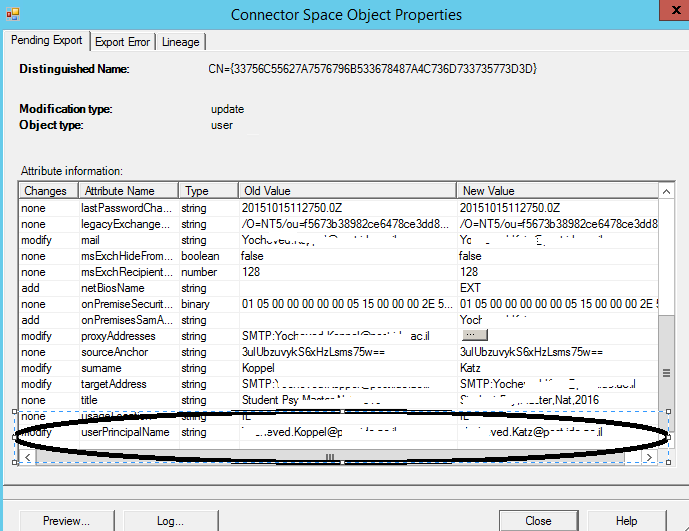
After looking at all the old and new Attribute of the users under :Pending export" I notice that the last name was changed

image

This environment  is  Exchange online environment -  where all mailboxes are in the cloud.

I removed the old user Using "Windows Azure Active Directory Module for Windows PowerShell":


1. Connect to Office 365 via Powershell

2. Download and Install the "Windows Azure Active Directory Module for Windows Powershell" (available here)

3. Run the following commands (make sure you have the credentials for a global administrator for the Office 365 subscription)

Import-Module MSOnline

Connect-MsolService

get-msoluser -UserPrincipalName   "Useroldlastname@domain.com" |Remove-MsolUser

Check that the user is deleted from the cloud

get-msoluser -UserPrincipalName   "Useroldlastname@domain.com"

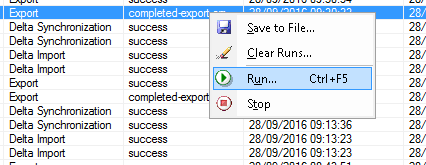
run the export stage again from the "Synchronization service manager"   and the problem was solved!

image

image


* Please notice – The Remove-MsolUser command is used to remove a user from the  cloud This command will delete the user, their licenses, and any other associated data. 

Enjoy סמיילי

Azure AD Connect: In place Upgrade Windows Azure Active Directory sync (DirSync)


clip_image002

Azure AD Connect: In place Upgrade Windows Azure Active Directory sync (DirSync)

*"In-place upgrade" is only relevant if the DB contains less than 50000 objects

Azure AD Connect will analyze your current DirSync settings and recommend an in-place upgrade if the number of objects in your database is less than 50,000

Download Azure AD connect

In-place upgrade Wizard

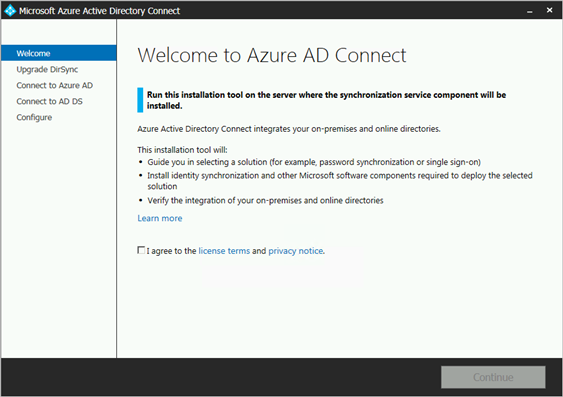
1. Launch the Azure AD Connect installer (MSI), Review and agree to license terms and privacy notice.

image

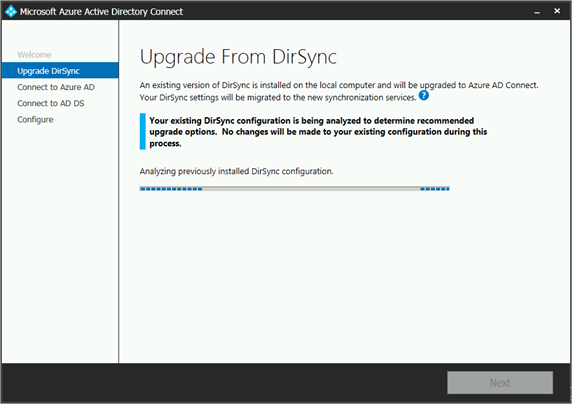
3. Click next to begin analysis of your existing DirSync installation.

image

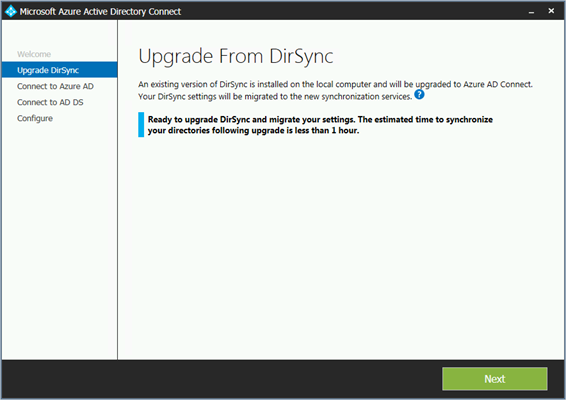
4. When the analysis completes, we will make recommendations on how to proceed.

 clip_image008

  • If you u use SQL Server Express and have less than 50,000 objects, the following screen is shown:

 clip_image010

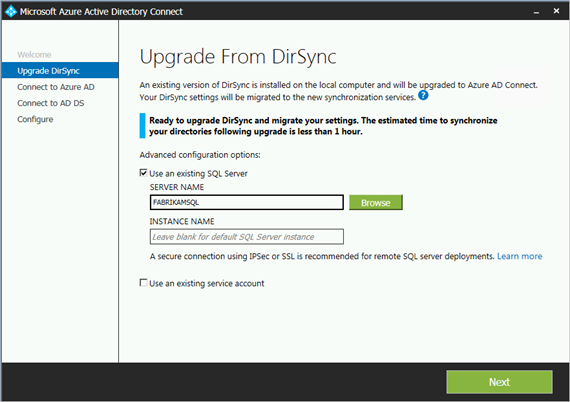
  • If you use a full SQL Server for DirSync you will see this page instead

The information regarding the existing SQL Server database server being used by DirSync is displayed. Make appropriate adjustments if needed. Click Next to continue the installation

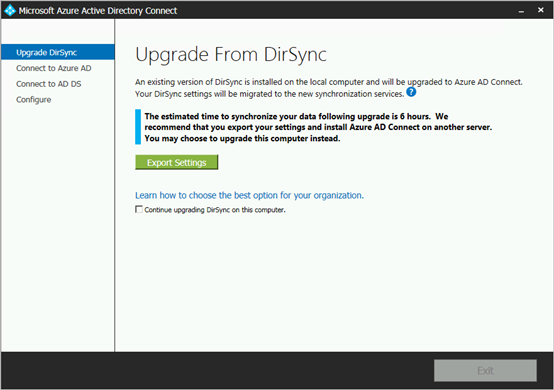
  • If you have more than 50,000 objects, you will see this screen instead:
    To proceed with an in-place upgrade, click the checkbox next to this message: Continue upgrading DirSync on this computer. To do a parallel deployment instead you will export the DirSync configuration settings and move those to the new server.

clip_image012


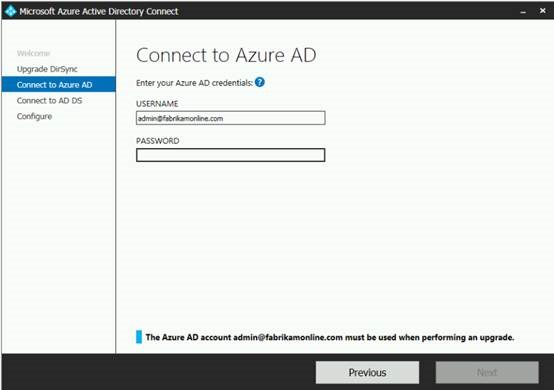
5. Provide the password for the account you currently use to connect to Azure AD. This must be the account currently used by DirSync.

 
  clip_image014

If you receive an error and have problems with connectivity, please see Troubleshoot connectivity problems.

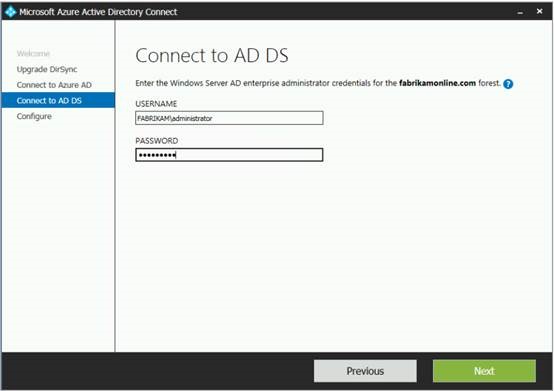
6. Provide an enterprise admin account for Active Directory.


clip_image016


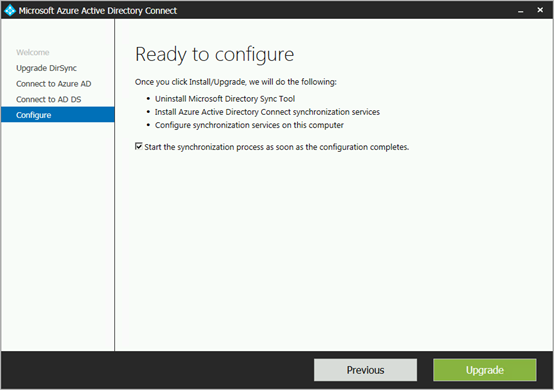
7. You’re now ready to configure. When you click Upgrade, DirSync will be uninstalled and Azure AD Connect will be configured and begin synchronizing.


clip_image018


8. After the installation has completed, sign out and sign in again to Windows before you use Synchronization Service Manager, Synchronization Rule Editor, or try to make any other configuration changes.

Customize Azure AD Connect sync

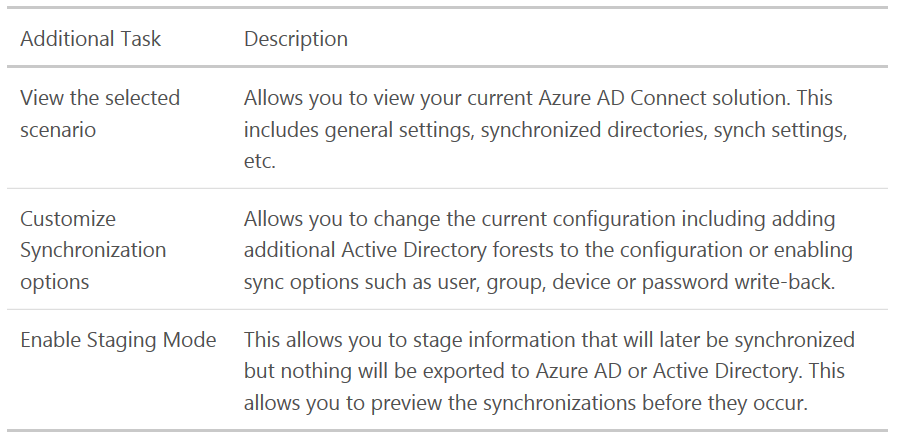
After your initial installation of Azure AD Connect, you can always start the wizard again from the Azure AD Connect start page or desktop shortcut. You will notice that going through the wizard again provides some new options in the form of Additional tasks.

The following table provides a summary of these tasks and a brief description on each of them.

Join Ruleimage

Office 365–Enable First release Option

Set up the release option for your organization

You can change how your organization receives Office 365 updates by following these steps.

Important   It can take up to 24 hours for the below changes to take effect in Office 365. If you opt out of First Release after enabling it, your users may lose access to features that haven’t reached the scheduled release yet.

  1. Sign in to Office 365 with your work or school account.

  2. Go to the Office 365 admin center.

  3. Go to Service settings > Updates.

  4. To disable first release, select Standard under the Standard release heading.

    To enable first release choose Entire organization or Select people and follow the steps below.

    Standard and first release programs

    Note    If you don’t see this option in your admin center, your subscription will soon be updated with it and you can change the setting then.

Select people for First Release

Follow these steps to select individual people for First Release. You might, for example, add your IT staff for First Release so they can review features before the rest of your organization. Enable First Release with select people following these steps.

  1. Go to the Office 365 admin center.

  2. Go to Service settings > Updates.

  3. Under first release, choose Select people.

    Note    If you don’t see this option in your admin center, your subscription will soon be updated with it and you can change the setting then.

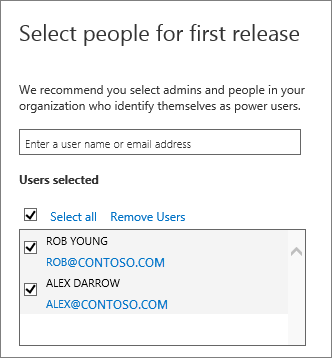
  4. Choose Pick people to add users individually and then use the people picker to select them for first release.

    Office 365 release programs add users

    Or,

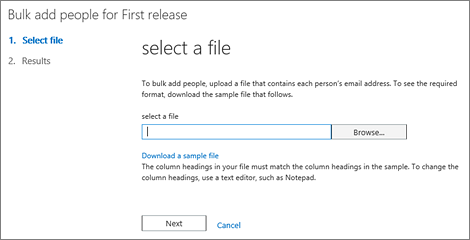
  5. Choose Bulk add to add a larger group using a file that contains each person’s email address.

    Bulk add users in Office 365 First Release

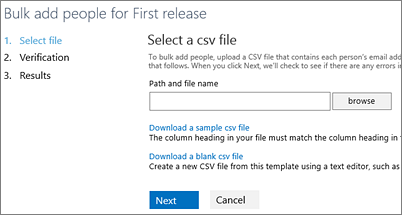
    This is similar to how you bulk add users in the admin center.

    Bulk add users to Office 365 release programs

Note   First Release Select People currently only applies to Office 365 top navigation and Exchange Online.


Source: https://support.office.com/en-us/article/Office-365-release-options-3b3adfa4-1777-4ff0-b606-fb8732101f47

Dirsync – After Deleting User from Office365 the User will not sync again

I Deleted a user and mailbox form Office 365 Tenant in an Hybrid environment with Dirsync
I tried to Sync the same user again and it didn’t show up in my Office 365 Tenant.

So I did two things

1. Deleted the User from the recycle bin by running this command in the DirsyncConfig powershell :

Remove-MsolUser –UserPrincipalName “UserPrincipalName” -RemoveFromRecycleBin –Force

2.Delete all Exchange attributes from Adsiedit for that user

3.Search for the User in dirsync , delete it and run the sync again

To search and delete I did the following steps:

1. Create a new search In Dirsync console

  • Open miisclient

"C:\Program Files\Microsoft Online Directory Sync\SYNCBUS\Synchronization Service\UIShell\miisclient.exe"

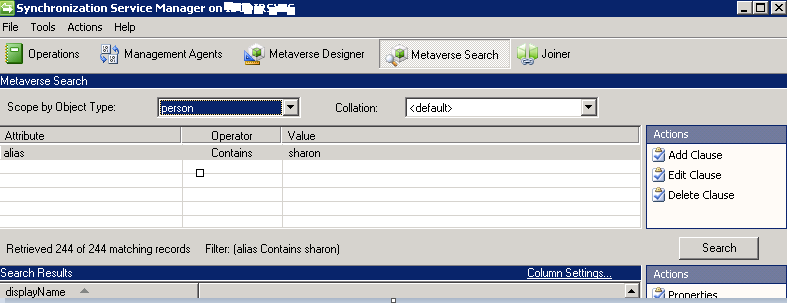
  • Open the tab " Metaverse Search"
  • Create a new search scope to find the user – click on Add Clause

image

2. Delete the user from office365

  • Double click the user
  • Open the tab "Connectors" , Select the SourceAD connector and click "Disconnect"
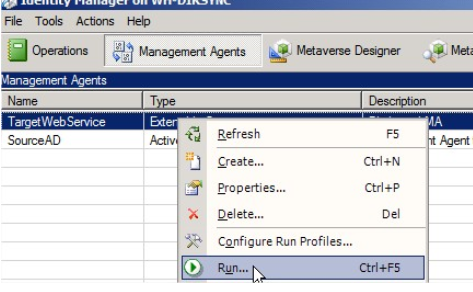
  • Go to the Management Agents tab
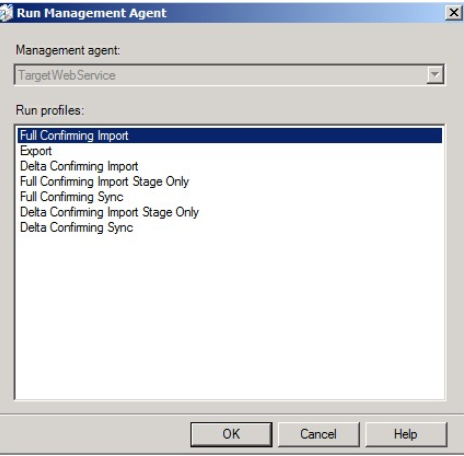
  • Right click the "TargetWebService" connector and choose "Run
  • Select the Full Confirming Import" run profile and click ok.

image

image

  • After its finished choose the "Export" run profile
  • In the next Sync the user will be recreated in Office 365

Add license for the user and the mailbox will be created.

Good luck Smile