Overview:
Microsoft Teams is a chat-based collaboration tool that provides global, remote, and dispersed teams with the ability to work together and share information via a common space.
Teams provides a true chat-based hub for teamwork and give customers the opportunity to create a more open, fluid, and digital environment.
A team is designed to bring together a group of people who work closely to get things done. Teams can be dynamic for project-based work (for example, launching a product or creating a digital war room). Or, teams can be ongoing, to reflect the internal structure of your organization.
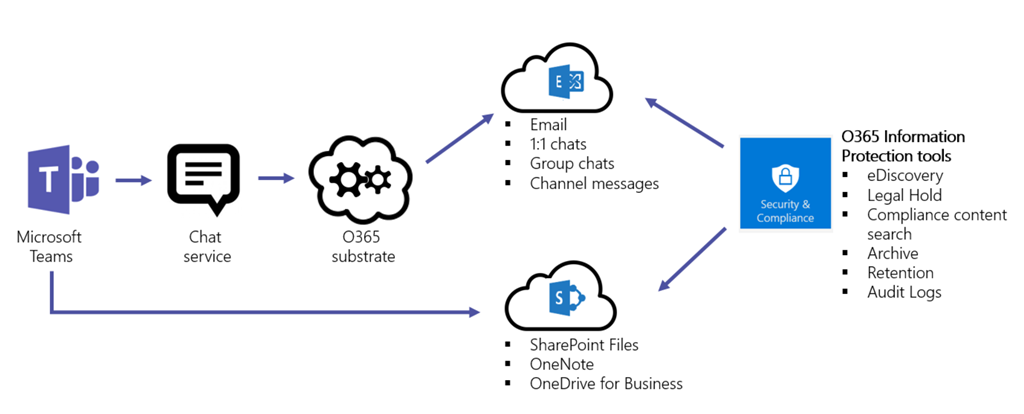
A team created in Teams will create an Office 365 Group, a SharePoint Online site and an Exchange Online group mailbox.
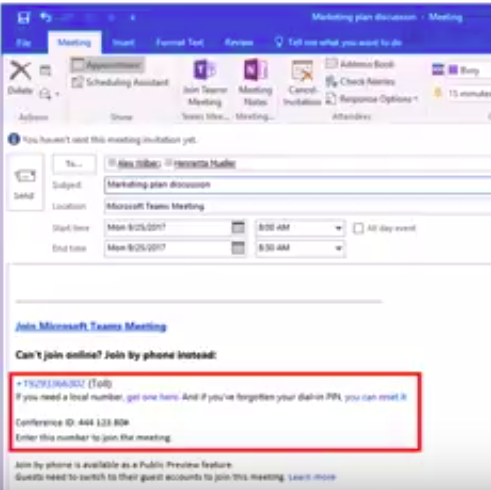
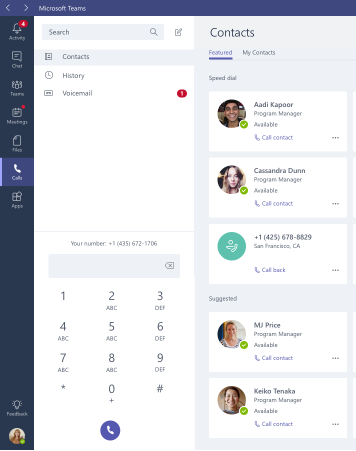
Teams also provides a calling and meetings experience that is built on the next generation cloud-based infrastructure that is also used by Skype and Skype for Business.
common use cases for each application in Office 365.

- Leveraged by users and teams who are looking to collaborate in real-time with the same group of people.
- Helps teams looking to iterate quickly on a project while sharing files and collaborating on shared deliverables.
- Allows Users looking to connect a wide range of tools into their workspace (such as Planner, Power BI, GitHub, etc.).

- Leveraged by users who prefer to collaborate in the familiar environment of email and/or a more formal, structured manner.
- Provides specific business processes that require email usage to transmit documents and information inside and outside corporate boundaries.
- Communicates and connects with users who are outside of immediate workgroups or organizations.

- Leveraged to help connect users across the organization to organize around communities of practice and share best practices.
- Improves cross-functional workflows through an open and transparent feed-based platform
- Fosters executive-employee engagement with two-way conversations between leadership and the wider employee base
- Ignites your frontline workforce to share and receive knowledge and expertise

- Leveraged for real-time communication and collaboration both internally and externally with customers/partners.
- Provides meetings with audio, video and content with small or large teams (including Town Halls with up to 10,000 participants).
- Offers enterprise telephony functionality.

- Leveraged for sites and portals (e.g. company news & announcements, search, and document collaboration).
- Implements business process automation on document libraries and lists of information by integrating Microsoft Flow and PowerApps.
- Full-powered SharePoint team site automatically provisioned for every Microsoft Team for file storage, team news, pages, lists and more.
Location of data in Microsoft Teams
Data in Teams resides in the region based on tenant affinity. Currently, Teams supports the Americas, EMEA, and APAC regions.
* As of November 1, 2017, Teams offers data residency in the United Kingdom for new tenants only. A new tenant is defined as any tenant that hasn’t had a single user from the tenant sign in to Microsoft Teams.
Security and compliance
Microsoft Teams delivering advanced security and compliance capabilitie such as:File encryption.Auditing and Reporting,Compliance Content Search,eDiscovery,Legal Hold,two-factor authentication, single sign-on through Active Directory, and encryption of data in transit and at rest.
Teams is Tier C-compliant at launch. This includes the following standards: ISO 27001, ISO 27018, SSAE16 SOC 1 and SOC 2, HIPAA, and EU Model Clauses (EUMC)
More Details: Overview of security and compliance in Microsoft Teams
licensing for Microsoft Teams
The following Office 365 subscriptions enable users for Teams:
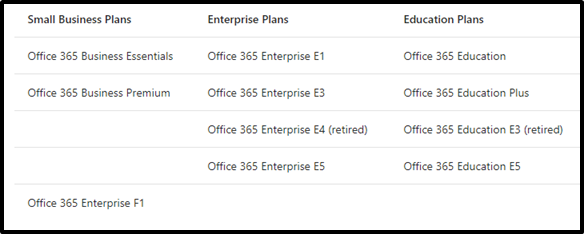
By default, the Teams license is enabled for all users with eligible Office 365 subscriptions.
more details about licensing for Microsoft Teams
Turn Teams on or off for your entire organization
By default, Teams is turned on for all organizations.
As an administrator for your organization, you can assign user licenses to control individual access to Teams, and you can allow or block what content sources can be used in Teams.
Sign in to the Office 365 Admin center with an account that has Global Administrator privileges.
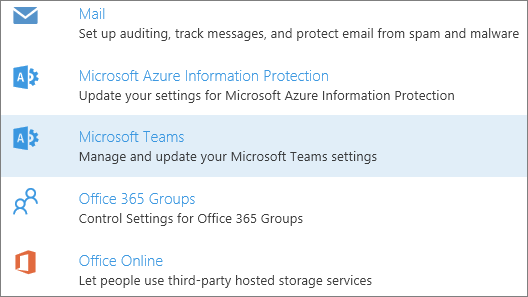
- Go to Settings > Services & add-ins.
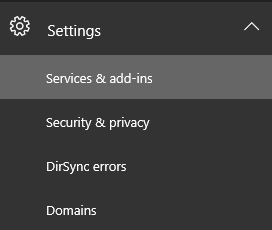
- On the Services & add-ins page, click Microsoft Teams.
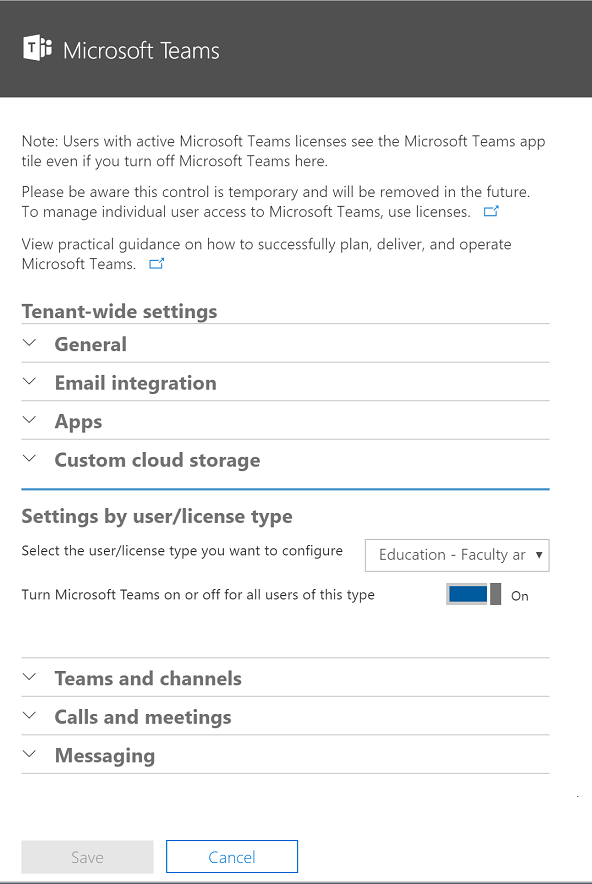
- To turn on Teams for the organization use the license picker and select each license then set the toggle to On and then click Save.
More Details about Teams:
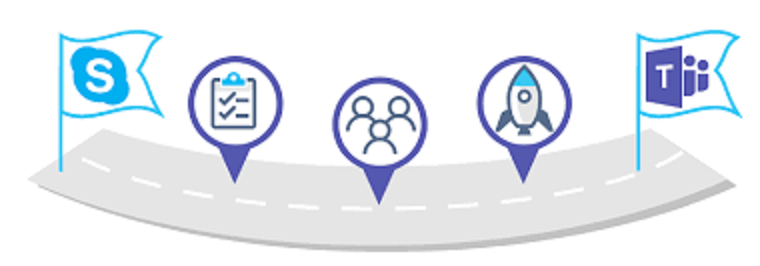
Visit the Teams product roadmap to stay on top of what’s coming next in Teams and decide the best time for your organization to move to Teams.
Related Posts:
https://www.itblog.co.il/microsoft-teams/

Sr. Cloud Solution Architect at Microsoft, I’m passionate about helping customers succeed by building secure, scalable, and innovative cloud solutions – with a strong focus on AI, DevOps practices, and end-to-end security. With a proven track record in the IT and services industry, I serve as a trusted advisor, partnering closely with organizations to guide them through digital transformation and maximize the value of their cloud investments. My role combines technical leadership with project ownership – from designing modern architectures to leading cross-functional implementations that drive real business outcomes. I also manage and empower strategic partners, working hand-in-hand with them to ensure project success and deliver measurable business impact for customers.


![6_thumb[1]](https://www.itblog.co.il/wp-content/uploads/2017/12/6_thumb1.jpg "6_thumb[1]")
![7_thumb[1]](https://www.itblog.co.il/wp-content/uploads/2017/12/7_thumb1.jpg "7_thumb[1]")

![wlEmoticon-smile[2]](https://www.itblog.co.il/wp-content/uploads/2017/12/wlEmoticon-smile2.png "wlEmoticon-smile[2]")
![9_thumb[198]](https://www.itblog.co.il/wp-content/uploads/2017/12/9_thumb198_thumb.jpg "9_thumb[198]")