Category Archives: PowerShell

Powershell Form – Send Encrypted PDF Form

Due to recent changes in global privacy and data protection laws ( GDPR & Israeli Privacy Law)

I had to find a quick and easy  way to send encrypted PDF files by email.
So, after 6 hours of searching and writing i finally managed to create a workaround

At first I found this Password Protect PDF document script:  https://efcomputer.net.au/blog/password-protect-pdf-document/ 
and i used a part of the code that responsible for encrypting the file (Thanks:) )

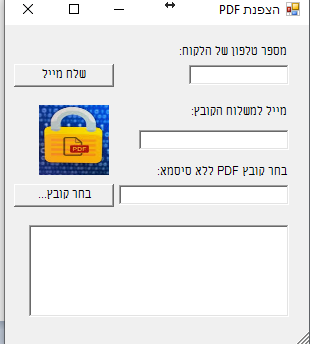
So the following PowerShell script will Encrypt PDF files and send them by Email.

There are two folders, one with an English based form and the other with an Hebrew based form.

It looks like this

English Form:
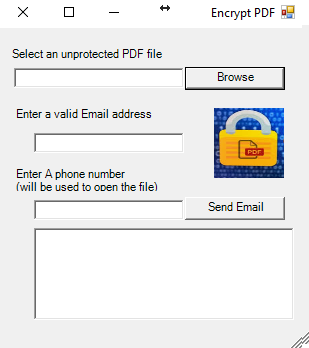
Hebrew Form:
Have fun 🙂



Teams Powershell – Create new Team and add users from CSV

לאחרונה מיקרוסופט הוציאה תמיכה  של פקודות המותאמות   ל-Teams דבר המאפשר  לאנשי ה-IT

לבצע פעולות יומיומיות פשוטות ביעילות על ידי שימוש באוטומציה.

בעזרת הפקודות נוכל לבצע פעולות כמו:

  • יצירת צוותים חדשים
  • ערוצים חדשים בקבוצה
  • הוספת  והסרה מספר רב של חברים
  • הגדרת הרשאות

ועוד..

רשימת הפקודות המלאה:


 התקנת ה-Module מתבצעת על ידי הרצת הפקודה:

    install-module MicrosoftTteams 

3

התחברות ל- Teams מתבצעת על ידי הפקודה:

          Connect-MicrosoftTeams

4

Office365   של   Credentialsבהופעת חלון ההתחברות יש להתחבר עם ה

5

לאחר התחברות מוצלחת יופיע בחלון ה-PowerShell ה-Account שלכם

6_thumb[1]

על מנת לראות את כל הפקודות האפשריות ל- Module מריצים את הפקודה : Get-Command -Module MicrosoftTeams

7_thumb[1]

יצירת Team חדש :

New-Team -DisplayName “Idit Bnaya New Team” -AccessType Private

על מנת לראות את רשימת ה- Teams יש להריץ Get-Team

* שימו לב, בתוצאה הדיפולטיבית יופיע רק ה- Group ID של ה-Teams, ערך חשוב מאוד כיוון שניתן ליצור Teams באותו שם אז ה-GroupID הוא הערך החד ערכי

סקריפט ליצירת Team  חדש והוספת משתמשים מקובץ CSV

תנאים להרצת הסקריפט

1.  יש להריץ את ה-Module של Teams ולהכניס משתמש עם הרשאות מתאימות

2. יש ליצור קובץ CSV עם כותרת בשם User ומתחתיה UserPrincopalName של המשתמשים אותם רוצים להכניס ל-Team

לדוגמא:

8_thumb

3 יש לשמור את הסקריפט לקובץ Ps1 או להריץ עם ISE

4. הסקריפט מקפיץ Inputbox שבו מכניסים את שם ה-Team

בהצלחה wlEmoticon-smile[2]

_________________________________________________________

<#Beginning#>

<#########################################################################

.DESCRIPTION

Create A new team and add members from CSV file

.INPUTS

Team Name

.OUTPUTS

Create a csv file with a list of the users (for log)

.NOTES

Written By: Idit Bnaya

Personal Blog (English): https://www.itblog.co.il

Microsoft Blog (Hebrew): https://blogs.microsoft.co.il/iditbna

############################################################################>

#InputBox

[System.Reflection.Assembly]::LoadWithPartialName(‘Microsoft.VisualBasic’) | Out-Null $TeamName = [Microsoft.VisualBasic.Interaction]::InputBox(‘Enter the team name’, ‘Team name’)

#create New Team

New-Team -DisplayName $TeamName -AccessType Private

#get-team | Select-Object DisplayName,GroupId (for test)

#Import Users from CSV file

$TeamsUsers = Get-Content -Path c:\temp\TeamsUsersinput.csv

#Save The GroupID of the New Team in a varaiable

$groupID = Get-Team | ?{$_.DisplayName -eq $TeamName} |select GroupId

# Add the Users from the CSV file to the new Team we created

ForEach ($user in $TeamsUsers) {

add-teamuser -user $user -GroupId $groupID.GroupId}

#Export The Result to a CSV File

Get-TeamUser -groupid $groupID.GroupId |export-csv -Path c:\temp\”teamusers-$($TeamName)”.csv –NoTypeInformation

<#End#>

 9_thumb[198]


password never expires

<#

This script find all the users whose passwords never expire and send a report to mail.
Idit Bnaya

#>

Import-Module activedirectory
$date=Get-Date
$date1 = $date.ToShortDateString()
$date2 = $date1.Replace("/","_")
$FolderPath = ‘c:\temp’
 
Get-ADUser -filter * -Properties PasswordNeverExpires | where {($_.PasswordNeverExpires -eq $true)}  |select name,SamAccountName,DistinguishedName,PasswordNeverExpires |Export-Csv $folderpath\"passnerverexpired"’  ‘$date2.csv

$smtpServer = "SMTP Address"
$smtpFrom = "ReportPasswordneverexpired@idit.com"
$smtpTo = "idit.bnaya@iditbnaya.com"
$messageSubject = "PasswordNeverExpired "+" "+$date

Send-MailMessage -To $smtpTo -From $smtpfrom -SmtpServer $smtpServer -Subject $messageSubject -BodyAsHtml -Attachments $folderpath\"passnerverexpired"’  ‘$date2.csv