I recently dealt with an issue with Office 365 and the "Directory Synchronization service manager" where two of the users who had been previously syncing to Office 365 with no problems started to receive the error "OnlineIdentityException "
The Error Description was:
"The cause of the error is not clear. This operation will be retried during the next synchronization. If the issue persists, contact Technical Support.
Tracking Id: 8a1fee60-18d9-4a4c-83d2-b17fbc074b20
ExtraErrorDetails:

After looking at all the old and new Attribute of the users under :Pending export" I notice that the last name was changed
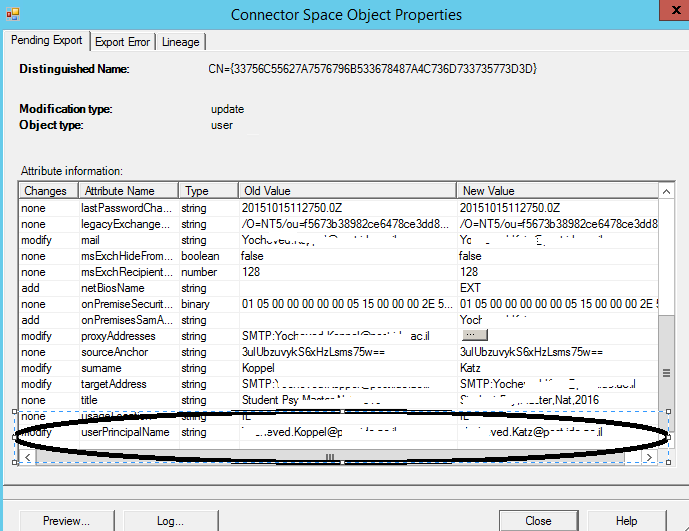
This environment is Exchange online environment - where all mailboxes are in the cloud.
I removed the old user Using "Windows Azure Active Directory Module for Windows PowerShell":
1. Connect to Office 365 via Powershell
2. Download and Install the "Windows Azure Active Directory Module for Windows Powershell" (available here)
3. Run the following commands (make sure you have the credentials for a global administrator for the Office 365 subscription)
Import-Module MSOnline
Connect-MsolService
get-msoluser -UserPrincipalName "Useroldlastname@domain.com" |Remove-MsolUser
Check that the user is deleted from the cloud
get-msoluser -UserPrincipalName "Useroldlastname@domain.com"
run the export stage again from the "Synchronization service manager" and the problem was solved!
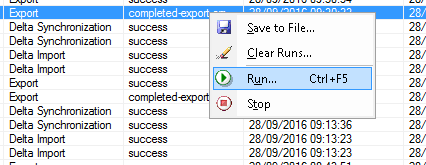

* Please notice – The Remove-MsolUser command is used to remove a user from the cloud This command will delete the user, their licenses, and any other associated data.
Enjoy 

Sr. Cloud Solution Architect at Microsoft, I’m passionate about helping customers succeed by building secure, scalable, and innovative cloud solutions – with a strong focus on AI, DevOps practices, and end-to-end security. With a proven track record in the IT and services industry, I serve as a trusted advisor, partnering closely with organizations to guide them through digital transformation and maximize the value of their cloud investments. My role combines technical leadership with project ownership – from designing modern architectures to leading cross-functional implementations that drive real business outcomes. I also manage and empower strategic partners, working hand-in-hand with them to ensure project success and deliver measurable business impact for customers.