Category Archives: Microsoft Exchange

Move Mailbox failed – Mailbox size exceeds target quota

Open ADSIEDIT.MSC


Find the user and change the value  ‘mBDUseDefaults’  to True wait a few minutes and try again.


Good Luck סמיילי

Activesync not working After Migration from Exchange 2007 to Exchange 2010- event ID 1053

Error: event ID 1053: “Exchange Activesync doesn’t have sufficient

Open Active Directory – find the user

RightClick – properties – Security – Advanced

Chack: “Include inheritable permissions from this objects parent”

image

Exchange ActiveSync Error – 1053

“Exchange ActiveSync doesn’t have sufficient permissions to create the “” container under Active Directory user “Active Directory operation failed on dc.domain.com. This error is not retriable. Additional information: Access is denied.

Active directory response: 00000005: SecErr: DSID-03152611, problem 4003 (INSUFF_ACCESS_RIGHTS), data 0

Make sure the user has inherited permission granted to domain\Exchange Servers to allow List, Create child, Delete child of object type “msExchActiveSyncDevices” and doesn’t have any deny permissions that block such operations.”

Issue :  Data will not sync in mobile phones for domain admins accounts after exchange 2010 upgrade .

Solution: configure security inheritance to the exchange servers objects for those users:

1. Start Active Directory Users and Computers.

2. Click View, and then click to enable Advanced Features.
3. Right-click the object where you want to change the Exchange Server permissions, and then click Properties.
4. Click Add, type Exchange Servers, and then click OK.
5.  In the Apply to box, click Descendant msExchActiveSyncDevices objects.
6. Under Permissions, click to enable Modify Permissions. Click OK three times.
7. Tick the Include inheritable permissions toggle then Apply and OK.


How to set all virtual directories at once With PowerShell

For internal URLs:

$urlpath = Read-Host "Type internal Client Access FQDN starting with http:// or https://"

Set-ClientAccessServer –Identity * –AutodiscoverServiceInternalUri “$urlpath/autodiscover/autodiscover.xml”
Set-webservicesvirtualdirectory –Identity * –internalurl “$urlpath/ews/exchange.asmx”
Set-oabvirtualdirectory –Identity * –internalurl “$urlpath/oab”
Set-owavirtualdirectory –Identity * –internalurl “$urlpath/owa”
Set-ecpvirtualdirectory –Identity * –internalurl “$urlpath/ecp”
Set-ActiveSyncVirtualDirectory -Identity * -InternalUrl "$urlpath/Microsoft-Server-ActiveSync"

External URLs:

Set-ClientAccessServer –Identity * –AutodiscoverServiceExternalUri “$urlpath/autodiscover/autodiscover.xml”
Set-webservicesvirtualdirectory –Identity * -ExternalUrl “$urlpath/ews/exchange.asmx”
Set-oabvirtualdirectory –Identity * –ExternalUrl “$urlpath/oab”
Set-owavirtualdirectory –Identity * –ExternalUrl “$urlpath/owa”
Set-ecpvirtualdirectory –Identity * –ExternalUrl “$urlpath/ecp”
Set-ActiveSyncVirtualDirectory -Identity * -ExternalUrl "$urlpath/Microsoft-Server-ActiveSync

save it as a .ps1 extension and run it in Exchange Management Shell

Netapp – Create new LUN for exchange DB Using Netapp 2020


This guide provide the steps to take in order to create new Database in Exchange using Netapp storage and snap drive

In this case , I’m using Netapp 2020


1. Check Space Availability

Available storage in NetApp filers is contained in aggregates.
– In NetApp onCommand System Manager select the aggregate section and check for available space:
image

2.Create Volume  

Now that you are sure that you have Enough disk space available you can create a new volume

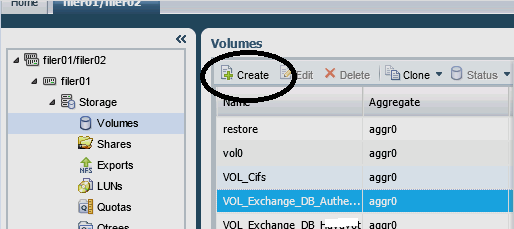
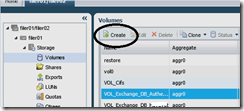
-In NetApp onCommand System Manager select the Volume section and then click on "Create"
image

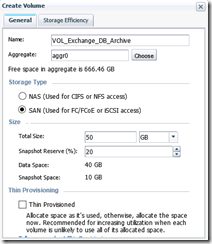
You’re now presented with the "Create Volume window"

Name: provide the name for the volume
Aggregate: choose the aggregate 

Storage Type: SAN

Total size: type the size of the DB

check the "Thin provisioned" check box if you want. 
image

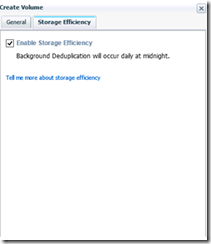
Navigate to Storage Efficiency

Check the "Enable storage Efficiency" check box -  this will let you control data growth to increase storage utilization, regain capacity, and improve IT performance
image

*Do the same for the log DB

3. Create Qtree

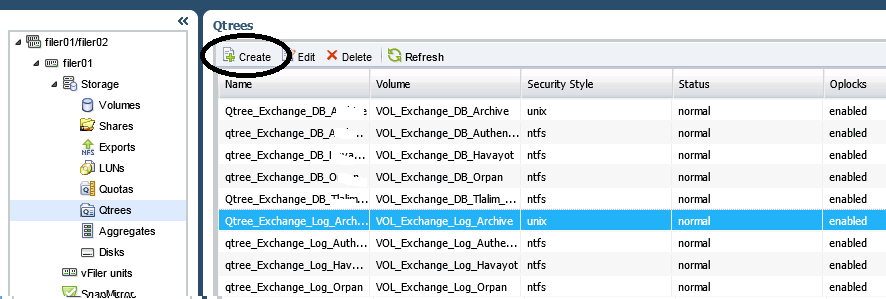
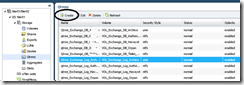
In NetApp onCommand System Manager select the Qtrees section and then click on "Create"
image

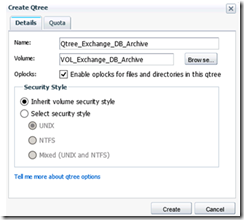
You’re now presented with the "Create Qtree window"

Name: provide the name for the Qtree

Volume: Select the volume you created in step 2

oplocks: By default its enabled – I usually keep it that way –This options means that  A client can work with a file   (read or write it) without regularly reminding the server that it needs  access to that file, which improves performance by reducing network traffic.

Check Inherit Volume security style

Click Create.
image

*Do the same for the log DB

4. Create LUN with snap Drive

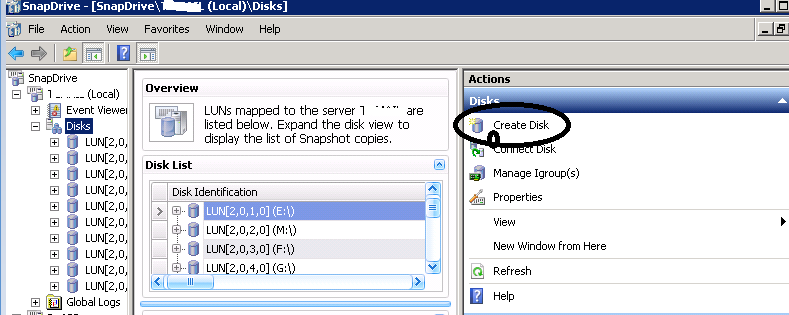
Connect to Exchange server and open Snap Drive

Navigate to "Disks" and click on Create disk
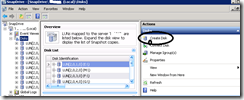
image

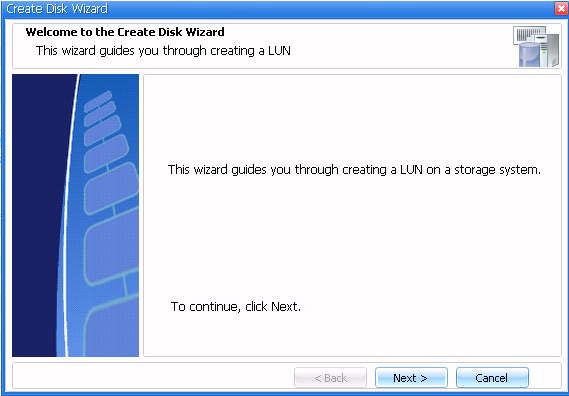
This will start the “Create disk Wizard”, and you can click ‘Next’ on the welcome page
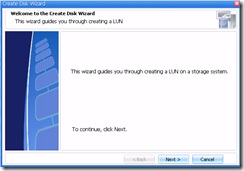
image

Select the new Volume-Qtree you created
provide the name for the New Lun

Click Next
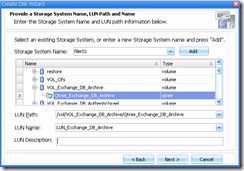
image

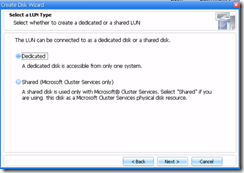
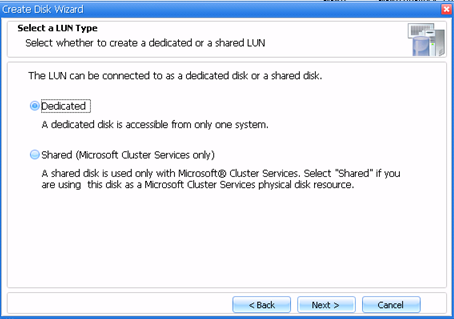
Select – Dedicated

image

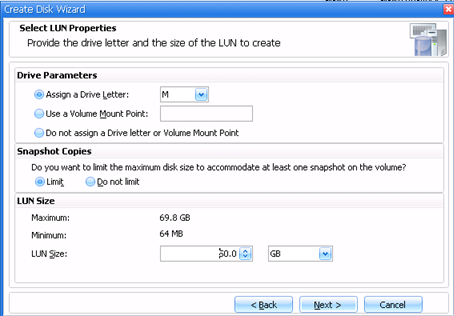
Assign a Drive letter and the LUN size
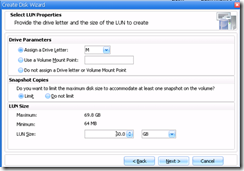
image

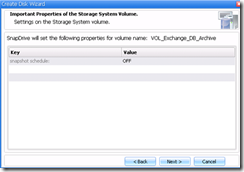
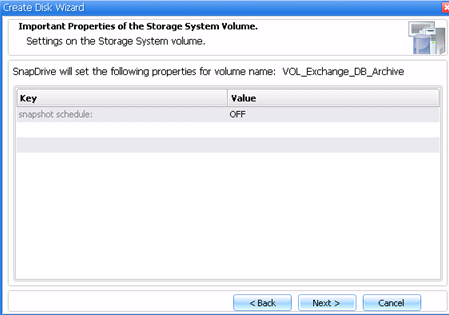
Click next

image

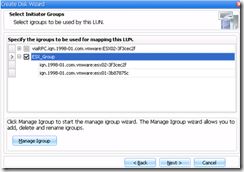
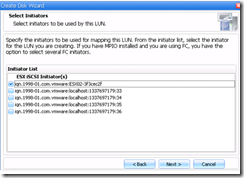
Select the initiator , in my case its VMware ESXI
image

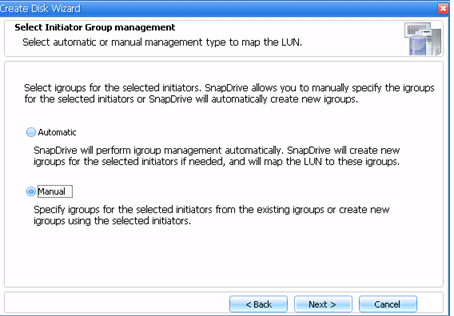
select Manual

image

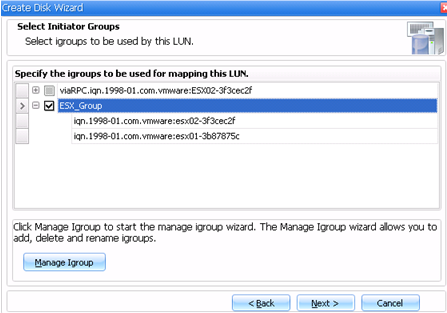
Select the initiator group

image

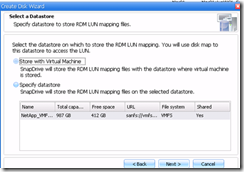
Select Store with virtual machine

image

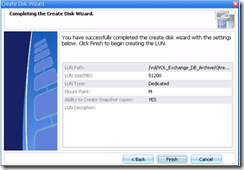
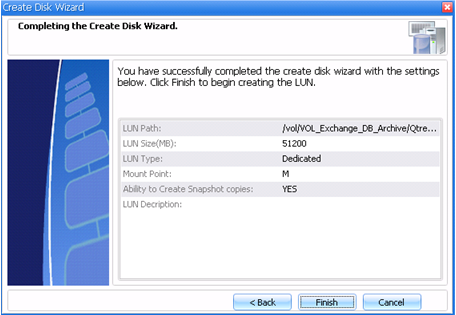
Finish the wizard

image

*Do the same for the Log DB

5. Format the new Drive

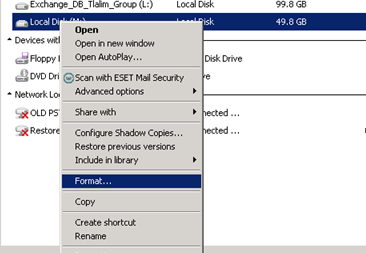
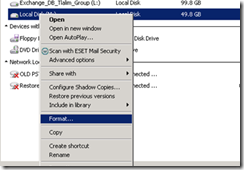
On the Exchange server Navigate to – "My computer"

Right click on the new Drive and click on Format
image

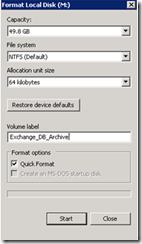
Under Allocation Unit size choose – 64 kilobytes

Check – Quick format

Start
image

*Do the same for the log DB


The next step is to create the DB in exchange.


Good luck !

Exchange 2003 – SMTP error 550 5.7.1 Unable to relay for user@domain.com

One of my customer got this error after adding a new SMTP domain to mailboxes.
In his case he add the email address directly from the AD to some mailboxes and then got this error when trying to send them an email to the new address.

The solution for his problem was to create a new recipient policy and add to it the new external domain.

Create a new Recipient policy:

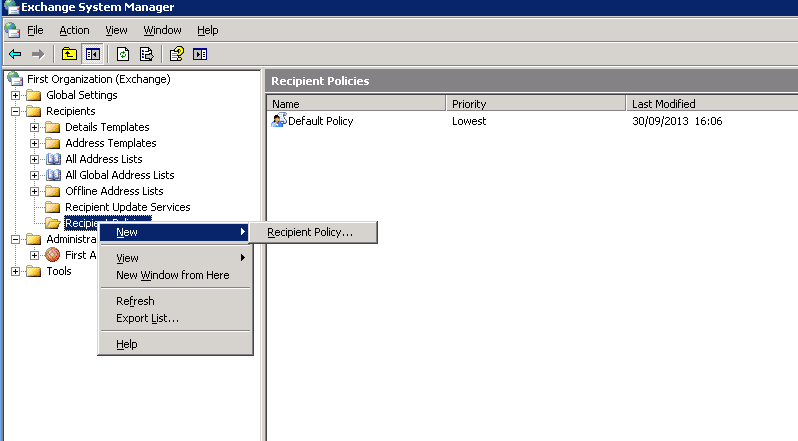
GO to Exchange system manager –> first organization –> recipients –> Recipients policies

you can add the domain to the default policy if you need to add it to all mailboxes or you can set a new policy for specific mailboxes.

In this case I created a policy for specific mailbox filtered by OU

1. right click on Recipient policy –> New recipient policy

image

2. Choose – Email address

image\

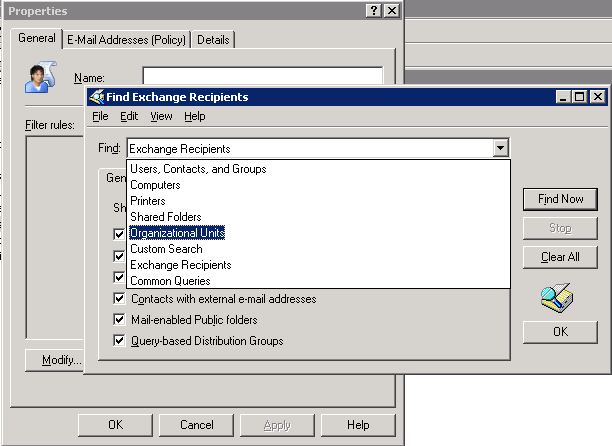
3. Modify –>find –> Organization units

image

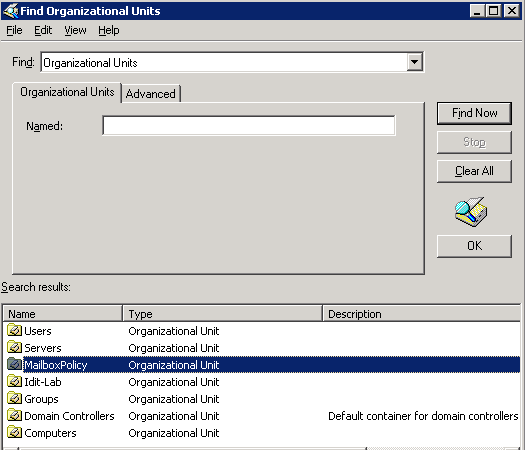
4. Select the OU

image

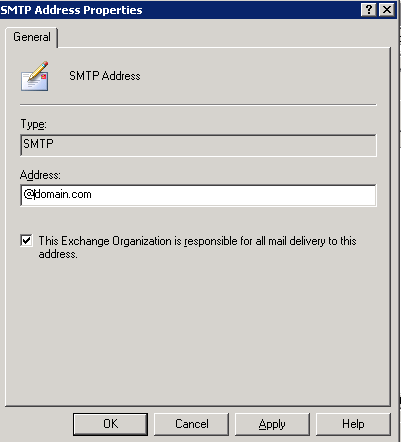
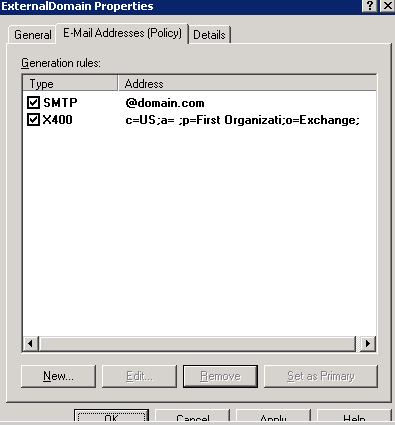
5. New SMTP Address

image

6. Write @Yourdomain

image

image

Good luck!

Error when trying to add members to distribution group in Exchange 2010

“Changes to the distribution list membership cannot be saved. You do not have sufficient permission to perform this operation on this object.”

image

In Exchange 2010  you need to enable the ability to manage distribution groups

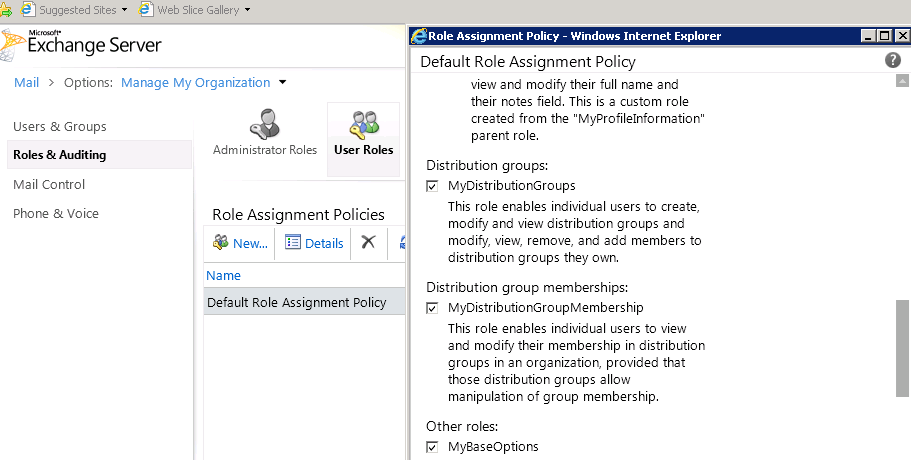
Logon to ECP –> under Roles & Auditing –>”Default Role Assignment Policy”

Under Distribution Group—> check “MyDistributionGroup”

image

This option will allow users to add/remove members to distribution groups they own.

Export Exchange legacy DN For contacts or users to a csv file with Csvde

Open CMD:

Run:


For contacts:

Csvde -d  “OU=MyContacts,DC=Idit,DC=local” -r “(objectClass=contact)” -f c:\Idit-Contacts.csv

For users:

Csvde -d  “OU=MyContacts,DC=Idit,DC=local” -r “(objectClass=users)” -f c:\Idit-Users.csv


Exchange 2010 – How to change the default language for NDR’s in Exchange 2010:

How to change the default language for NDR’s in Exchange 2010:

get-transportconfig | set-transportconfig -ExternalDsnLanguageDetectionEnabled $false -ExternalDsnDefaultLanguage en-us -InternalDsnLanguageDetectionEnabled $false -InternalDsnDefaultLanguage en-us

How to Send Email Using Telnet

How to Send Email Using Telnet:

Open CMD

1. Type telnet server.com 25 (where “server.com” is the name of the smtp (outgoing) server of your email provide

2.Type HELO server.com

3.Type MAIL FROM:User@server.com.

4.Type RCPT TO:Whatever@server.com

To write the message, type DATA and press Enter.   A.On the first line type SUBJECT: yoursubject and press Enter twice.

B.Continue typing your message.

C.Put a single period (.) on a line by itself and press Enter to send your message. The       server should say ‘Message accepted for delivery’. (Or it says 250 OK id=a long id)

5.Type QUIT to exit Telnet