Author Archives: Idit Bnaya

About Idit Bnaya

Sr. Cloud Solution Architect at Microsoft, I’m passionate about helping customers succeed by building secure, scalable, and innovative cloud solutions – with a strong focus on AI, DevOps practices, and end-to-end security. With a proven track record in the IT and services industry, I serve as a trusted advisor, partnering closely with organizations to guide them through digital transformation and maximize the value of their cloud investments. My role combines technical leadership with project ownership – from designing modern architectures to leading cross-functional implementations that drive real business outcomes. I also manage and empower strategic partners, working hand-in-hand with them to ensure project success and deliver measurable business impact for customers.

Dirsync Error

Dirsync Error  –

The synchronization to the cloud failed and I got this email:

“On Wednesday, 09 May 2012 23:21:39 GMT, Microsoft Online Services did not register a synchronization attempt from the Microsoft Online Services Directory Synchronization tool in the last 24 hours for domain Inc.

To troubleshoot this issue, check the Applications Event Viewer of the computer on which the Directory Synchronization tool is installed.”


Solution :

In my case the password of the  configuration user in Office365 was expaired  .
once i change it and rerun the dirsync configuration wizard with the new password  it worked .

I have also edit the user with PasswordNeverExpire PS command:
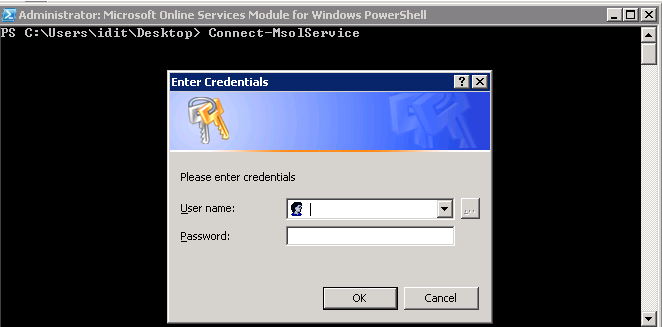
1. Open Microsoft Online Services Module for Windows PowerShell

2. run the command : Connect-MsolService

3. enter youre cloud  credentials (should be a user with administrative rights in Office365)
 

4. run the command :

Get-MsolUser -UserPrincipalName ADMIN@DOMAIN.ONMICROSOFT.COM | Set-MsolUser -PasswordNeverExpires $TRUE




Certificate Error : “The name on the security certificate is invalid or does not match the name of the site “

Certificate Error :

When you open Outlook you get the following certificate error :

“The name on the security certificate is invalid or does not match the name of the site ”


This problem happans when the AutodiscoverServiceInternal is set with the internal name such as domain.local

Solution

Set the SCP with the internal URL:

1. open exchnge powershell

2.  Set-ClientAccessServer CASServerName -AutoDiscoverServiceInternalUri https://mail.domain.com/Autodiscover/Autodiscover.xml


Error – “Updating hybrid configuration failed with error ‘Subtask Configure execution failed: Configure Mail Flow”

When  you try to run the  Hybrid Configuration wizard you get the following error:

Error –  “Updating hybrid configuration failed with error ‘Subtask Configure execution failed: Configure Mail Flow”

If you are using wildcard certificate in your default website in IIS  ,*.domain.com is not a valid FQDN for a send connector in Exchange sp2 . There two ways to solve this issue :

1. Install exchange SP2 rollup 1 – http://www.microsoft.com/download/en/details.aspx?id=28809

2.If you dont want to  install the update, i  found a workaround in this  a grate article

http://clintboessen.blogspot.com/2011/12/wild-card-certificates-and-hybrid.html

Basically, what you need to do in order to complete the Hybrid Configuration Wizard is to use a free  digital certificate from http://www.freessl.com/ complete the wizard and then replace it back to your wildcard certificate.

Error – “Exception has been thrown by the target of an invocation.”

When  you try to run the  Hybrid Configuration wizard you get the following error

Error“Exception has been thrown by the target of an invocation.”:

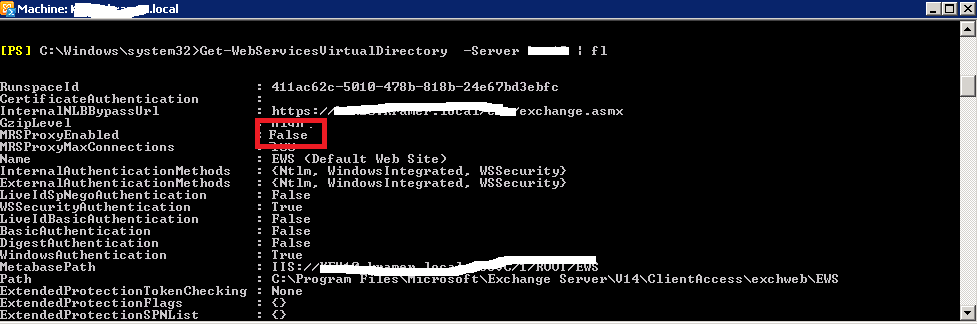
solution : you need to check that The  Client Access Server have the MRSProxy endpoint enabled

1. Open the Exchange 2010 sp2 Management Shell and run the following

Get- WebserviceVirtualDirectory -server “exchange2010server | fl

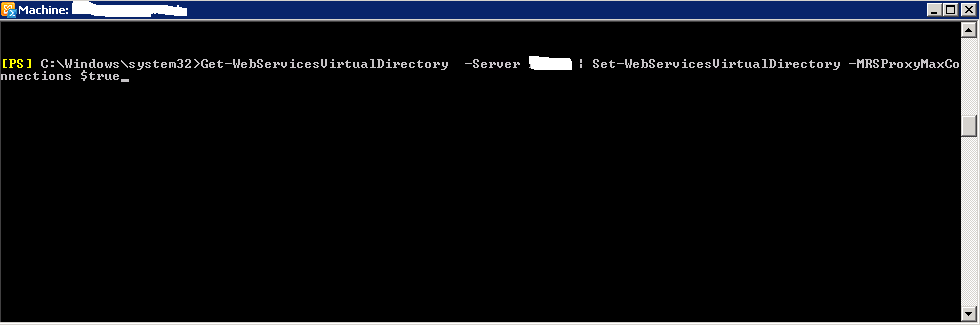
2. if the MRSproxyEnabled is False , run the following :

Get- WebserviceVirtualDirectory -server “exchange2010server” | Set-WebServicesVirtualDirectory   –MRSProxyEnabled $true


Error – ” Federation information could not be received from the external organization”

Error – ” Federation information could not be received from the external organization”

The Hybrid configuration wizard is failed with the following error: ” Federation information could not be received from the external organization”


Solution:

in my case the wsSecurity was disabled, after enabling the wsSecurity the problem was solved.

Follow this steps:

1. Check if the  in the wsSecurity is enabled or disable :

go to Exchange2010 Powershell and type : Get-AutodiscoverVirtualDirectory -Server exch2010 | fl *where “exch2010” is your exchange2010 server name check if the WSSecurityAuthentication:$false


2.  Enable the WSSecurityAuthentication: In the Exchange2010 Powershell type : Get-AutodiscoverVirtualDirectory -Server exch2010 | Set-autodiscoverVirtualDirectory -WSSecurityAuthentication:$true

*where “exch2010” is your exchange2010 server name

Now try to run the wizard again. 🙂


“you must add your Exchange online tenant as an additional before you can run the manage Hybrid Configuration wizard

Error: When try to run the  Hybrid Configuration wizard you get the following error:

“you must add your Exchange online tenant as an additional before you can run the manage Hybrid Configuration wizard”

Solution : Remove the Exchange online forest and add it again this time with “office365”


Office 365 Support for POP and IMAP Connections to Outlook 2003

Office 365 Support for POP and IMAP Connections to Outlook 2003

Office 365 now supports POP and IMAP connections to Outlook 2003. However, please note that customers connecting to Outlook 2003 via POP or IMAP will experience the following limitations: no calendar support, no free/busy information, no Global Address List, no push email and when connecting via POP, all messages will be downloaded to the client, and there will be no synchronization between multiple computers or devices (such as between a laptop and a phone).

Additional Information: For more information, please read the blog Office 365 will now support POP and IMAP Connections to Outlook 2003

How to move mailbox to the cloud Using Power shell

1. Open powershell and connect to the cloud :

https://www.itblog.co.il/?p=443 

2. New-MoveRequest -Remote -RemoteHostName mail.domain.com -RemoteCredential $LiveCred-TargetDeliveryDomain CloudDomain.mail.onmicrosoft.com

3. Use the following command to check the move Request Statistics –>

  Get-MoveRequestStatistics  -Identity UserName

4.Get  Move Request Statistics for all users : 

1. use the following command to check the move Request Statistics for all users –>

while(1) { Get-MoveRequest | Get-MoveRequestStatistics }

How to connect remote PowerShell to the office365’s cloud-based organization

1. Connect to  the cloud :

Connect to Office 365  :

Open Windows PowerShell.
Enter the credentials of an administrator account in the cloud-based organization using the following command –>

$LiveCred = Get-Credential
Create a connection to the cloud-based organization using the following command –>

$Session = New-PSSession -ConfigurationName Microsoft.Exchange -ConnectionUri                     https://outlook.office365.com/powershell-liveid/ -Credential $livecred -Authentication Basic -AllowRedirection

Load the Exchange cmdlets on the local computer using the following commands–>

Import-PSSession $Session
Disconnect from the session :

Remove-PSSession $Session


How to Send Email Using Telnet

How to Send Email Using Telnet:

Open CMD

1. Type telnet server.com 25 (where “server.com” is the name of the smtp (outgoing) server of your email provide

2.Type HELO server.com

3.Type MAIL FROM:User@server.com.

4.Type RCPT TO:Whatever@server.com

To write the message, type DATA and press Enter.   A.On the first line type SUBJECT: yoursubject and press Enter twice.

B.Continue typing your message.

C.Put a single period (.) on a line by itself and press Enter to send your message. The       server should say ‘Message accepted for delivery’. (Or it says 250 OK id=a long id)

5.Type QUIT to exit Telnet