Author Archives: Idit Bnaya

About Idit Bnaya

Sr. Cloud Solution Architect at Microsoft, I’m passionate about helping customers succeed by building secure, scalable, and innovative cloud solutions – with a strong focus on AI, DevOps practices, and end-to-end security. With a proven track record in the IT and services industry, I serve as a trusted advisor, partnering closely with organizations to guide them through digital transformation and maximize the value of their cloud investments. My role combines technical leadership with project ownership – from designing modern architectures to leading cross-functional implementations that drive real business outcomes. I also manage and empower strategic partners, working hand-in-hand with them to ensure project success and deliver measurable business impact for customers.
Hybrid configuration wizard Error: Failed to find the address type object in Active Directory for address type “MS:AMD64”..

ERROR: Updating hybrid configuration failed with error ‘Subtask Configure execution failed: Configure Recipient Settings

Execution of the Set-EmailAddressPolicy cmdlet had thrown an exception. This may indicate invalid parameters in your Hybrid Configuration settings.

The following error occurred during validation in agent ‘Rus Agent’: ‘Failed to validate the proxy address template “YourMS-mailName”. Additional information: Failed to find the address type object in Active Directory for address type “MS:AMD64”..

Consider the following scenario

You have an exchange 2010 environment  that was upgraded from an older exchange version

When you try to run the Hybrid configuration wizard you get the following error :

ERROR: Failed to find the address type object in Active Directory for address type “MS:AMD64”..

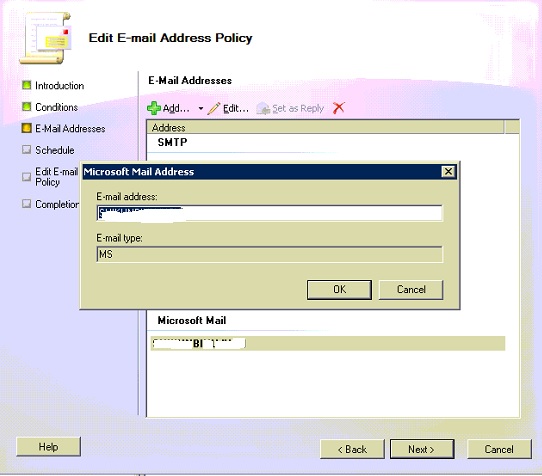
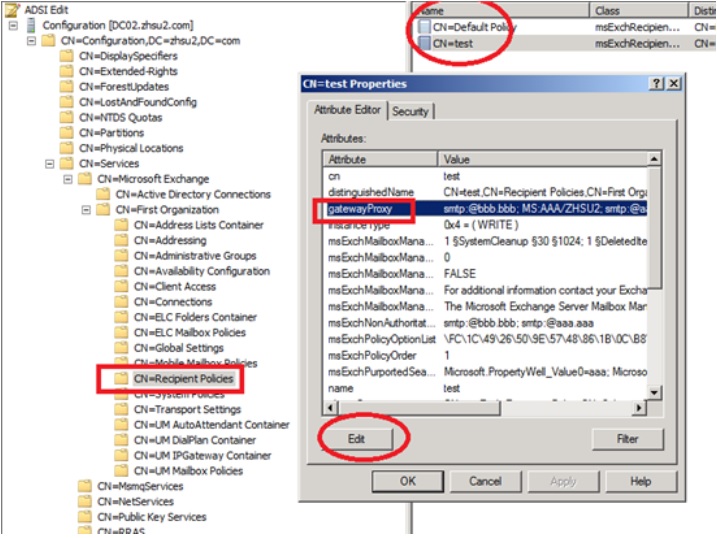
In my case it was related to the some old email address policies That contained  MS-Mail address.

Removing it solve my problem .


You can remove MS:AMD64 from ADSI Edit  like this :


SCCM – Collection Queries

Name: All sccm  clients requiring a reboot

Query:  select SMS_R_SYSTEM.ResourceID, SMS_R_SYSTEM.ResourceType, SMS_R_SYSTEM.Name, SMS_R_SYSTEM.SMSUniqueIdentifier,
SMS_R_SYSTEM.ResourceDomainORWorkgroup, SMS_R_SYSTEM.Client from sms_r_system AS sms_r_system
inner join SMS_UpdateComplianceStatus as c on c.machineid=sms_r_system.resourceid
where c.LastEnforcementMessageID = 9

____________________________________________________________________________________________________________________________

Name: All SCCM client  computers in a specific site

Description : show all SCCM client computers in a specific Active directory site , in this case the site name is “India”

Query : select SMS_R_SYSTEM.ResourceID,SMS_R_SYSTEM.ResourceType,SMS_R_SYSTEM.Name,SMS_R_SYSTEM.SMSUniqueIdentifier,SMS_R_SYSTEM.ResourceDomainORWorkgroup,SMS_R_SYSTEM.Client from SMS_R_System where SMS_R_System.ADSiteName =’India’ and client=1

—————————————————————————————————————————–

Name: SCCM 2007 R3 client

Description : All SCCM clients with R3 version

Query : select SMS_R_SYSTEM.ResourceID,SMS_R_SYSTEM.ResourceType,SMS_R_SYSTEM.Name,SMS_R_SYSTEM.SMSUniqueIdentifier,SMS_R_SYSTEM.ResourceDomainORWorkgroup,SMS_R_SYSTEM.Client from SMS_R_System where SMS_R_System.ClientVersion like “4.00.6487.2187″ or  SMS_R_System.ClientVersion  like “4.00.6487.2157″

_________________________________________________________________________________________

Name: All windows servers with client install

Description : show all SCCM servers with sccm client installed  on them

Query :

select SMS_R_SYSTEM.ResourceID,SMS_R_SYSTEM.ResourceType,SMS_R_SYSTEM.Name,SMS_R_SYSTEM.SMSUniqueIdentifier,SMS_R_SYSTEM.ResourceDomainORWorkgroup,SMS_R_SYSTEM.Client from SMS_R_System where OperatingSystemNameAndVersion like ‘Microsoft Windows NT%Server%’ and client=1

_________________________________________________________________________________________

Name : All Windows 7 Computers

Query :

select sms_r_system.ResourceID,sms_r_system.ResourceType,sms_r_system.Name,sms_r_system.SMSUniqueIdentifier,sms_r_system.ResourceDomainORWorkgroup,sms_r_system.Client from sms_r_system where OperatingSystemNameandVersion like ‘%Workstation 6.1%’


_________________________________________________________________________________________

Name : Users in a specific OU

Query :

select SMS_R_USER.ResourceID,SMS_R_USER.ResourceType,SMS_R_USER.Name,SMS_R_USER.UniqueUserName,SMS_R_USER.WindowsNTDomain from SMS_R_User where SMS_R_User.UserOUName = “Idit.local/ISRAEL/USERS”

______________________________________________________________________________________________________

Name : Computers  in a specific OU

Query :

select SMS_R_SYSTEM.ResourceID,SMS_R_SYSTEM.ResourceType,SMS_R_SYSTEM.Name,SMS_R_SYSTEM.SMSUniqueIdentifier,SMS_R_SYSTEM.ResourceDomainORWorkgroup,SMS_R_SYSTEM.Client from SMS_R_System where SMS_R_System.SystemOUName=”Idit.local/Israel/Computers/Accounting”

_________________________________________________________________________________________________


Name : Lync installed

Description: Collection That determine the workstations that have Lync installed (you can write any programs from “Add remove Program”)

Query:

select SMS_R_SYSTEM.ResourceID,SMS_R_SYSTEM.ResourceType,SMS_R_SYSTEM.Name,SMS_R_SYSTEM.SMSUniqueIdentifier,SMS_R_SYSTEM.ResourceDomainORWorkgroup,SMS_R_SYSTEM.Client from SMS_R_System   where SMS_R_System.ResourceId   in   (select SMS_R_System.ResourceID  from SMS_R_System   inner join SMS_G_System_ADD_REMOVE_PROGRAMS   on SMS_G_System_ADD_REMOVE_PROGRAMS.ResourceId = SMS_R_System.ResourceId  where SMS_G_System_ADD_REMOVE_PROGRAMS.DisplayName  LIKE ‘%Lync%’)

______________________________________________________________________________________________________________________

Name: Computers with no SCCM client

Description: Collection that shows all computers that don’t have  SCCM client  installed

Query:

select SMS_R_SYSTEM.ResourceID,SMS_R_SYSTEM.ResourceType,SMS_R_SYSTEM.Name,SMS_R_SYSTEM.SMSUniqueIdentifier,SMS_R_SYSTEM.ResourceDomainORWorkgroup,SMS_R_SYSTEM.Client from sms_r_system where Client = 0 or Client is null

______________________________________________________________________________________________________________________

Name: Windows Server 2008

Description: Collection that shows all discovered Windows Server 2008

Query:

select SMS_R_System.Name, SMS_R_System.SMSAssignedSites, SMS_R_System.IPAddresses, SMS_R_System.IPSubnets, SMS_R_System.OperatingSystemNameandVersion, SMS_R_System.ResourceDomainOrWorkgroup, SMS_R_System.LastLogonUserDomain, SMS_R_System.LastLogonUserName, SMS_R_System.SMSUniqueIdentifier, SMS_R_System.ResourceId, SMS_R_System.NetbiosName from SMS_R_System where SMS_R_System.OperatingSystemNameandVersion like “%Server 6.0%”

_____________________________________________________________________________________________________________________


Name: Windows 7

Description: Collection that shows all discovered Windows 7


select SMS_R_SYSTEM.ResourceID,SMS_R_SYSTEM.ResourceType,SMS_R_SYSTEM.Name,SMS_R_SYSTEM.SMSUniqueIdentifier,

SMS_R_SYSTEM.ResourceDomainORWorkgroup,SMS_R_SYSTEM.Client from SMS_R_System

inner join SMS_G_System_COMPUTER_SYSTEM on SMS_G_System_COMPUTER_SYSTEM.ResourceId = SMS_R_System.ResourceId

where SMS_R_System.OperatingSystemNameandVersion like “%Workstation 6.1%” or

SMS_R_System.OperatingSystemNameandVersion like “%Windows 7%

____________________________________________________________________________________________________________________


Name: Find Mac

Description: Query to mac address


select SMS_R_System.Name from  SMS_R_System where SMS_R_System.MACAddresses like ##PRM:SMS_R_System.MACAddresses##


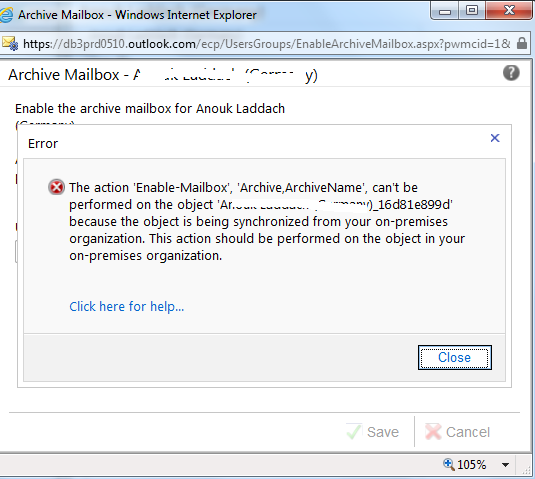
The action ‘Enable Mailbox’ , ‘Archive,ArchiveName’ , cant be performed on the object… because the object is being synchronized from your on premises organization….

Consider the following scenario :

You have an hybrid environment , When you try to enable archive through the office 365 portal you get the following massage :


Mailboxes that you move to the cloud from your on-premises exchange become “mail enabled” in your on-premises environment, if you want to enable archiving (in your on-premises server) you can do that via the exchange management console or power shell .

In the exchange management console go to: Recipient configuration -> mail contact -> right click on the mailbox you want to enable fpr archiving -> Enable hosted archive


After that you need to sync  (“Start-OnlineCoexistenceSync” using the Dirysinc powershell) , only then you will be able to see that your mailbox is enabled for archiving in the office 365 portal.


If you want to  enable archive for  all users using Exchange Power shell, type the following command:

Get-remotemailbox | enable-remotemailbox -archive


If you cannot see the option “Enable hosted archive” its possibly because the Enable-RemoteMailbox commandonly works on mailboxes that contain Exchange 2010 mailbox property values.

To work around this problem,connect to ADSIedit under the problematic user  change the value of the msExchVersion in property to 44220983382016 .


How to uninstall sms 2003 clients

If you have old SMS 2003 clients installed on computers in your organization, and  the SMS 2003 server is  no longer available, you will have trouble to install SCCM 2007 clients. In order to install SCCM 2007 clients ,you will first need to uninstall the SMS 2003 clients you will need to download and install the sms 2003 toolkit-http://www.microsoft.com/download/en/details.aspx?id=18153


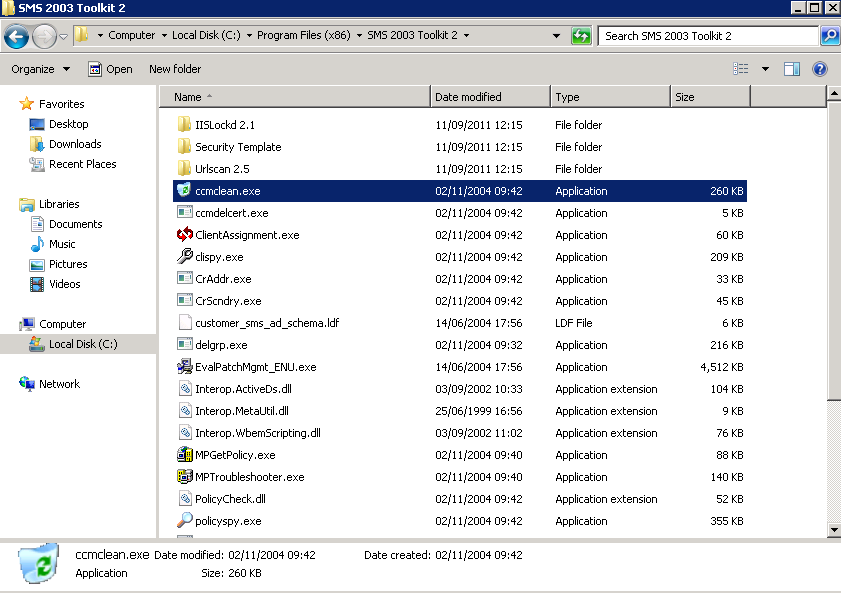
Local Uninstall: 1. copy the ccmclean.exe file from the SMS 2003 toolkit folder –  “C:\Program Files (x86)\SMS 2003 Toolkit 2″ to your SMS 2003 to the SMS 2003 client computer *for examlple to the path  c:\install\uninstallsms 2. Start-Run 3. Type: c:\install\uninstallsms\ccmclean.exe /client /q ”

Remote uninstall with psexec :

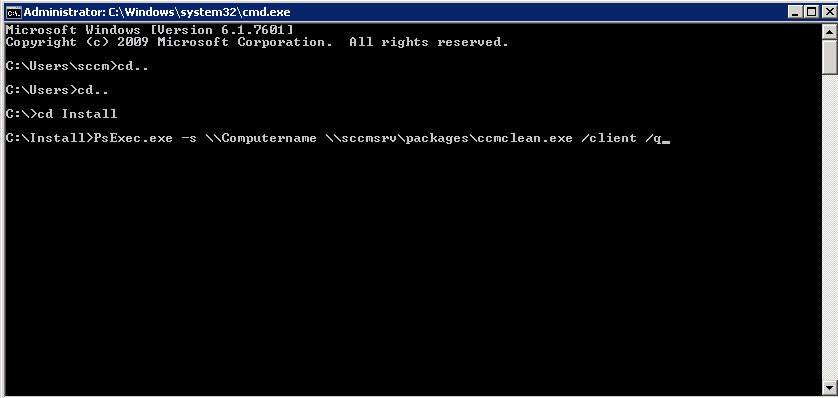
1. install psexec.exe on the computer you will send the uninstall command from 2. Start – Run – cmd 3.Copy the ccmclean.exe file in to a share folder on your computer in my case its in – c:\packages 4. In cmd go to the psexec.exe file location path 5.Type:  “psexec.exe -s \\ClientComputername \\servername\packages\ccmclean.exe 2003  /client /q ”

How to uninstall sccm client localy and remotly:

For x86 Operating Systems: On the client computer -Start -Run – Type: %windir%system32\ccmsetup\ccmsetup.exe /uninstall For x64 Operating Systems: On the client computer -Start -Run – Type: %windir%\ccmsetup\ccmsetup.exe /uninstall

How to uninstall sccm client remotly with psexec:

1. install psexec.exe on the computer you will send the uninstall command from
2. Start – Run – cmd
3. In cmd go to the psexec.exe file location path
4.For x86 Operating Systems:
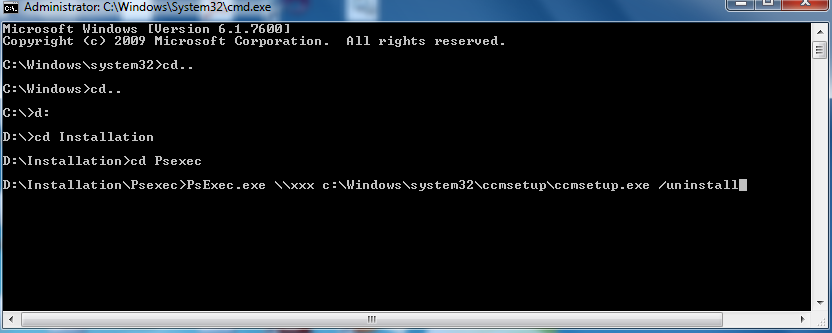
type : psexec -s \\xxx c:\Windows\system32\ccmsetup\ccmsetup.exe /uninstall
5. For x64 Operating Systems:
type : psexec -s \\xxx c:\Windows\ccmsetup\ccmsetup.exe /uninstall
*If you don’t have permissions, you will need to add user name and password for user with permission for this action
For example:

psexec -u domain\username -p Password -s \\xxx c:\WinNT\system32\ccmsetup\ccmsetup.exe /uninstall

SCCM 2007 – Import SCCM power management reports

After installing and configuring SCCM R3 , the power management reports will not appear automatically , you will need to import them  into SCCM console

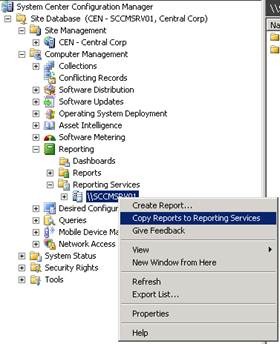
Steps to Import SCCM power management reports : 1. Make sure SQL Reporting Services component is installed and configured 2. Go to Reporting Services under : Computer Management > Reporting. Right-click the Reporting Services server role and select Copy Reports to Reporting Services

3. Select Database server name and database instance name for SCCM. 4. Select database authentication method to gain access to connect to database and press Next. 5.  Select the second option to Import Reports from a cabinet file, and click Browse

6. Browse to “%ConfigMgr install folder%\Reports\Power Management” folder and select MicrosoftReportsPack.cab file.

This will list all Power Management reports which will be imported.

7. Press Next twice.

Powershell error : “.ps1 cannot be loaded because the execution of scripts is disabled on this system”

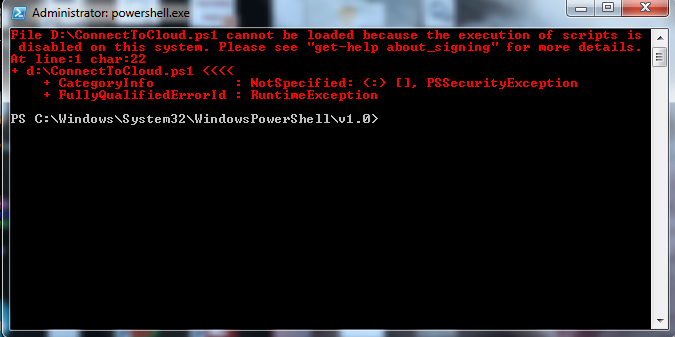
When You are trying to run a PS1 script in Power shell you are getting the following error:

“File C:\scripts\.ps1 cannot be loaded because the execution of scripts is disabled on this system. Please see “get-

help about_signing” for more details.

At line:1 char:19

+ c:\scripts\.ps1 <<<<”


The security settings built into Windows PowerShell include something called the “execution policy;” the execution policy determines how (or if) PowerShell runs scripts. By default, PowerShell’s execution policy is set to Restricted; that means that scripts – including those you write yourself – won’t run.

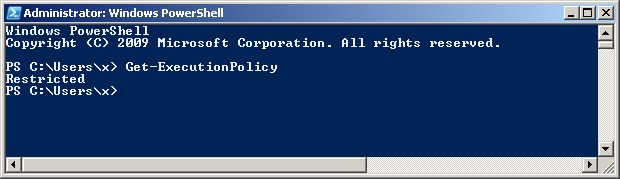
You can see it by runnig to command: Get- ExecutionPolicy

As you can see , Its restricted


For enabling it just run :

Set-ExecutionPolicy -ExecutionPolicy Unrestricted

Now you can run your PS1 script

*Note: the unrestricted option will allow  All scripts from all sources can be run without signing

A safer option will be tp run

Set-ExecutionPolicy -ExecutionPolicy RemoteSigned


“system volume information” folder grow into a huge size

there are 2 ways to make this folder smaller,

the first GUI method changes from one OS to another so i will not specify all the OS options here,

a simple search in google with: “configure shadow copies windows [your OS]” will give you the results for your OS

the CLI method is the same for all windows versions so i will give it here.

1. To see the space allocated and used for SVI folder:

– Open Command Prompt with “Run as Administrator” option
– Type in: vssadmin list shadowstorage
– You will see Used Space, Allocated Space and Maximum Space for SVI folder

2. To see the restore information stored therein:

– Use in the same console command: vssadmin list shadows

3. To resize the maximum allocated space:

– Type in command: vssadmin resize shadowstorage /on=[here add the drive letter]:           /For=[here add the drive letter]: /Maxsize=[here add the maximum size]
E.g., vssadmin resize shadowstorage /on=C: /For=C: /Maxsize=4GB

– You will see a prompt confirming resize done
– You can check the status again using the command discussed in point 1 above

thanks to Sean Zhu for the solution


How to create distribution lists in office 365

There are two ways to send  email to multiple address (Group) with Office 365

1. Create a Distribution group

2. Create a Transport rule

In this article i will show you how to do them both

 1. How to Create Distrinution Group with Office 365

  • connect to the cloud with a cloud administrator credentials  portal.microsoftonline.com
  • On the admin  page stand on  Admin Overview  – under – Office 365Exchange- click on Manage


  • A new IE tab will open
  • Under –User & groupsDistribution groupsNew


  • Fill the fields (field in bold are mandatory)
    • Display name: name of your distribution list
    • Alias: alias of your distribution list
    • Email address: email address of your distribution list.
    • Make this group a security group: do not enable this option. If you enable this, you will be able to use the distribution list as a security group for granting access to SharePoint site for example
    • Owners: owner(s) of this distribution list.
    • Membership: add here all users which must be part of the distribution list
    • Membership approval: allow you to define how new member requests are managed; anyone can join without approval, no one can join except if the owners add the user account or an approval is required


  • Click Save


2. How to Create a transport rule for distribution lists with Office 365 :

  • connect to the cloud with a cloud administrator credentials  portal.microsoftonline.com
  • On the admin  page stand on  Admin Overview  – under – Office 365Exchange- click on Manage


  • A new IE tab will open
  • In the new tab – under -Mail control -Rules – New


  •  press on if and choose “The recipient is..” and find the recipient
  • add the recipient and click OK


  •  Press on Do the following and choose “Redirect the massage to.. “
  • Select the members and click OK


  • click Save


Office 365 – Create Transport Rule


1. How to Create a transport rule with Office 365 :

  • connect to the cloud with a cloud administrator credentials  portal.microsoftonline.com
  • On the admin  page stand on  Admin Overview  – under – Office 365Exchange- click on Manage


  •  A new IE tab will open
  •  In the new tab – under -Mail control -Rules – New