Category Archives: Exchange 2010

Installation of exchange server 2010 SP3 UpdateRollup Failed with event log 1023 Eventvwr

“Update Rollup 17 for Exchange Server 2010 Service Pack 3 (KB4011326) 14.3.352.0′ could not be installed. Error code 1603”

:After searching the web I’ve found a way to run the setup with verbose log redirected to a file

“Exchange2010-KB4011326-x64-en.msp /lxv*! c:\Rollup.log”

And this is the log that I’ve got
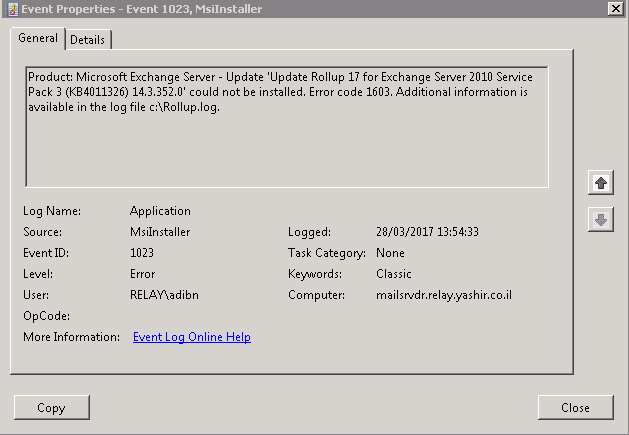
clip_image001

Searching the c:\Rollup.log file didn’t helped me at all,

Finally I’ve deleted the folder: “C:\ExchangeSetupLogs”

And ran the setup again,

After the installation failed I saw that inside of “C:\ExchangeSetupLogs” folder there were 3 new files, one of them was “ServiceControl.log”

Researching this file I’ve located the following error:

“[Error] System.Management.Automation.ParseException: At C:\Program Files\Microsoft\Exchange Server\V14\Scripts\ManageScheduledTask.ps1:462 char:5”

Then I’ve opened the file in the mentioned location using PowerShell ISE, navigated to line 462 and saw that there was an error: “Flow of control cannot leave a Finally block.”
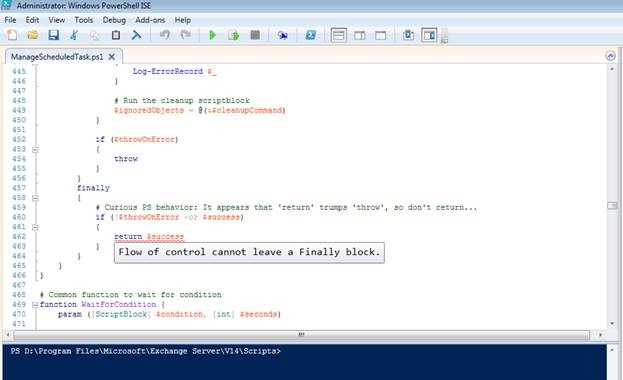
clip_image002

I backed up the file before changing that line to: “Write-Verbose $success”

clip_image003

Then rerun the setup and it completed successfully!

Just to be on the safe side, after the installation finished successfully I’ve returned the backed up script

Exchange 2010: Get-MailboxDatabase -Status for Whitespace

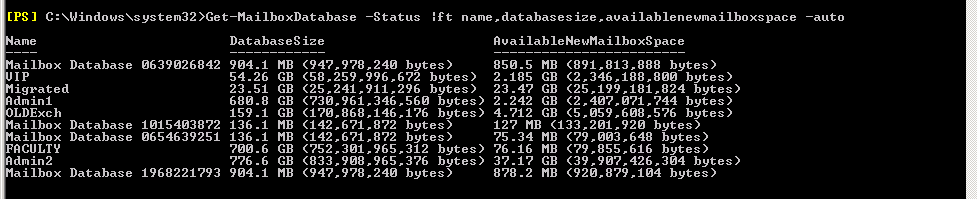
In exchange 2010, event id 1221 does not exist anymore, and in order for us to find the whitespace, Microsoft has provided an appropriate command shell:
Get-MailboxDatabase -Status |ft name,databasesize,availablenewmailboxspace -auto

image

image

Exchange 2010 – SMTP address is generated in the format of username2@domain.com

Symptom:
When a new user is created, in some cases an SMTP address is generated in the format of username2@domain.com instead of username@domain.com although there is no such existing address on the network
Cause
:
Issue is possibly due to the x400 configuration on the e-mail address policy:

When the email address is stamped, x400 finds the 2nd user as duplicated as the user’s First Name and Last Name are same.
So it adds 2 in the X400.

As the X400 found it as duplicate and added 2 , SMTP also follows the same and adds 2 to address.

Solution/Accepted workaround:

Remove x400 configuration from e-mail address policy and restarted the Exchange services.

*Please note that X.400 address function is not necessarily required in pure Exchange 2007/2010 environments.

Add New exchange 2010 certificate – from CA

On your Exchange Server, Open the Management Console then from Server Configuration, Click on “New Exchange Certificate”

Enter A name for your Certificate, then click Next

Leave the ” Enable Wildcard Certificate ” un-checked, then click Next

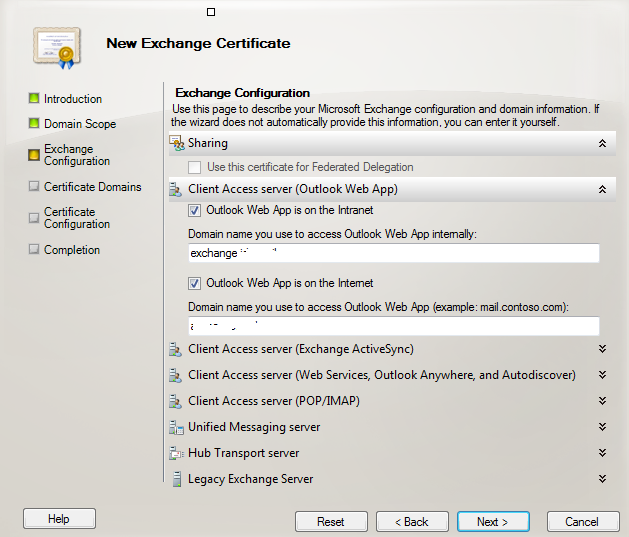
Select the services that this exchange certificate will handle.

image

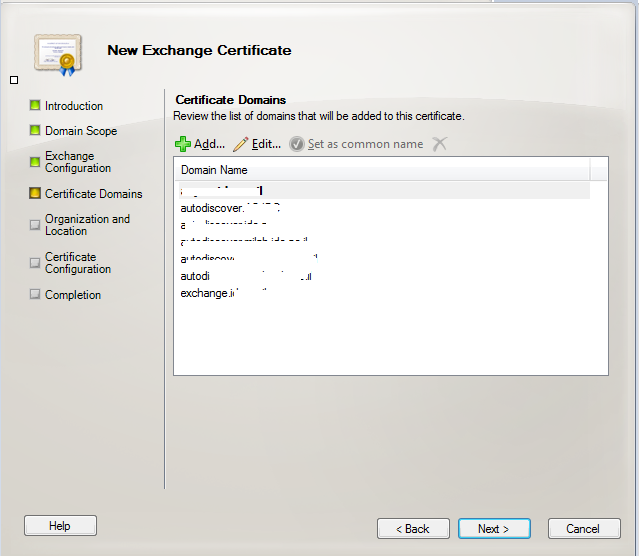
*Add or remove names -by clicking on the green Plus sign Add Or remove by selecting the name and click on the x sign

image

Click Next.

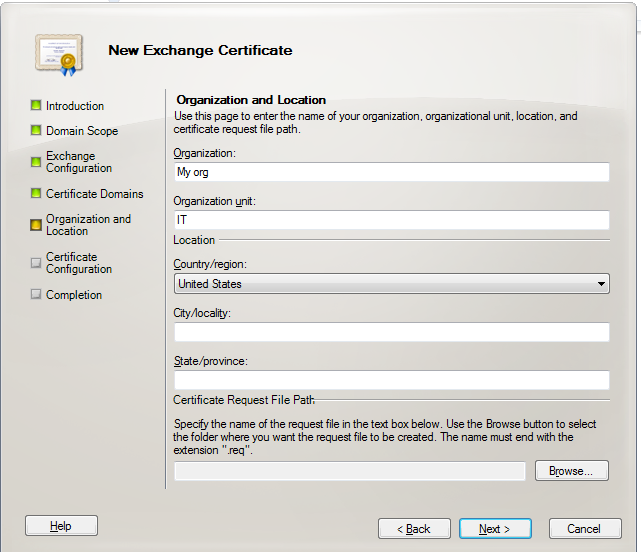
Enter Organization and Location Data. 

Specify where the Certificate Request will be saved

image

Click Next,  Then Click New

Exchange will start creating the Certificate Request

When Completed , Click Finish


Open CA web page using an Internet Browser,   For Example   http://caserver/CertSrv     Then click on ” Request a Certificate ” Link

Then Click on Advanced Certificate Request

Then Click on ” Submit a Certificate Request ”

Open the Certificate Request file you created in Exchange With Notepad  Select all Text

Paste the text into the webpage, and select ” Web Server ” from the Certificate Template list, Then Click Submit.

Select Base 64 Encoded,  then click on Download Certificate Chain.

Save the certificate

On The Exchange Server:

From the Exchange Management Console –> Server Configuration,choose the  the certificate you requested and Click on Complete Pending Request

Select the Certificate you downloaded from the CA, then Click Complete

Right click on the Certificate, select Assign services to certificate

Exchange 2010 – Converting Legacy Mailboxes to User Mailboxes

How to convert Legacy Mailboxes to regular User Mailboxes after Exchange upgrade

If you recently completed a transition from Exchange 2003/2007 to 2010 you probably noticed that some of the migrated mailboxes are marked as Legacy Mailboxes.


In order to change all Legacy mailbox to regular mailboxes,  you can run the following PowerShell cmdlet: :


Get-Mailbox -ResultSize unlimited -Filter {RecipientTypeDetails -eq “LegacyMailbox”} | Set-Mailbox –ApplyMandatoryProperties


In order to convert specific mailboxes to regular mailboxes, run the following PowerShell cmdlet:

Set-Mailbox -Identity -ApplyMandatoryProperties

Move Mailbox failed – Mailbox size exceeds target quota

Open ADSIEDIT.MSC


Find the user and change the value  ‘mBDUseDefaults’  to True wait a few minutes and try again.


Good Luck סמיילי

Activesync not working After Migration from Exchange 2007 to Exchange 2010- event ID 1053

Error: event ID 1053: “Exchange Activesync doesn’t have sufficient

Open Active Directory – find the user

RightClick – properties – Security – Advanced

Chack: “Include inheritable permissions from this objects parent”

image

Exchange ActiveSync Error – 1053

“Exchange ActiveSync doesn’t have sufficient permissions to create the “” container under Active Directory user “Active Directory operation failed on dc.domain.com. This error is not retriable. Additional information: Access is denied.

Active directory response: 00000005: SecErr: DSID-03152611, problem 4003 (INSUFF_ACCESS_RIGHTS), data 0

Make sure the user has inherited permission granted to domain\Exchange Servers to allow List, Create child, Delete child of object type “msExchActiveSyncDevices” and doesn’t have any deny permissions that block such operations.”

Issue :  Data will not sync in mobile phones for domain admins accounts after exchange 2010 upgrade .

Solution: configure security inheritance to the exchange servers objects for those users:

1. Start Active Directory Users and Computers.
2. Click View, and then click to enable Advanced Features.
3. Right-click the object where you want to change the Exchange Server permissions, and then click Properties.
4. Click Add, type Exchange Servers, and then click OK.
5.  In the Apply to box, click Descendant msExchActiveSyncDevices objects.
6. Under Permissions, click to enable Modify Permissions. Click OK three times.
7. Tick the Include inheritable permissions toggle then Apply and OK.


How to set all virtual directories at once With PowerShell

For internal URLs:

$urlpath = Read-Host "Type internal Client Access FQDN starting with http:// or https://"

Set-ClientAccessServer –Identity * –AutodiscoverServiceInternalUri “$urlpath/autodiscover/autodiscover.xml”
Set-webservicesvirtualdirectory –Identity * –internalurl “$urlpath/ews/exchange.asmx”
Set-oabvirtualdirectory –Identity * –internalurl “$urlpath/oab”
Set-owavirtualdirectory –Identity * –internalurl “$urlpath/owa”
Set-ecpvirtualdirectory –Identity * –internalurl “$urlpath/ecp”
Set-ActiveSyncVirtualDirectory -Identity * -InternalUrl "$urlpath/Microsoft-Server-ActiveSync"

External URLs:

Set-ClientAccessServer –Identity * –AutodiscoverServiceExternalUri “$urlpath/autodiscover/autodiscover.xml”
Set-webservicesvirtualdirectory –Identity * -ExternalUrl “$urlpath/ews/exchange.asmx”
Set-oabvirtualdirectory –Identity * –ExternalUrl “$urlpath/oab”
Set-owavirtualdirectory –Identity * –ExternalUrl “$urlpath/owa”
Set-ecpvirtualdirectory –Identity * –ExternalUrl “$urlpath/ecp”
Set-ActiveSyncVirtualDirectory -Identity * -ExternalUrl "$urlpath/Microsoft-Server-ActiveSync

save it as a .ps1 extension and run it in Exchange Management Shell

Netapp – Create new LUN for exchange DB Using Netapp 2020


This guide provide the steps to take in order to create new Database in Exchange using Netapp storage and snap drive

In this case , I’m using Netapp 2020


1. Check Space Availability

Available storage in NetApp filers is contained in aggregates.
– In NetApp onCommand System Manager select the aggregate section and check for available space:

image

2.Create Volume  

Now that you are sure that you have Enough disk space available you can create a new volume

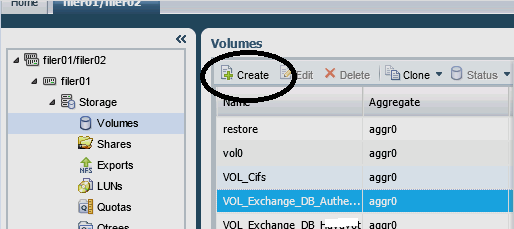
-In NetApp onCommand System Manager select the Volume section and then click on "Create"

image

You’re now presented with the "Create Volume window"

Name: provide the name for the volume
Aggregate: choose the aggregate 

Storage Type: SAN

Total size: type the size of the DB

check the "Thin provisioned" check box if you want. 

image

Navigate to Storage Efficiency

Check the "Enable storage Efficiency" check box -  this will let you control data growth to increase storage utilization, regain capacity, and improve IT performance

image

*Do the same for the log DB

3. Create Qtree

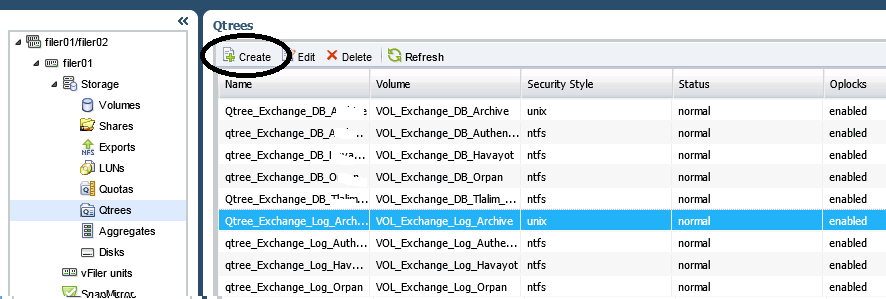
In NetApp onCommand System Manager select the Qtrees section and then click on "Create"

image

You’re now presented with the "Create Qtree window"

Name: provide the name for the Qtree

Volume: Select the volume you created in step 2

oplocks: By default its enabled – I usually keep it that way –This options means that  A client can work with a file   (read or write it) without regularly reminding the server that it needs  access to that file, which improves performance by reducing network traffic.

Check Inherit Volume security style

Click Create.

image

*Do the same for the log DB

4. Create LUN with snap Drive

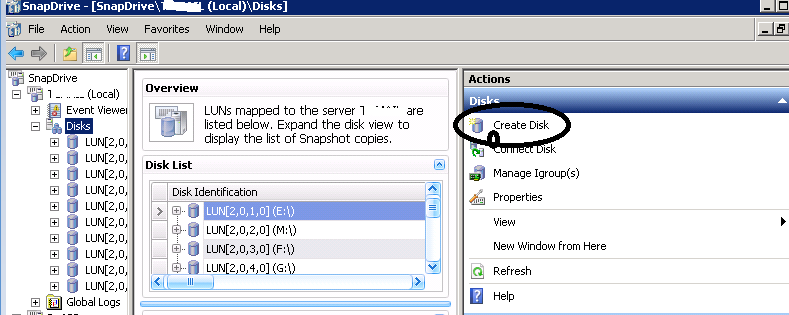
Connect to Exchange server and open Snap Drive

Navigate to "Disks" and click on Create disk

image

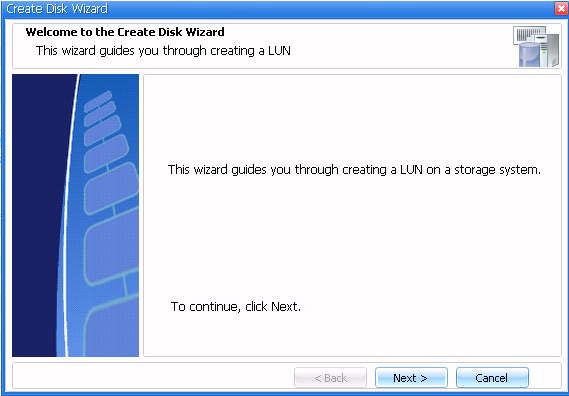
This will start the “Create disk Wizard”, and you can click ‘Next’ on the welcome page

image

Select the new Volume-Qtree you created
provide the name for the New Lun

Click Next

image

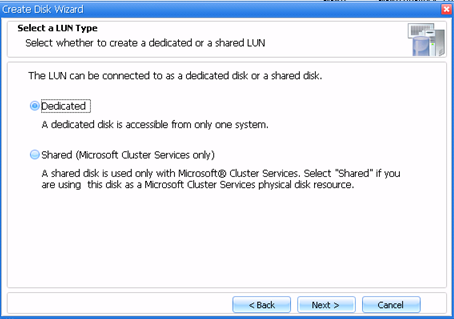
Select – Dedicated

image

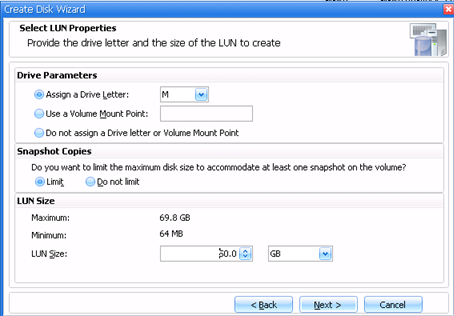
Assign a Drive letter and the LUN size

image

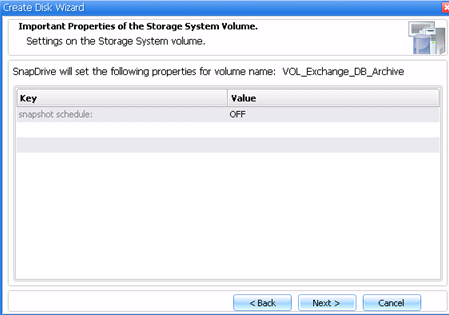
Click next

image

Select the initiator , in my case its VMware ESXI

image

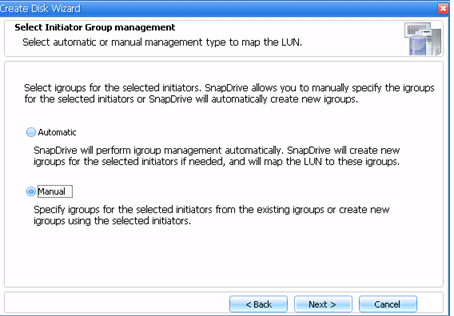
select Manual

image

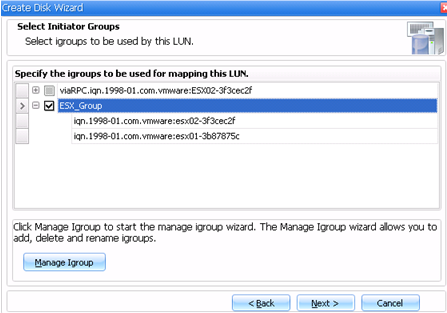
Select the initiator group

image

Select Store with virtual machine

image

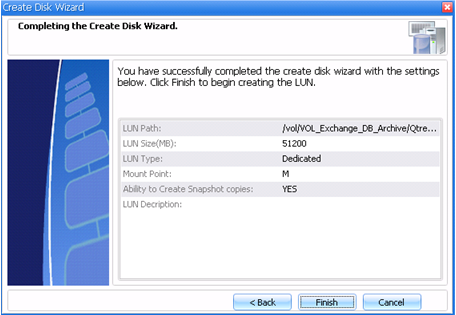
Finish the wizard

image

*Do the same for the Log DB

5. Format the new Drive

On the Exchange server Navigate to – "My computer"

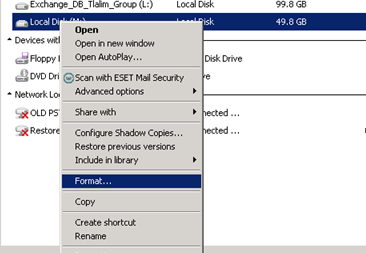
Right click on the new Drive and click on Format

image

Under Allocation Unit size choose – 64 kilobytes

Check – Quick format

Start

image

*Do the same for the log DB


The next step is to create the DB in exchange.


Good luck !