SCCM 2012 R2 – Collection Query for Internet Explorer

First you need to make sure that Asset intelligent is configured and enabled

Click on Asset and Compliance > Asset Intelligence  – Ensure that the following settings are show
1. Asset Intelligence Component : Enabled
2. Asset Intelligence Synchronization point status: Sync Point Deployed

image

image

2.  Configure Client Settings 

Go to Administration >  Client Settings –> Right click on Default Client Settings –>properties

image
select Hardware Inventory and ensure it is turned on.

 image

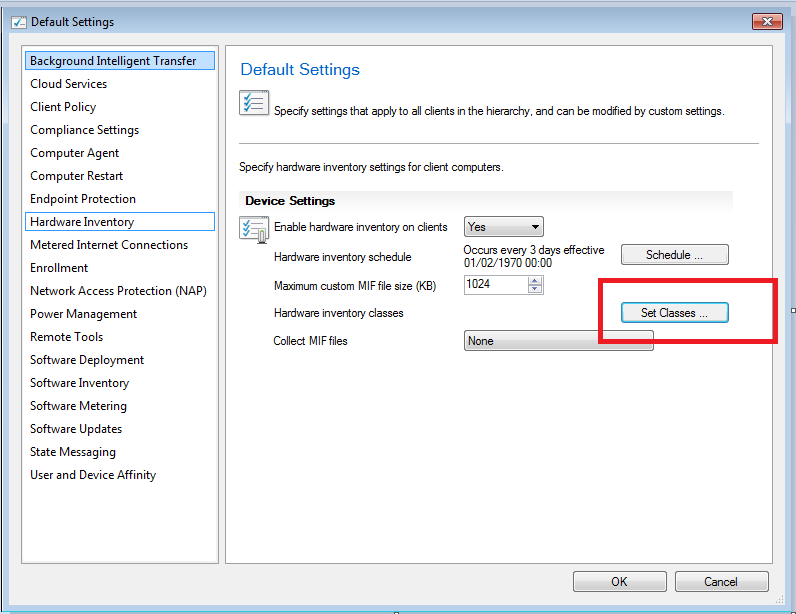
click on Set Classes…

image
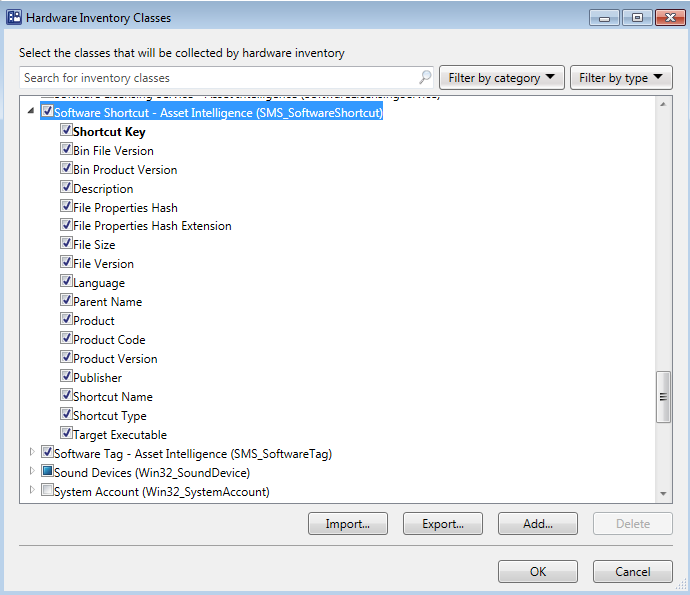
Select Software ShortCut from the list  – Asset Intelligence (SMS_SoftwareShortCut) and make sure that everything is checked including File Version
image

Click on OK.

Now you are ready to create a query:

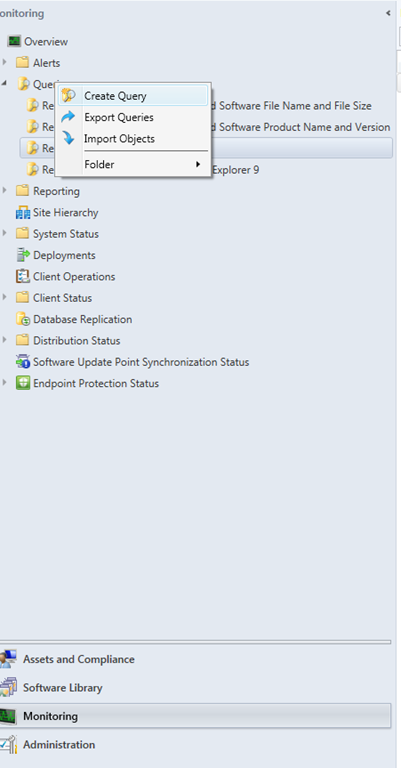
Open Configuration Manager on your Primary Site Server – >  Monitoring >  Right click on Query > Select new Query
image

Name : Computers with Internet Explorer
Click on Edit Query Statement
Click on Show Query Language
Copy and Past the following query:

Entire IE inventory in your IE environment

select distinct SMS_R_System.NetbiosName, SMS_G_System_SOFTWARE_SHORTCUT.FileVersion from  SMS_R_System inner join SMS_G_System_SOFTWARE_SHORTCUT on SMS_G_System_SOFTWARE_SHORTCUT.ResourceID = SMS_R_System.ResourceId where SMS_G_System_SOFTWARE_SHORTCUT.Description like “%Internet Explorer%”

For Specific Versions:

Internet Explorer 9

select distinct SMS_R_System.NetbiosName, SMS_G_System_SOFTWARE_SHORTCUT.FileVersion from  
SMS_R_System inner join SMS_G_System_SOFTWARE_SHORTCUT on SMS_G_System_SOFTWARE_SHORTCUT.ResourceID = SMS_R_System.ResourceId where SMS_G_System_SOFTWARE_SHORTCUT.FileVersion like "%9.00%"

Internet Explorer 10

select distinct SMS_R_System.NetbiosName, SMS_G_System_SOFTWARE_SHORTCUT.FileVersion from  
SMS_R_System inner join SMS_G_System_SOFTWARE_SHORTCUT on SMS_G_System_SOFTWARE_SHORTCUT.ResourceID = SMS_R_System.ResourceId where SMS_G_System_SOFTWARE_SHORTCUT.FileVersion like "%10.00%"

Internet Explorer 11

select distinct SMS_R_System.NetbiosName, SMS_G_System_SOFTWARE_SHORTCUT.FileVersion from  
SMS_R_System inner join SMS_G_System_SOFTWARE_SHORTCUT on SMS_G_System_SOFTWARE_SHORTCUT.ResourceID = SMS_R_System.ResourceId where SMS_G_System_SOFTWARE_SHORTCUT.FileVersion like "%11.00%"


Good luck סמיילי

password never expires

<#

This script find all the users whose passwords never expire and send a report to mail.
Idit Bnaya

#>

Import-Module activedirectory
$date=Get-Date
$date1 = $date.ToShortDateString()
$date2 = $date1.Replace("/","_")
$FolderPath = ‘c:\temp’
 
Get-ADUser -filter * -Properties PasswordNeverExpires | where {($_.PasswordNeverExpires -eq $true)}  |select name,SamAccountName,DistinguishedName,PasswordNeverExpires |Export-Csv $folderpath\"passnerverexpired"’  ‘$date2.csv

$smtpServer = "SMTP Address"
$smtpFrom = "ReportPasswordneverexpired@idit.com"
$smtpTo = "idit.bnaya@iditbnaya.com"
$messageSubject = "PasswordNeverExpired "+" "+$date

Send-MailMessage -To $smtpTo -From $smtpfrom -SmtpServer $smtpServer -Subject $messageSubject -BodyAsHtml -Attachments $folderpath\"passnerverexpired"’  ‘$date2.csv

Who am I – VB Script

‘ This script returns the following details on the local computer:

1. IP address

2. Computer name

3. Last reboot time

4. user name

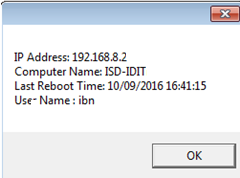
image

I compiled it to exe and push it to all the workstations using GPO

It looks like this

image

Copy and save as vbs file:

@@@@@@@@@@@@@@@@@@@@@@@@@@@@@@@@@@@@@@


Function WMIDateStringToDate(dtmBootup)
WMIDateStringToDate = CDate(Mid(dtmBootup, 5, 2) & “/” & _
Mid(dtmBootup, 7, 2) & “/” & Left(dtmBootup, 4) _
& ” ” & Mid (dtmBootup, 9, 2) & “:” & _
Mid(dtmBootup, 11, 2) & “:” & Mid(dtmBootup, _
13, 2))
End Function
Dim NIC1, Nic, StrIP, CompName, objWMIService, colOperatingSystems, dtmBootup,  dtmLastBootupTime

Set NIC1 = GetObject(“winmgmts:”).InstancesOf(“Win32_NetworkAdapterConfiguration”)

For Each Nic in NIC1

if Nic.IPEnabled then

StrIP = Nic.IPAddress(i)

Set WshNetwork = WScript.CreateObject(“WScript.Network”)

CompName= WshNetwork.Computername
end If

Next

Set objWMIService = GetObject(“winmgmts:” & strComputer & “\root\cimv2”)
Set colOperatingSystems = objWMIService.ExecQuery(“Select * from Win32_OperatingSystem”)
For Each objOS in colOperatingSystems
dtmBootup = objOS.LastBootUpTime
dtmLastBootupTime = WMIDateStringToDate(dtmBootup)

MsgBox “IP Address: “&StrIP & vbNewLine _
& “Computer Name: ” &CompName & vbNewLine _
& “Last Reboot Time: “&dtmLastBootupTime & vbNewLine _
& “User Name : “& WshNetwork.UserName
‘MsgBox “Last Reboot: ” & dtmLastBootupTime
‘MsgBox “The current user is ” & WshNetwork.UserName

wscript.quit
Next

@@@@@@@@@@@@@@@@@@@@@@@@@@@@@@@@@@@@@

Good luck סמיילי

Define new topology for a clean Skype for business server environment

Topology Builder is used to create, adjust, and publish your topology.
Topology Builder also validates your topology before you begin server installations.
When you install Skype for Business Server 2015 on individual servers, the servers read the published topology as part of the installation process, and the installation program deploys the server as directed in the topology.
When you publish the topology, Skype for Business Server 2015 places the topology in the Central Management Database, which is created at this stage if it does not already exist. Then, when you install Skype for Business Server on each server in your deployment, the server reads the topology from the Central Management database and installs a replica copy of the Central Management Database into a new local SQL Server Instance.
Whether you use the Planning tool or Topology Builder to define the topology, you are required to publish the topology by using Topology Builder before you install Skype for Business Server 2015 on servers.
Using Topology Builder to plan and publish a topology is a mandatory step. You cannot bypass Topology Builder and install Skype for Business Server 2015 individually on the servers in your deployment.

This topology builder guide is a basic step by step guide for creating a new topology for Skype for business 15
The following are the high-level steps to publish your topology by using Topology Builder:

1. Open the topology builder tool

  • Lunch a new instance
  • Select New topology

image

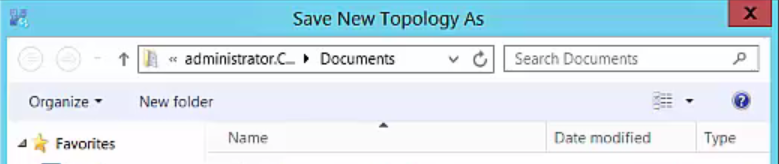
2. Save the file

image

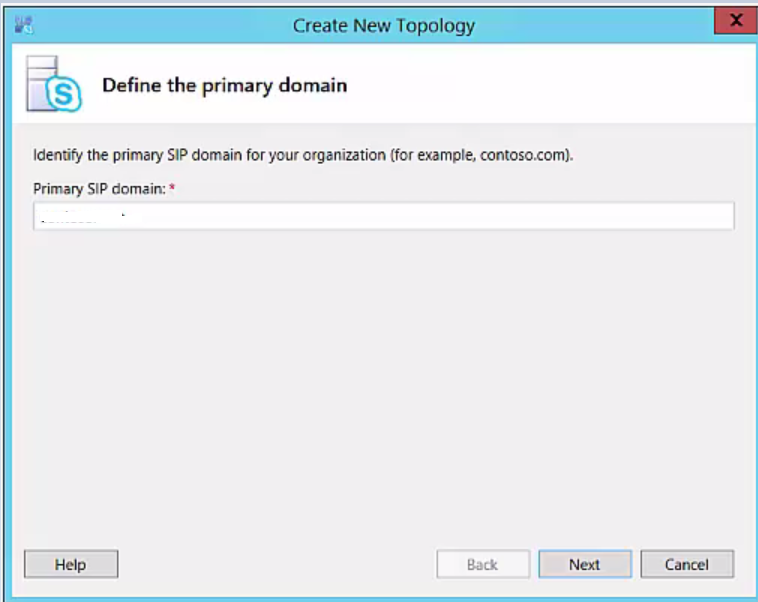
3. Add the sip domain

image

  • If you want to support any additional SIP domains you can add them (you can add them later)

4. Define the first site – this is the actual name of the central site in the topology builder itself

image

  • Specify the site details if you desire

5. Create you frontend pool

image

6. What type of pool would you like to create

  • Choose the pool you need for your environment and give it a name

image

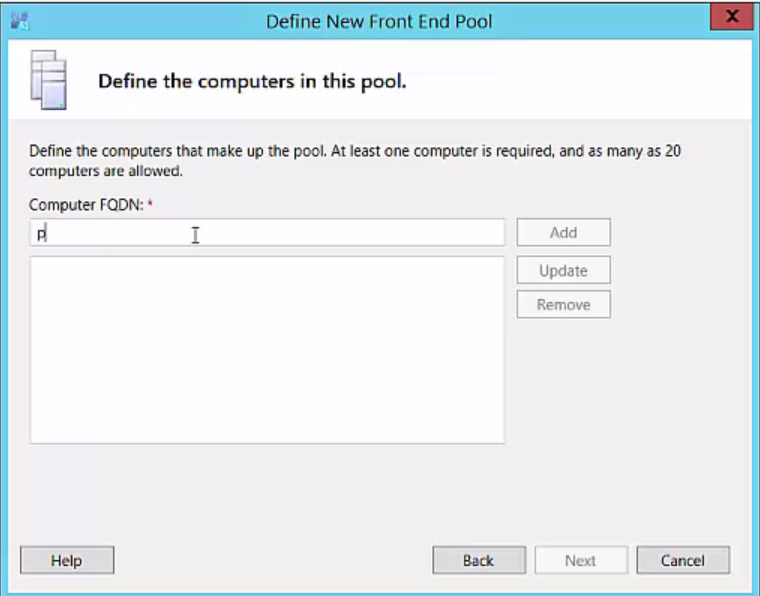
7. Add the computers that will be part of this pool

image

8. If there any roles you would like to collocate

image

9. choose whether if not you want to use an edge

image

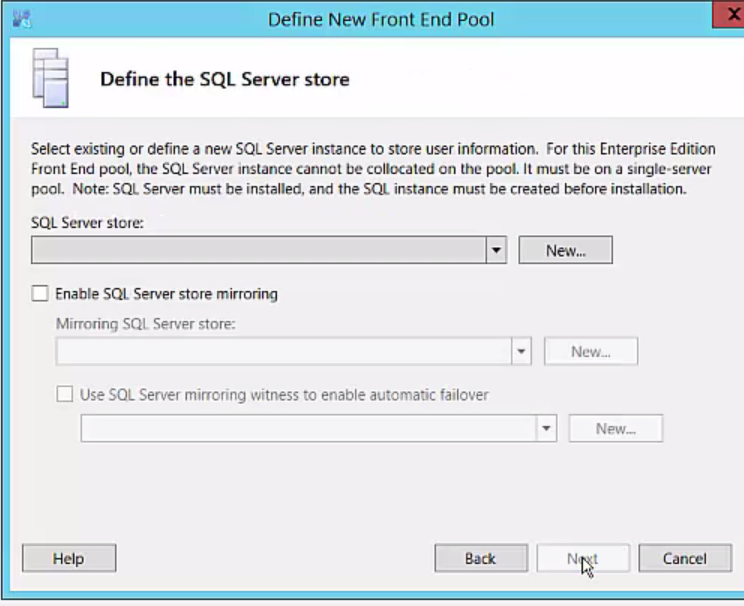
10. Define a SQL store

image

image

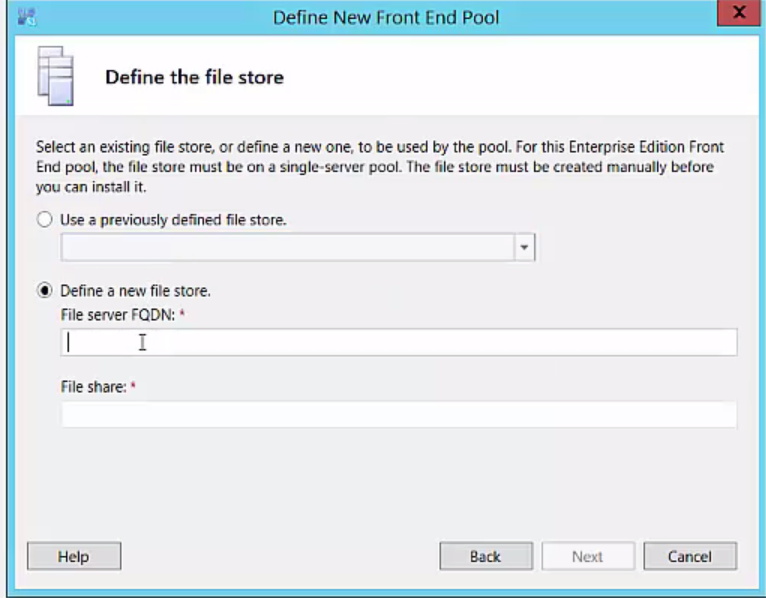
11. Define a file store – define a new file store for an existing share

image

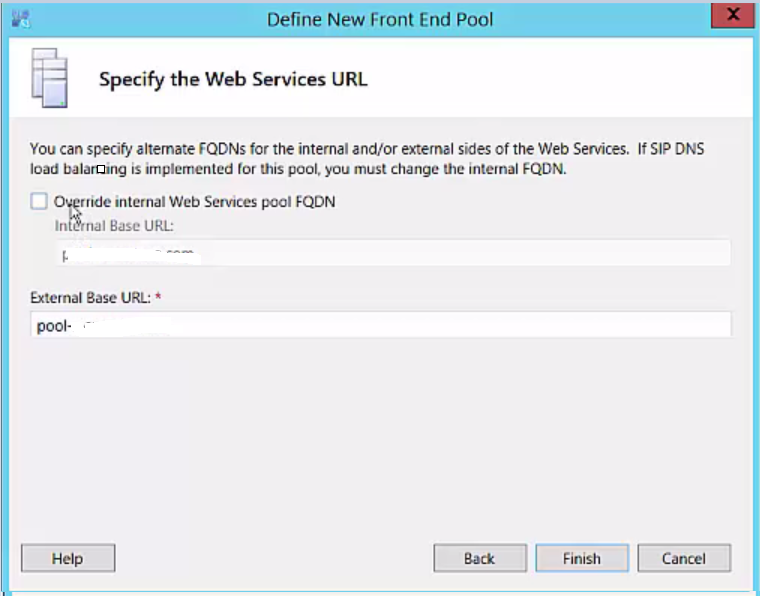
12. Specify the web services URL 

image

13. Click FINISH

image

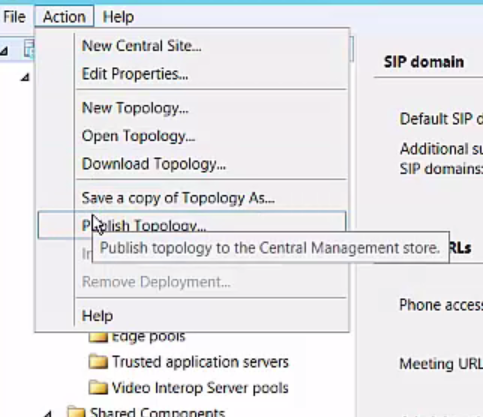
14. Publish The topology – this will publish the configuration in to the central management store

image

Good luck! סמיילי

ADSync error – OnlineIdentityException–0x8023134a–Last name was changed

I recently dealt with an issue with Office 365 and the "Directory Synchronization service manager" where two of the users who had been previously syncing to Office 365 with no problems started to receive the error "OnlineIdentityException "

The Error Description was:

"The cause of the error is not clear. This operation will be retried during the next synchronization. If the issue persists, contact Technical Support.

Tracking Id: 8a1fee60-18d9-4a4c-83d2-b17fbc074b20
ExtraErrorDetails:

image

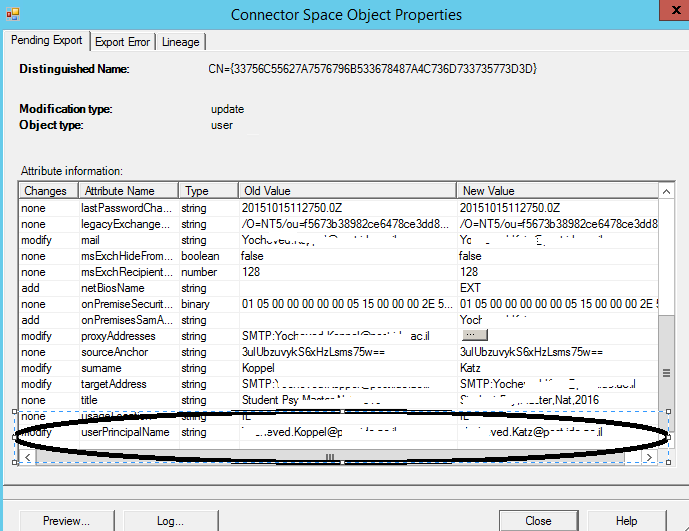
After looking at all the old and new Attribute of the users under :Pending export" I notice that the last name was changed

image

This environment  is  Exchange online environment -  where all mailboxes are in the cloud.

I removed the old user Using "Windows Azure Active Directory Module for Windows PowerShell":


1. Connect to Office 365 via Powershell

2. Download and Install the "Windows Azure Active Directory Module for Windows Powershell" (available here)

3. Run the following commands (make sure you have the credentials for a global administrator for the Office 365 subscription)

Import-Module MSOnline

Connect-MsolService

get-msoluser -UserPrincipalName   "Useroldlastname@domain.com" |Remove-MsolUser

Check that the user is deleted from the cloud

get-msoluser -UserPrincipalName   "Useroldlastname@domain.com"

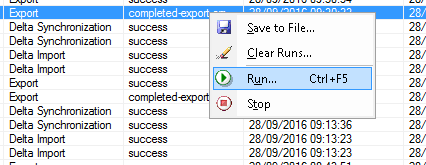
run the export stage again from the "Synchronization service manager"   and the problem was solved!

image

image


* Please notice – The Remove-MsolUser command is used to remove a user from the  cloud This command will delete the user, their licenses, and any other associated data. 

Enjoy סמיילי

SCCM – Adding driver package to a task sequence

1. First we need to create a folders and copy the Network, Display, Chipset, Audio, Modem, SATA drivers in to it.

For example OptiPlex3020Win7X64

2. Create a driver package in SCCM Console:

Give the package a name matching the folder name

Note: When you create a new driver package you must provide a network share that is not in use by other driver packages.

Distribute your driver package to DP’s

image


3. Add the  driver package to a task sequence

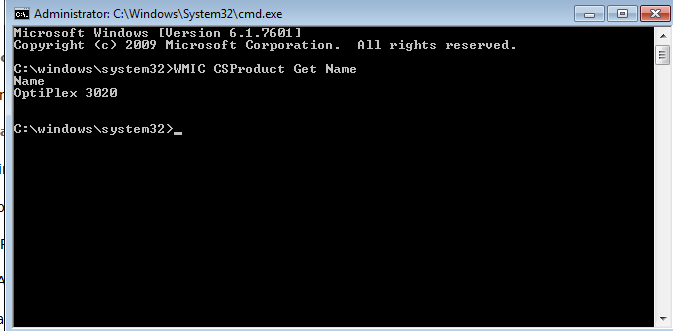
First we need to get the model name from the existing machine by Opening CMD on the Machine and type:  WMIC CSProduct Get Name

image

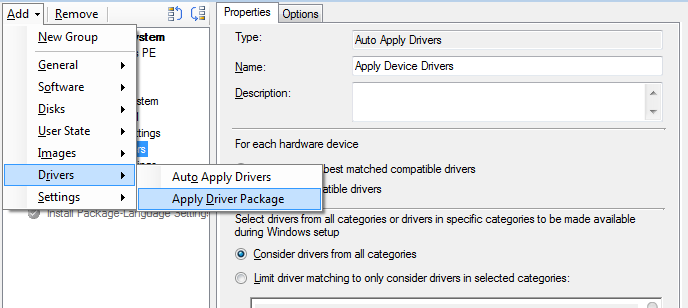
In task sequence “Apply driver package” task


image

Choose the Driver package you created

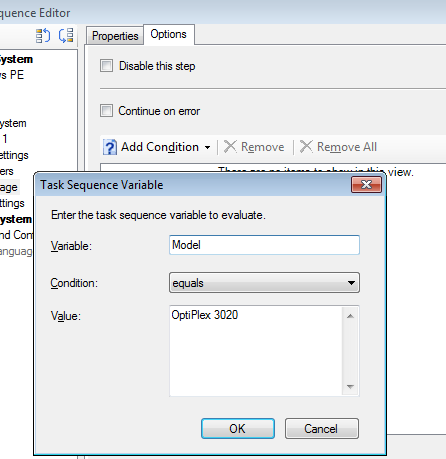
In the options tab, enter a task sequence variable of model equals "model name"

image

you can also use a WMI query instead such as

Select * from Win32_computersystem where model like "%OptiPlex 3020%"


Good luck סמיילי
GPO – Event ID 1058, Group Policy gpt.ini–Solved

"The Processing of Group Policy failed. Windows attempted to read the file \\domain\sysvol\domain\policies\{xxxxxxxx-xxxx-xxxx-xxxx-xxxxxxxxxxxx}\gpt.ini from a domain controller and was not successful."


Under \\domain\sysvol\domain\policies\{xxxxxxxx-xxxx-xxxx-xxxx-xxxxxxxxxxxx}  – there was no ini file  so I realized that GPO is probably corrupted

In order to determine which group policy is causing this problem .I used PowerShell  to find the friendly name of that specific GPO:

Get-GPO -id 9189e970-5663-4866-92a0-0eb2a22aab0b |select DisplayName

image

After recreating the gpo everything worked fine.


More information about  Group Policy Cmdlets in Windows PowerShell:

https://technet.microsoft.com/en-us/library/ee461027.aspx

Force Vmware VM to boot from CD

  • Edit the machine settings:

VM_EditSettings

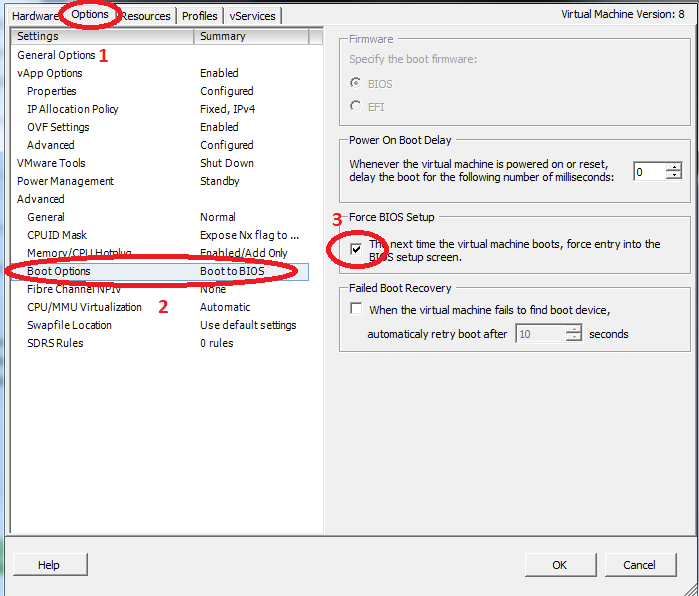
  • Go to Options tab, select Boot Options, and then Force BIOS Setup:

VM_BootToBios

  • In the BIOS go to “Boot” tab, Then stand on the “CD-ROM Drive” and hit the “+” in the keyboard to get the CD-ROM to be first, and hit F10 to save and restart

VM_BiosBootOrder

Resetting windows server 2012 R2 local administrator or any local user passwords

  • Boot the server with the original windows media (You can obtain original media directly from MS for free as a 180 days free Evaluation: https://www.microsoft.com/en-us/evalcenter/evaluate-windows-server-2012-r2 )
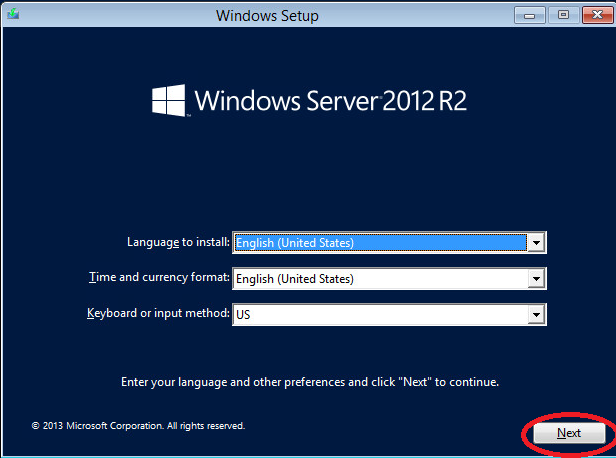
  • Click “Next” on the first setup screenwin2012R2_setup_screen
  • Then click “Repair your computer”win2012R2_setup_screen2
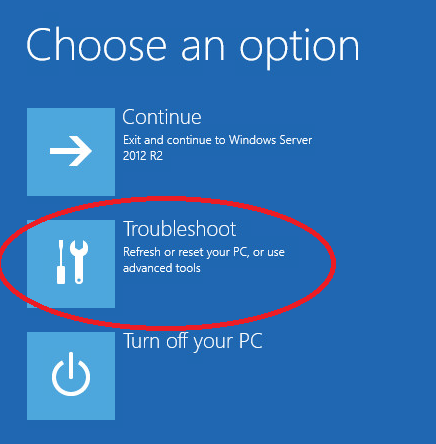
  • Then click “Troubleshoot”win2012R2_Troubleshoot
  • And “Command Prompt”win2012R2_Troubleshoot_Screen
  • Then in Command Prompt enter the following commands (In most cases the drive should be C and not D like in the example):win2012R2_CMD
  • Eject the windows media and reboot the server back to the lock screen
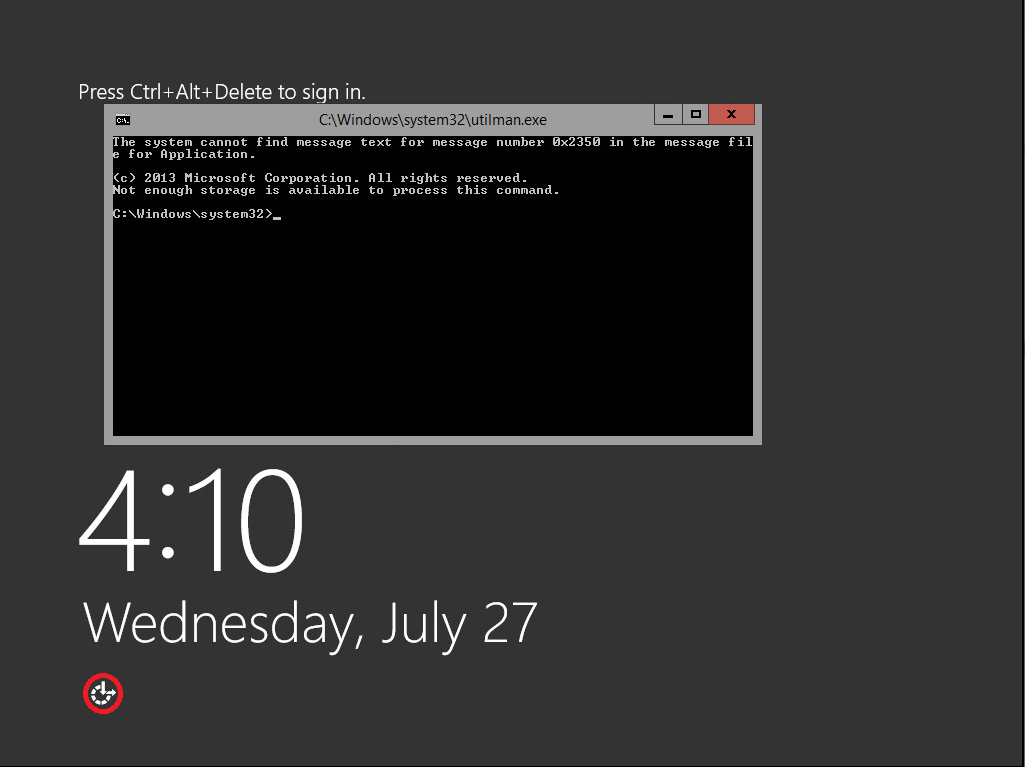
  • From the lock screen you can either click WIN + U in the keyboard or just click the “Ease of access” button in the welcome screen, This will try to open the ease of access executable (Utilman.exe) which is actually right now cmd.exe and will run it with highest privlages:win2012R2_Welcom_Screen
  • From that cmd window you can just use: “net user administrator NEWPASSWORD”, but in case the administrator name was changed you can also do what I showed in the screenshot to first find the administrator name:win2012R2_cmd_Reset_Pass
  • Don’t forget to reinsert the media, boot into Troubleshooting again and do the following in CMD (Otherwise you will not have “Ease of access” anymore):win2012R2_CMD_renBack
  • Good Luck!