Category Archives: Office365 Proplus

Office 365 Proplus– Forward from external contact to email address

Consider the following scenario

you  have an hybrid office365 environment
You need to Forward to one or more people all emails that sends to a global email address such as Sales@doamin.com but you don’t want to waste a license in the cloud by creating mailbox for this email address.

In this case you can create an external contact with the global email address and then create a rule to redirect all emails that sends to this email address to other email address or to a distribution group.

Follow this steps:

1. create an external contact :

Create a contact in your On-premises Exchange EMC

2. Under Recipient Configuration –> Mail contact –> New mail contact
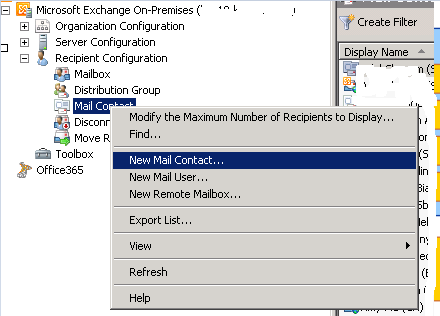
image

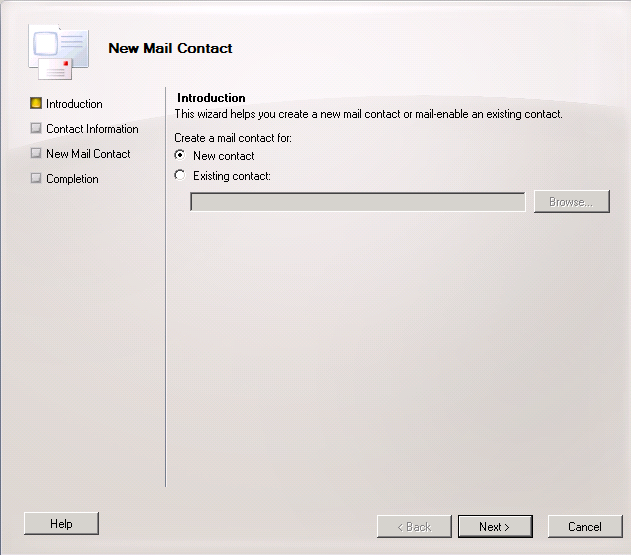
3. Create a new contact  or use an existing one
image

4. Type the details for the contact

image

5. Press New

image

Now you will need to sync Dirsync manually in order to see the contact in the cloud immediately

Create a transport Rule for the contact

1. Login to Office365 Portal using admin credentials

2. On the Admin page under – Service Settingsmail flow – click on Custom mail rules

image

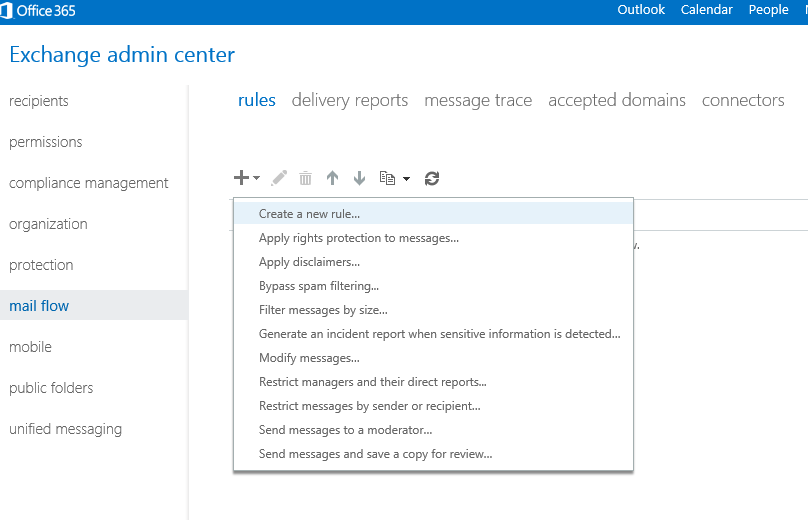
3. Rules –> press on the image button and select – Create New rule

 image

4. Give the rule a name and select from the drop down list –> The recipient is

image

5. Search for the contact and click on add

image

6. Under – Do the following Select – Redirect the message to

image

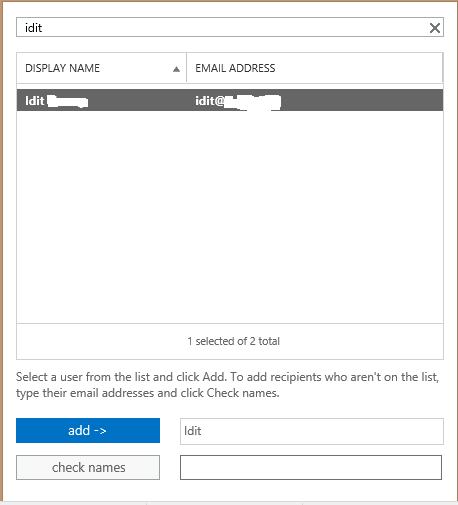
7. select the users or group and click add
image

Good luck!


Idit.

Office 365 Proplus– Forward from external contact to email address

Consider the following scenario

you  have an hybrid office365 environment
You need to Forward to one or more people all emails that sends to a global email address such as Sales@doamin.com but you don’t want to waste a license in the cloud by creating mailbox for this email address.

In this case you can create an external contact with the global email address and then create a rule to redirect all emails that sends to this email address to other email address or to a distribution group.

Follow this steps:

1. create an external contact :

Create a contact in your On-premises Exchange EMC

2. Under Recipient Configuration –> Mail contact –> New mail contact

image

3. Create a new contact  or use an existing one

image

4. Type the details for the contact

image

5. Press New

image

Now you will need to sync Dirsync manually in order to see the contact in the cloud immediately

Create a transport Rule for the contact

1. Login to Office365 Portal using admin credentials

2. On the Admin page under – Service Settingsmail flow – click on Custom mail rules

image

3. Rules –> press on the image button and select – Create New rule

 image

4. Give the rule a name and select from the drop down list –> The recipient is

image

5. Search for the contact and click on add

image

6. Under – Do the following Select – Redirect the message to

image

7. select the users or group and click add

image

Good luck!


Idit.

Error message when you try to connect to Office 365 Forest with Exchange Management Shell (EMS) or Exchange Management Console (EMC): "The WinRM client… cannot determine the content type of the HTTP response from the destination computer"

In my case I add a problem to connect to Office365 forest with my domain credentials .

When trying to connect to Office365 Forest using EMC with my admin onmicrosoft (admin@domain.onmicrosoft.com) user it worked fine.

When trying to connect to Office365 Forest using EMC by checking the “Logon with default credentials” :

image

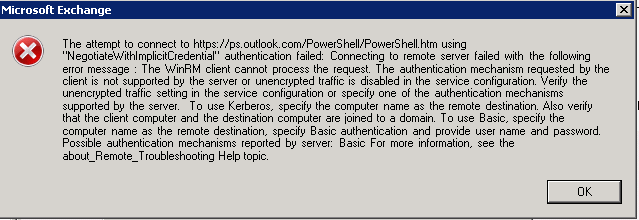
I got the following error :

image

When trying to write my user name and password in the domain , I got the following error :

clip_image001


Solution :

The solution was very simple , all I had to do is to write my full domain User Principal name (UPN) : Idit@domain.com and it worked

* If you are still getting the same error , try to follow this article : http://support.microsoft.com/kb/2028305


Good luck Smile

Error message when you try to connect to Office 365 Forest with Exchange Management Shell (EMS) or Exchange Management Console (EMC): “The WinRM client… cannot determine the content type of the HTTP response from the destination computer”

In my case I add a problem to connect to Office365 forest with my domain credentials .

When trying to connect to Office365 Forest using EMC with my admin onmicrosoft (admin@domain.onmicrosoft.com) user it worked fine.

When trying to connect to Office365 Forest using EMC by checking the “Logon with default credentials” :

image

I got the following error :

image

When trying to write my user name and password in the domain , I got the following error :

clip_image001


Solution :

The solution was very simple , all I had to do is to write my full domain User Principal name (UPN) : Idit@domain.com and it worked

* If you are still getting the same error , try to follow this article : http://support.microsoft.com/kb/2028305


Good luck Smile

Office365 proplus – Enable BlackBerry

1. Login to your office 365 portal online  – portal.microsoftonline.com

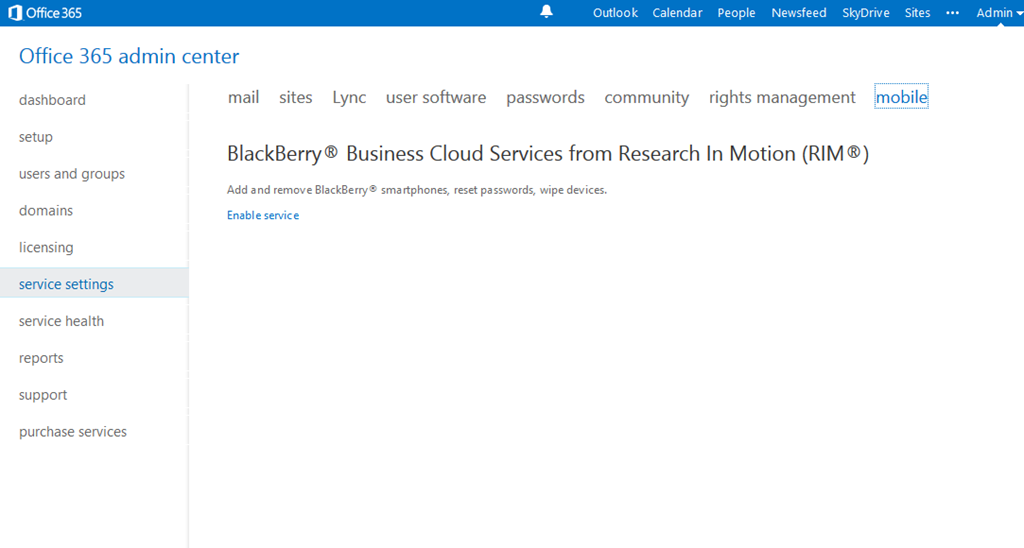
2. Under – Service settings –> Mobile –>  Enable service

image