Category Archives: Windows

Remote desktop connection with 2 or more multiple screens

  • Hit “Winkey + R” to open the “Run” box
  • write mstsc and hit Enter

Run_Mstsc

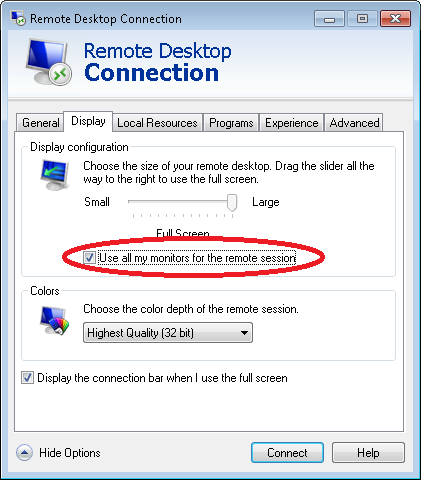
  • Click the “Show options” button and go to Options tab, mark the “Use all my monitors” checkbox.
RDP_MultipleScreens

  • Enjoy!

Resetting windows server 2012 R2 local administrator or any local user passwords

  • Boot the server with the original windows media (You can obtain original media directly from MS for free as a 180 days free Evaluation: https://www.microsoft.com/en-us/evalcenter/evaluate-windows-server-2012-r2 )
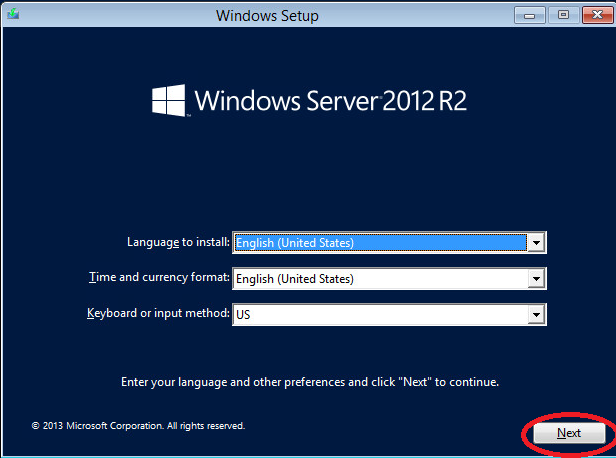
  • Click “Next” on the first setup screenwin2012R2_setup_screen
  • Then click “Repair your computer”win2012R2_setup_screen2
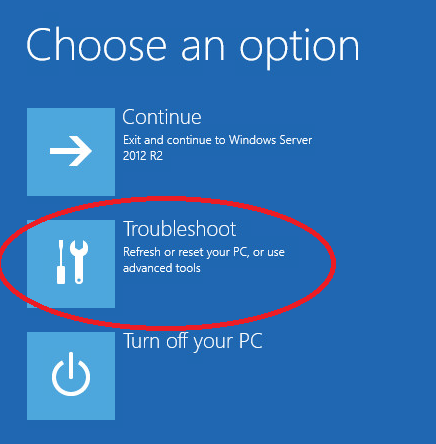
  • Then click “Troubleshoot”win2012R2_Troubleshoot
  • And “Command Prompt”win2012R2_Troubleshoot_Screen
  • Then in Command Prompt enter the following commands (In most cases the drive should be C and not D like in the example):win2012R2_CMD
  • Eject the windows media and reboot the server back to the lock screen
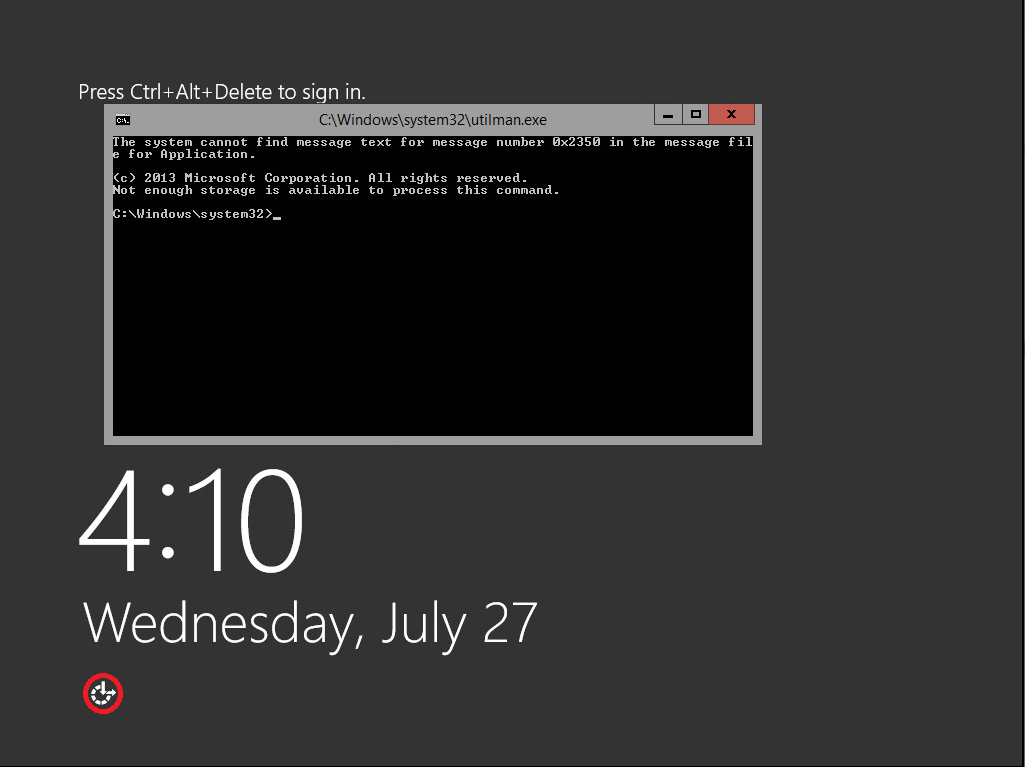
  • From the lock screen you can either click WIN + U in the keyboard or just click the “Ease of access” button in the welcome screen, This will try to open the ease of access executable (Utilman.exe) which is actually right now cmd.exe and will run it with highest privlages:win2012R2_Welcom_Screen
  • From that cmd window you can just use: “net user administrator NEWPASSWORD”, but in case the administrator name was changed you can also do what I showed in the screenshot to first find the administrator name:win2012R2_cmd_Reset_Pass
  • Don’t forget to reinsert the media, boot into Troubleshooting again and do the following in CMD (Otherwise you will not have “Ease of access” anymore):win2012R2_CMD_renBack
  • Good Luck!

When adding Office 2016 product keys to KMS – The specified KMS product key is invalid, of is unsupported by this version of VAMT. An update to support additional products may be available online.


Add Office 2016 Key to KMS server:

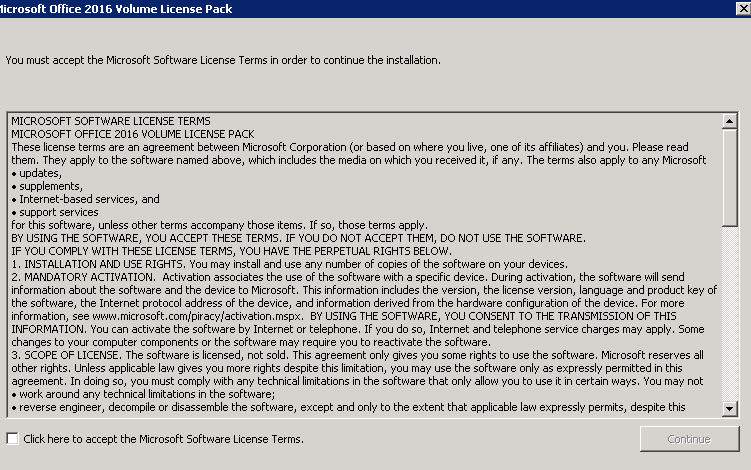
In order to add the KMS you need to install the Microsoft Office 2016 Volume License Pack

1. Download the Microsoft Office 2016 Volume License Pack  fro here

 https://www.microsoft.com/en-us/download/details.aspx?id=49164

Follow the steps: 

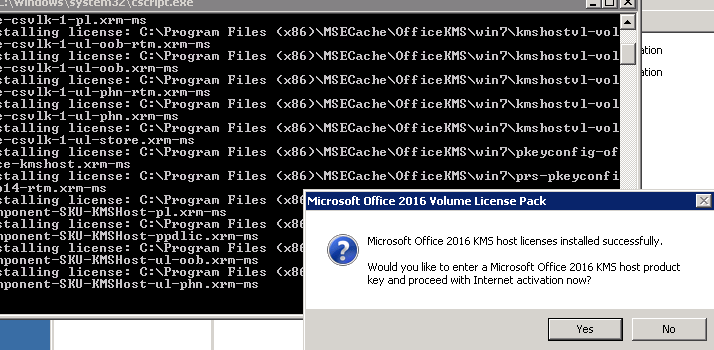
image

Click Yes

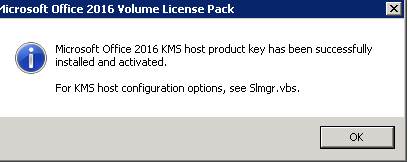
image

Enter the Product Key

image

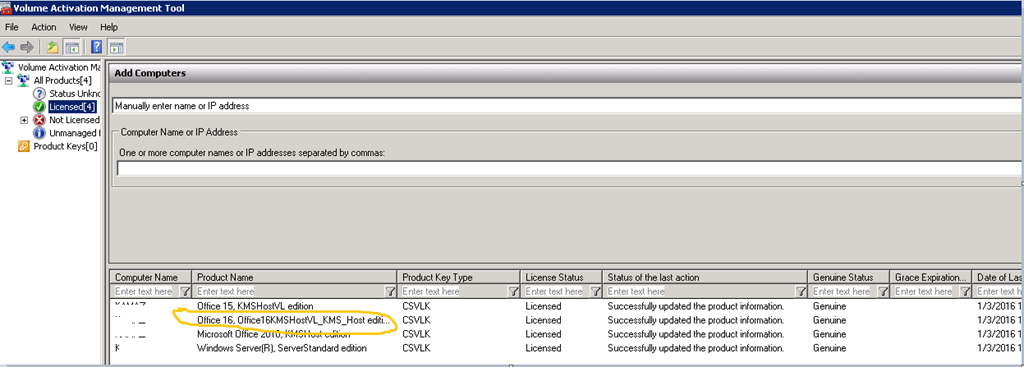
Open VMAT to see the new office 2016 product key

image


Good luck! סמיילי

When adding Windows 10 product keys to KMS – The specified KMS product key is invalid, of is unsupported by this version of VAMT. An update to support additional products may be available online.


image


If you  receive this error while trying to import your Windows 10 product keys to KMS VAMT server 3.1, it means that you need to upgrade your VAMT version.

It is not possible to import Windows 10 keys in VAMT 3.1 keys.


Download the adk from here

http://go.microsoft.com/fwlink/p/?LinkId=526740


Installation:

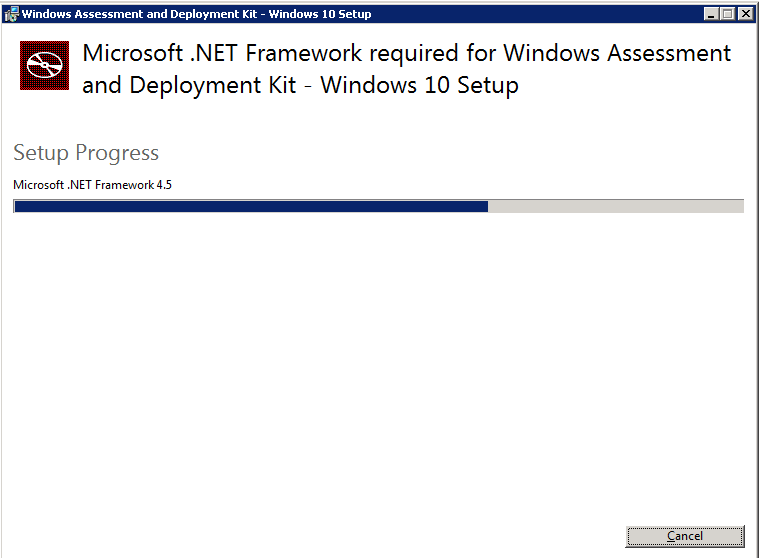
1. If you don’t have .Net framework on your KMS server the setup will install it, After the .net installation the server will reboot


image

2. Specify location

image

3. Privacy

image

4. License Agreement

image

5. Select VAMT

image

6. Installing

image

7. Done

image

8. Open

image

9. Choose the VMAT DB And connect

image

10. Import your windows 10 product key

image

image

Good luck! סמיילי

Ping multiple computers

I came across this need  to check the availability of multiple devises by pinging them  , this script will preform ping to computers from a csv file and will create another CSV file with the computer name and true if it has ping false if it doesn’t

There are two script

1. Ping to Computer name

2. Ping to IP address

You will need to create a CSV file with the computer list and call it – “Complist.csv”

save it in the same folder with the script

the script will run on this file and create a new file called  “complist-ping.csv”

Search by Computer name  Script :

  • Copy the text and save it as VBS

Function Ping(strHost)
  Ping = False
  set objPing = GetObject("winmgmts:{impersonationLevel=impersonate}").ExecQuery("select * from Win32_PingStatus where address = ‘" & strHost & "’")
  for each objRetStatus in objPing
    if IsNull(objRetStatus.StatusCode) or objRetStatus.StatusCode<>0 then
      Ping = False
    else
      Ping = True
    end if
  next
  set objPing = nothing
End Function
 
set fs = CreateObject("Scripting.FileSystemObject")
set objfile = fs.OpenTextFile("complist.csv")
i = 0
Set mf = fs.CreateTextFile("complist-ping.csv",false)
do while not objfile.AtEndOfStream
  arr2 = split(objfile.ReadLine,",")
  if (ubound(arr2) <> -1) then
    if (left(arr2(0),1) <> ";")and(left(arr2(0),1) <> "#") then
      mf.writeline(arr2(0) & "," & cstr(Ping(arr2(0))))
      i = i + 1
    end if
  end if
Loop
objfile.close
mf.close
set objfile = nothing
 
set fs = nothing
set wa = nothing
set objEnv = nothing
set objNetwork = nothing
wscript.echo "Done " & i

Search by IP Address

  • Copy the text and save it as VBS

Function Ping(strIP)
  Ping = False
  set objPing = GetObject("winmgmts:{impersonationLevel=impersonate}").ExecQuery("select * from Win32_PingStatus where address = ‘" & strIP & "’")

  for each objRetStatus in objPing
    if IsNull(objRetStatus.StatusCode) or objRetStatus.StatusCode<>0 then
      Ping = False
    else
      Ping = True
    end if
  next
  set objPing = nothing
End Function
 
set fs = CreateObject("Scripting.FileSystemObject")
set objfile = fs.OpenTextFile("complist.csv")
i = 0
Set mf = fs.CreateTextFile("complist-ping.csv",false)
do while not objfile.AtEndOfStream
  arr2 = split(objfile.ReadLine,",")
  if (ubound(arr2) <> -1) then
    if (left(arr2(0),1) <> ";")and(left(arr2(0),1) <> "#") then
      mf.writeline(arr2(0) & "," & cstr(Ping(arr2(0))))
      i = i + 1
    end if
  end if
Loop
objfile.close
mf.close
set objfile = nothing
 
set fs = nothing
set wa = nothing
set objEnv = nothing
set objNetwork = nothing
wscript.echo "Done " & i

Good luck Smile

Show who holds the FSMO roles in the domain and forest.

log onto a domain controller and run the following command.

netdom query fsmo

clip_image001

Powershell error : “.ps1 cannot be loaded because the execution of scripts is disabled on this system”

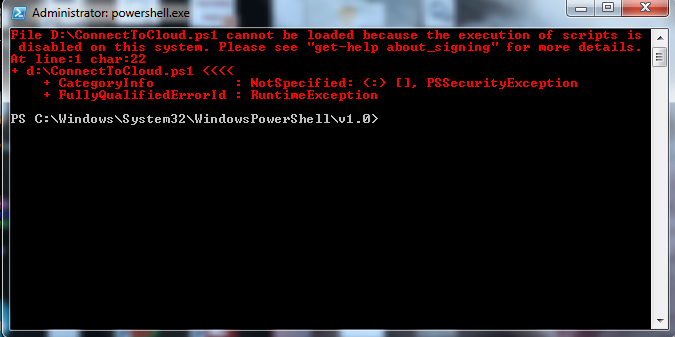
When You are trying to run a PS1 script in Power shell you are getting the following error:

“File C:\scripts\.ps1 cannot be loaded because the execution of scripts is disabled on this system. Please see “get-

help about_signing” for more details.

At line:1 char:19

+ c:\scripts\.ps1 <<<<”


The security settings built into Windows PowerShell include something called the “execution policy;” the execution policy determines how (or if) PowerShell runs scripts. By default, PowerShell’s execution policy is set to Restricted; that means that scripts – including those you write yourself – won’t run.

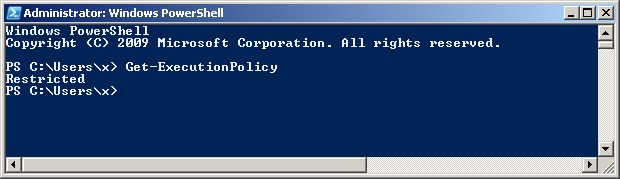
You can see it by runnig to command: Get- ExecutionPolicy

As you can see , Its restricted


For enabling it just run :

Set-ExecutionPolicy -ExecutionPolicy Unrestricted

Now you can run your PS1 script

*Note: the unrestricted option will allow  All scripts from all sources can be run without signing

A safer option will be tp run

Set-ExecutionPolicy -ExecutionPolicy RemoteSigned


“system volume information” folder grow into a huge size

there are 2 ways to make this folder smaller,

the first GUI method changes from one OS to another so i will not specify all the OS options here,

a simple search in google with: “configure shadow copies windows [your OS]” will give you the results for your OS

the CLI method is the same for all windows versions so i will give it here.

1. To see the space allocated and used for SVI folder:

– Open Command Prompt with “Run as Administrator” option
– Type in: vssadmin list shadowstorage
– You will see Used Space, Allocated Space and Maximum Space for SVI folder

2. To see the restore information stored therein:

– Use in the same console command: vssadmin list shadows

3. To resize the maximum allocated space:

– Type in command: vssadmin resize shadowstorage /on=[here add the drive letter]:           /For=[here add the drive letter]: /Maxsize=[here add the maximum size]
E.g., vssadmin resize shadowstorage /on=C: /For=C: /Maxsize=4GB

– You will see a prompt confirming resize done
– You can check the status again using the command discussed in point 1 above

thanks to Sean Zhu for the solution